La gestión remota de pasarelas industriales resulta especialmente útil cuando los ingenieros pueden configurar, programar y solucionar problemas en los dispositivos de campo sin tener que desplazarse repetidamente al emplazamiento. En esta guía, explicamos cómo utilizar IOTClient para gestionar pasarelas desde una plataforma central, desde la adición y agrupación de dispositivos hasta la configuración remota, la programación remota y el acceso a la LAN. También tratamos el panel de control, la gestión de usuarios y roles, y la configuración de inquilinos, para que puedas comprender el flujo de trabajo completo, desde la conexión de la primera pasarela hasta la gestión de múltiples dispositivos y usuarios en el día a día.
I. Overvver
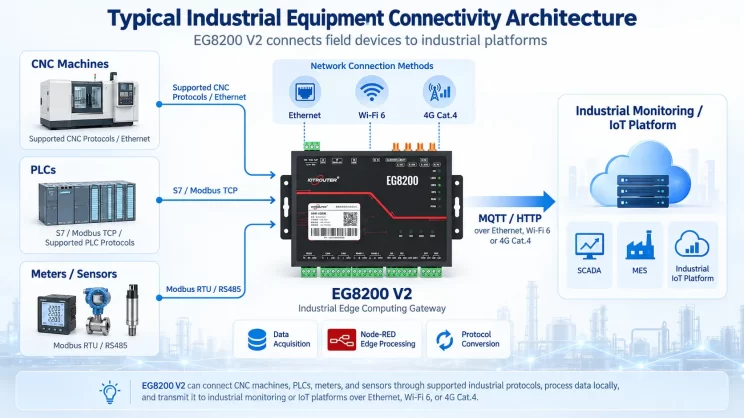
El producto integra funciones básicas como la gestión remota de pasarelas industriales, la programación remota y la conexión remota a la LAN, lo que ofrece una solución integral de operación y mantenimiento remoto para equipos industriales. A través de una plataforma en la nube y la tecnología de túnel VPN seguro, los ingenieros pueden realizar la puesta a punto de los equipos, las actualizaciones de programas y la resolución de problemas sin necesidad de desplazarse in situ, lo que reduce significativamente los costes de desplazamiento y el tiempo de respuesta. El producto cuenta con un diseño «plug-and-play» que permite conectarse con un solo clic; su funcionamiento es sencillo e intuitivo, lo que proporciona una excelente experiencia de usuario. Al mismo tiempo, el sistema emplea múltiples mecanismos de seguridad para garantizar la seguridad de la transmisión de datos y el acceso a los dispositivos, lo que hace que el funcionamiento y el mantenimiento remotos sean sencillos, eficientes y fiables.
Para ver un ejemplo práctico de cómo funciona esto con una pasarela de campo conectada a 4G, consulta nuestro Configuración de la gestión remota de dispositivos mediante una pasarela industrial 4G y IOTClient.
II. Preparaciónaración
- Dirección de acceso: bridge.iotrouter.com
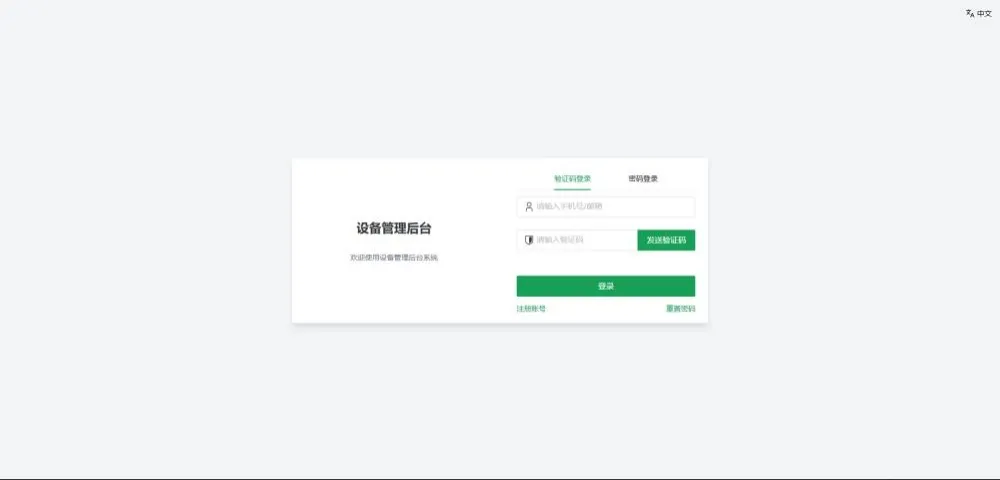
- Inicio de sesión en la cuenta: Si es la primera vez que accede, por favor, complete el registro de la cuenta antes de iniciar sesión.
III. Deshboard
Se ha iniciado sesión correctamente en el backend de gestión de dispositivos y se ha accedido a la página de inicio del panel de control. La página mostrará una visión general de los dispositivos del inquilino actual, incluyendo datos clave como el número total de pasarelas industriales, tasa de conexión en línea, número de dispositivos remotos, estado de los dispositivos y distribución de modelos.
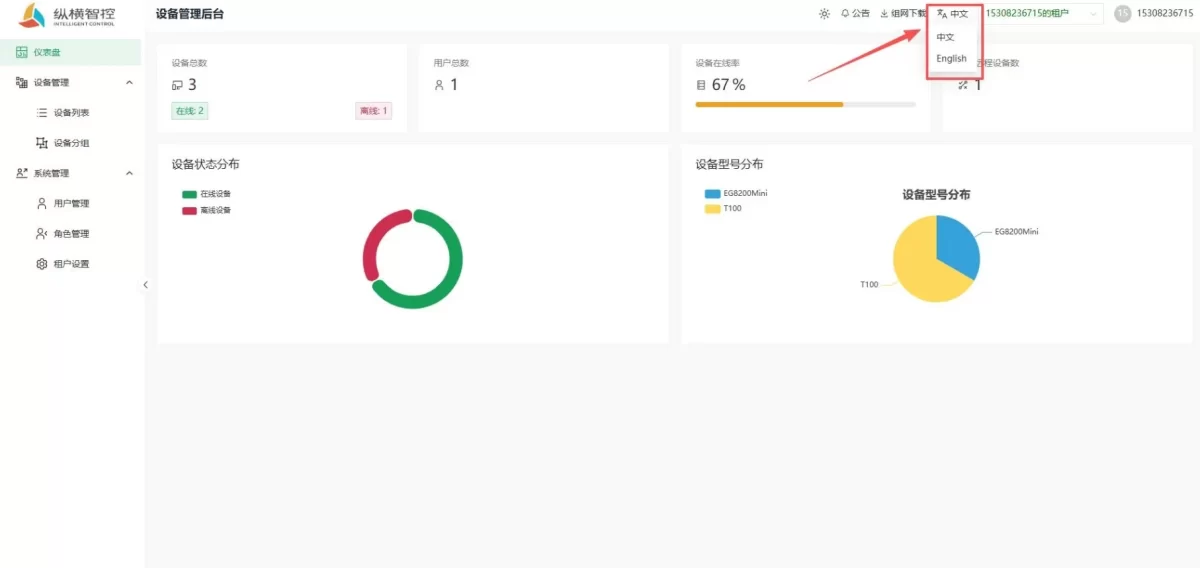
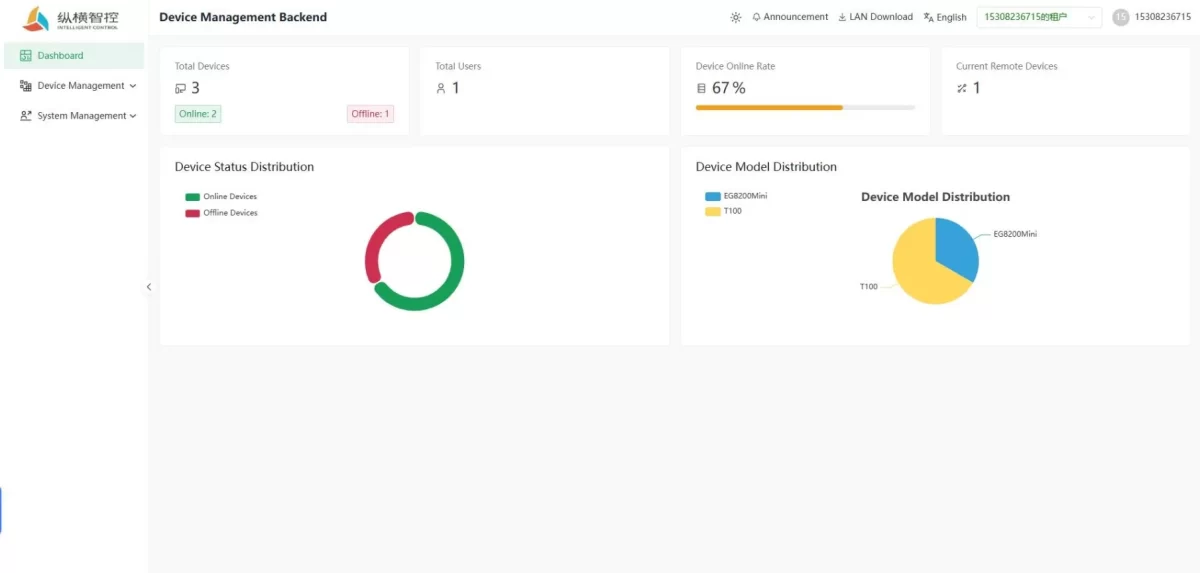
- Número total de dispositivos: Muestra el número total de dispositivos añadidos por el inquilino actual y, además, indica el número de dispositivos sin conexión.
- Número total de usuarios: Muestra el número total de cuentas de usuario asociadas al inquilino actual.
- Tarifa de conexión del dispositivo: Muestra el porcentaje de dispositivos que están conectados.
- Número actual de dispositivos remotos: Muestra el número de dispositivos a los que se está accediendo de forma remota en este momento.
- Distribución del estado de los dispositivos: Un gráfico circular muestra de forma visual el porcentaje de dispositivos que están desconectados.
- Distribución de los modelos de equipos: Un gráfico circular que muestra el porcentaje de los distintos modelos de equipos.
IV. Eqequipamiento Managestión
1. Eqequipamiento Lista
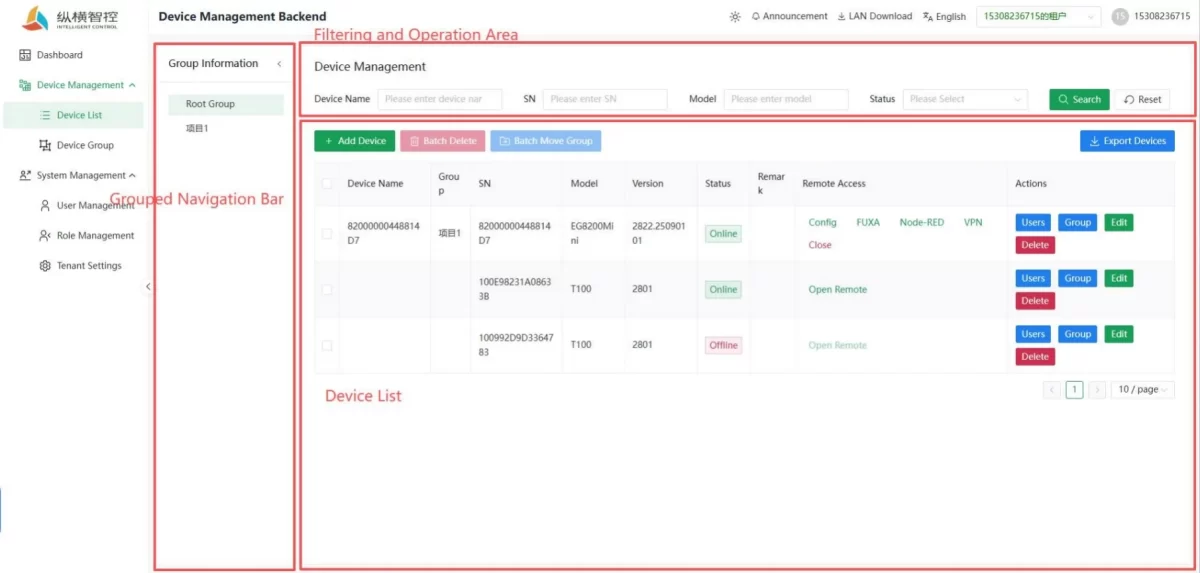
La lista de dispositivos es la página principal de la gestión de dispositivos y ofrece funciones para añadir, eliminar y consultar, modificar y realizar el mantenimiento remoto de los dispositivos.
1) Grupo navigación bar
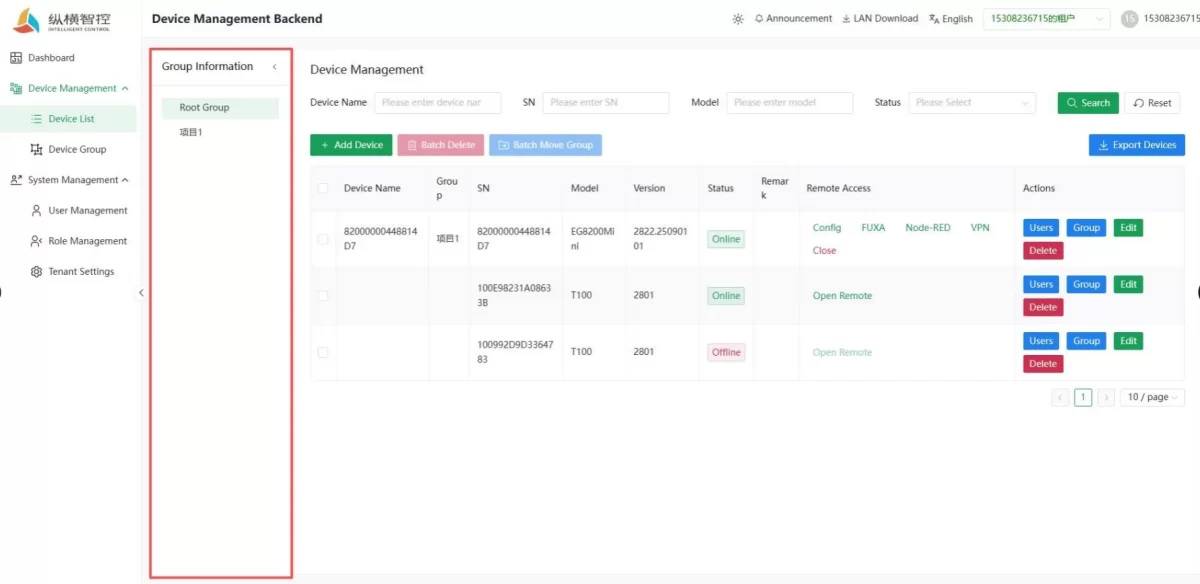
- Grupo raíz: El grupo predeterminado del sistema, que muestra todos los dispositivos del inquilino actual.
- Grupos personalizados (por ejemplo, “Proyecto 1”): Los grupos definidos por el usuario se utilizan para gestionar los dispositivos por proyecto o escenario, lo que permite filtrar de forma rápida y sencilla.
2) Filintermitente ay Óperaación ¿Sona
a) Eqequipamiento proyección
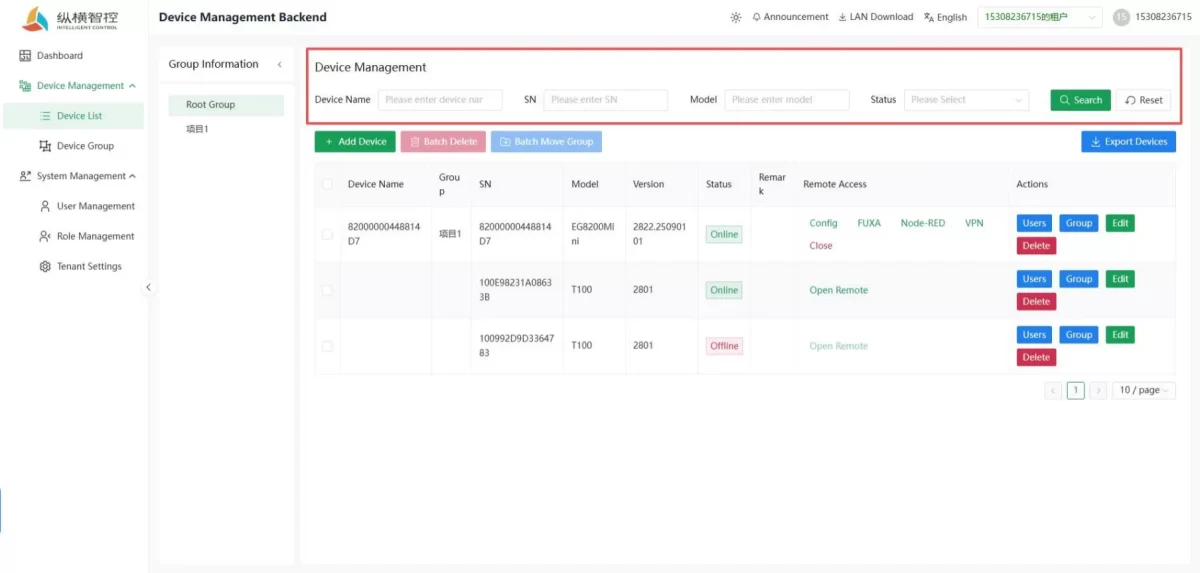
- Filtrado de equipos: Permite realizar búsquedas rápidas de equipos por nombre, número de serie, modelo y estado.
b) Nuevo eqequipamiento
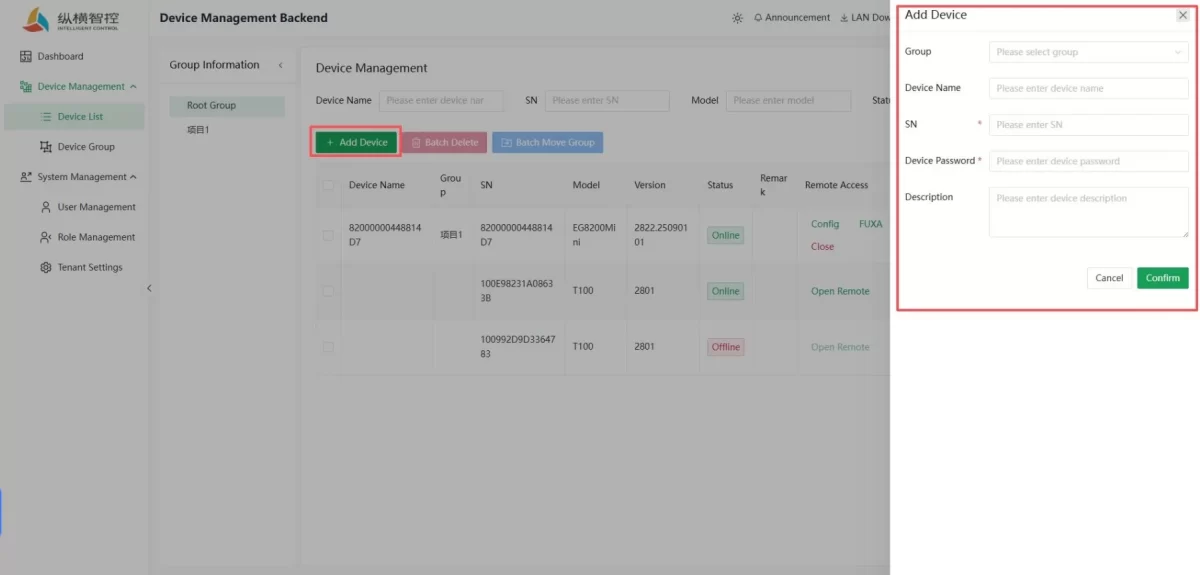
- Añadir un dispositivo: Configura el grupo y personaliza el nombre del dispositivo en la ventana emergente; introduce el número de serie (SN) único de la pasarela y la contraseña de acceso al dispositivo, y envía los datos para completar la vinculación. (Cada pasarela tiene un número de serie (SN) y una contraseña únicos. Una vez vinculada la pasarela, nadie más podrá volver a vincularla a menos que el propietario la elimine de la cuenta correspondiente).
c) Batch óperaaciones
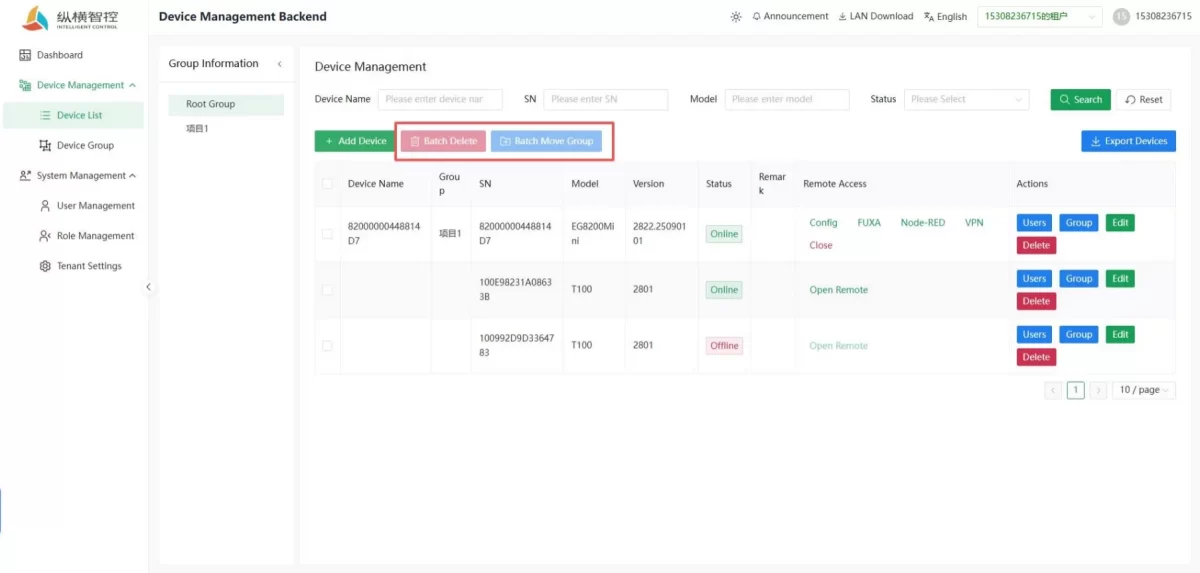
- Operaciones por lotes: Una vez seleccionados varios dispositivos, puedes eliminarlos por lotes con un solo clic o moverlos dispositivos a otros grupos por lotes.
3) Eqequipamiento Lista
Esta área actúa como portal central de visualización y gestión para la administración de un único dispositivo.
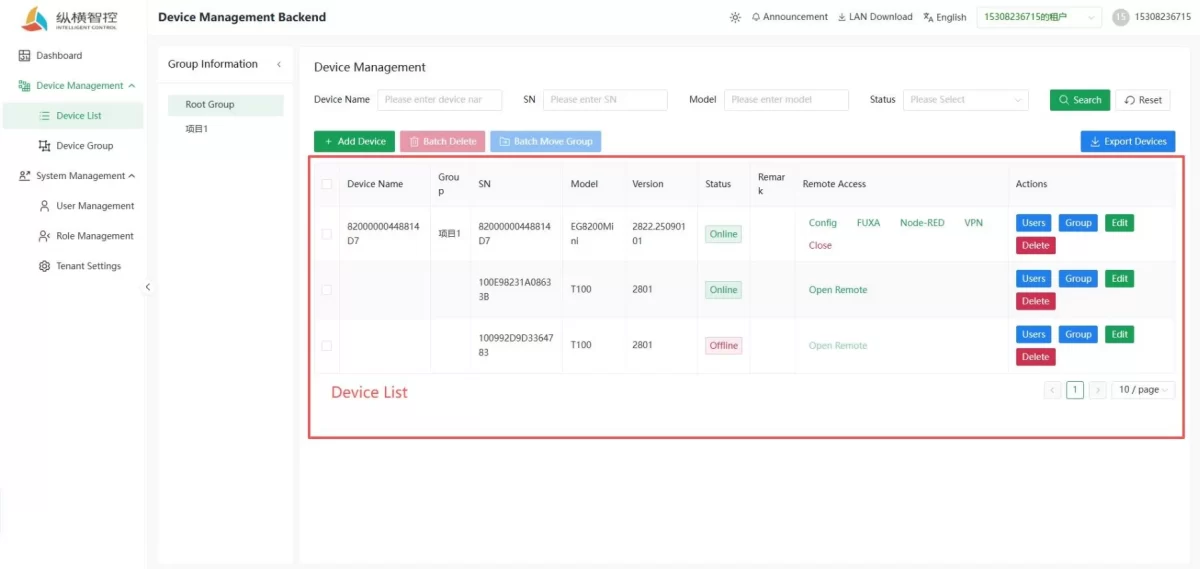
- Pantalla de información: Nombre del dispositivo, Grupo, Número de serie, Modelo, Versión, Estado de conexión y Observaciones
- Acceso remoto: Permite activar o desactivar el acceso remoto para acceder rápidamente a la configuración y al ajuste de los parámetros interfaces.
- Funcionamiento y mantenimiento: Ofrece funciones de gestión como la asignación de usuarios, la modificación de grupos, edición y eliminación.
a) A distancia configuración
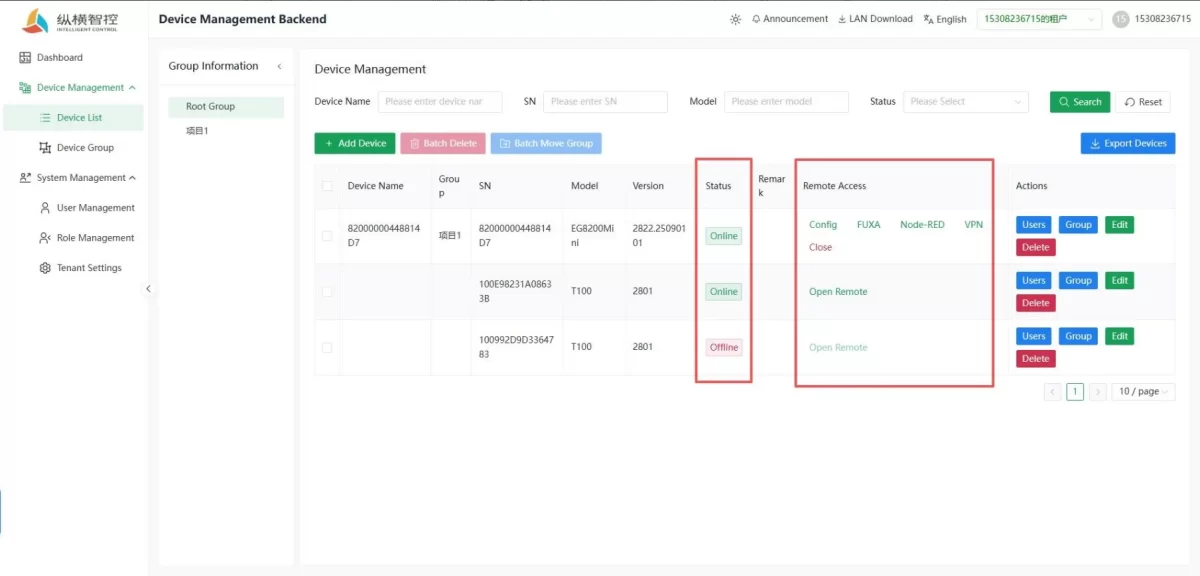
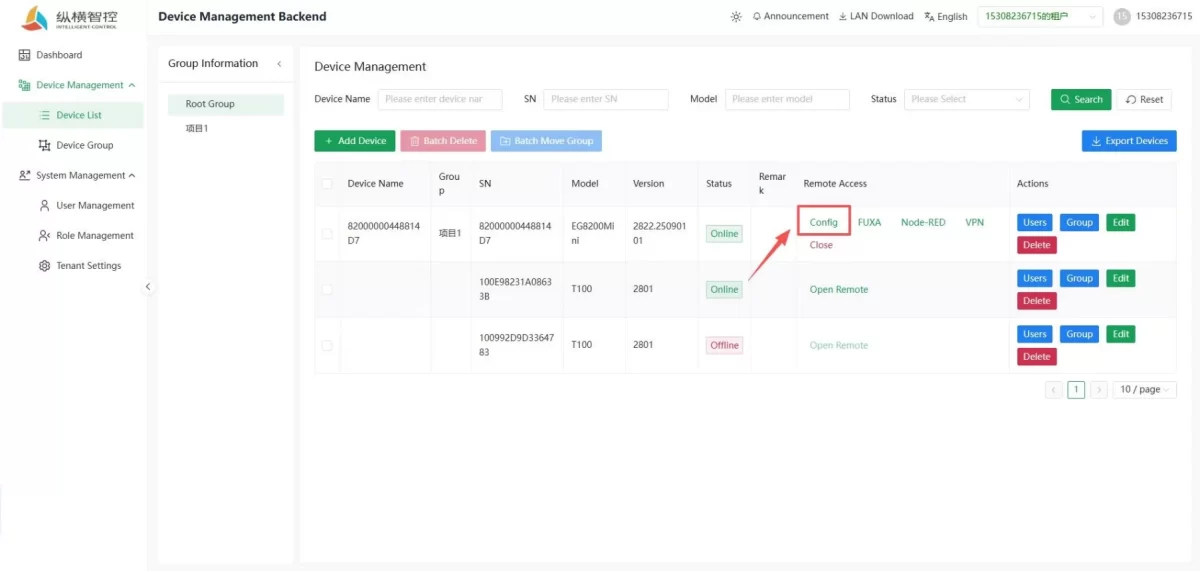
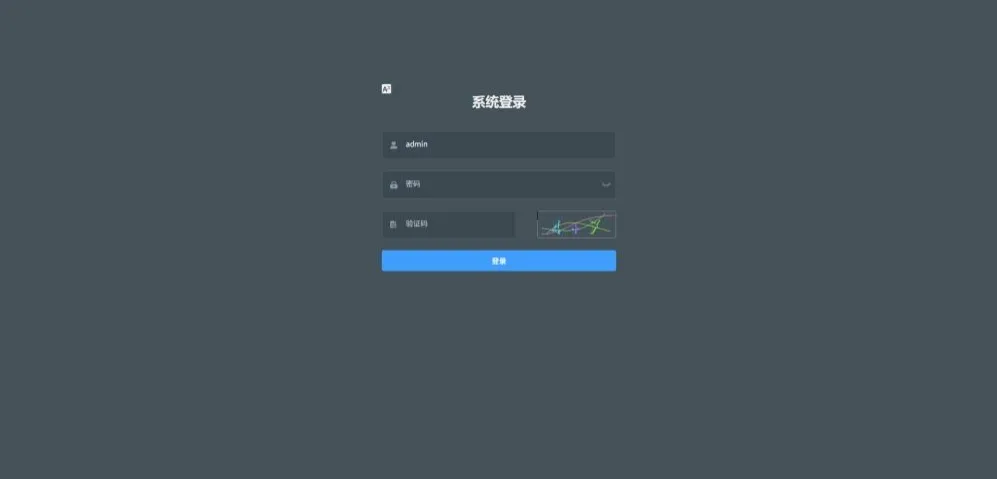
- Configuración remota: Asegúrate de que la pasarela esté conectada, haz clic en “Habilitar configuración remota” y, a continuación, Una vez realizada correctamente la configuración, al hacer clic en el botón “Configurar” se abrirá automáticamente un navegador y se te redirigirá a la interfaz de configuración de la pasarela.
b) A distancia programming
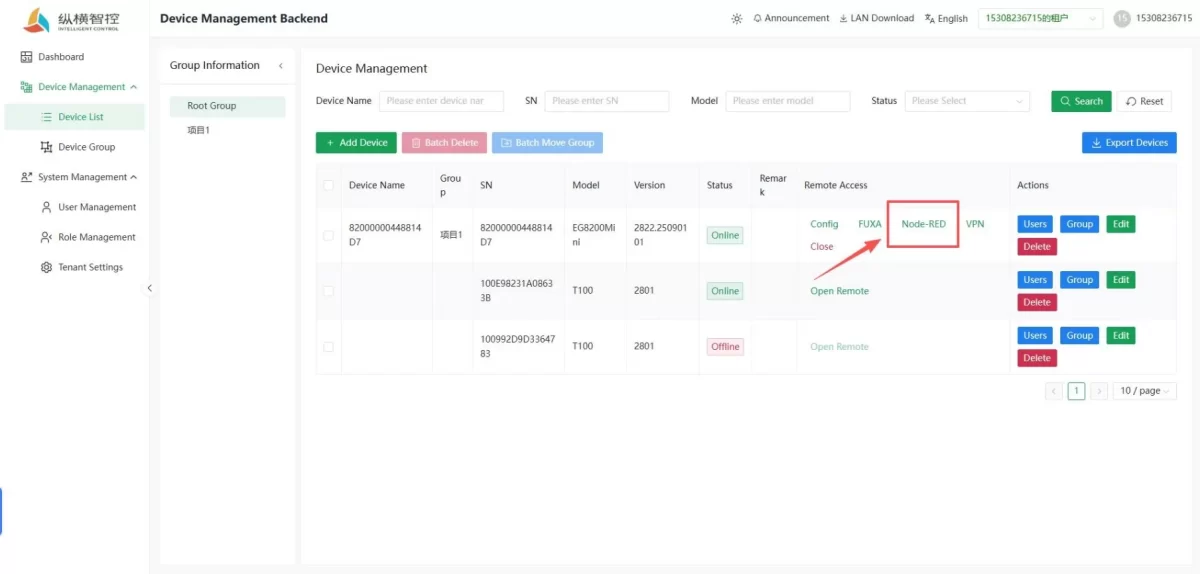
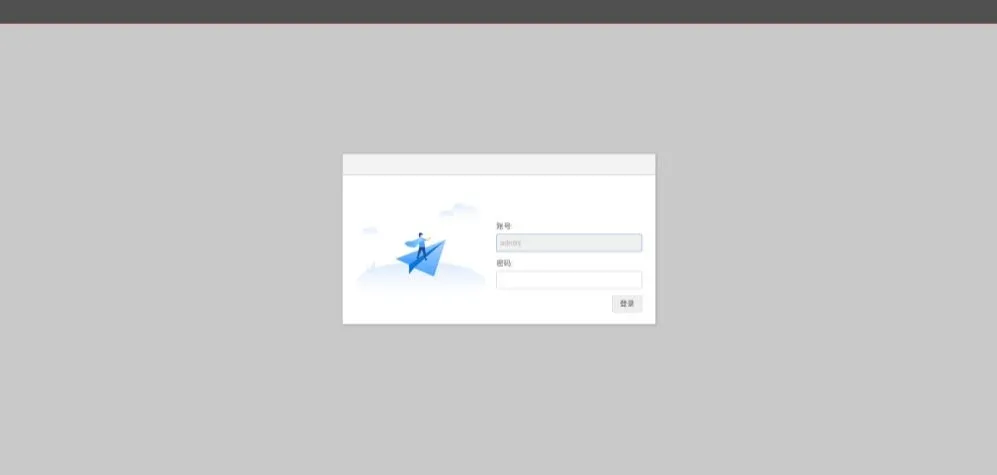
- Programación a distancia: Al hacer clic en el botón «Programación remota», se abrirá automáticamente un navegador y te redirigirá a la interfaz de programación de la pasarela.
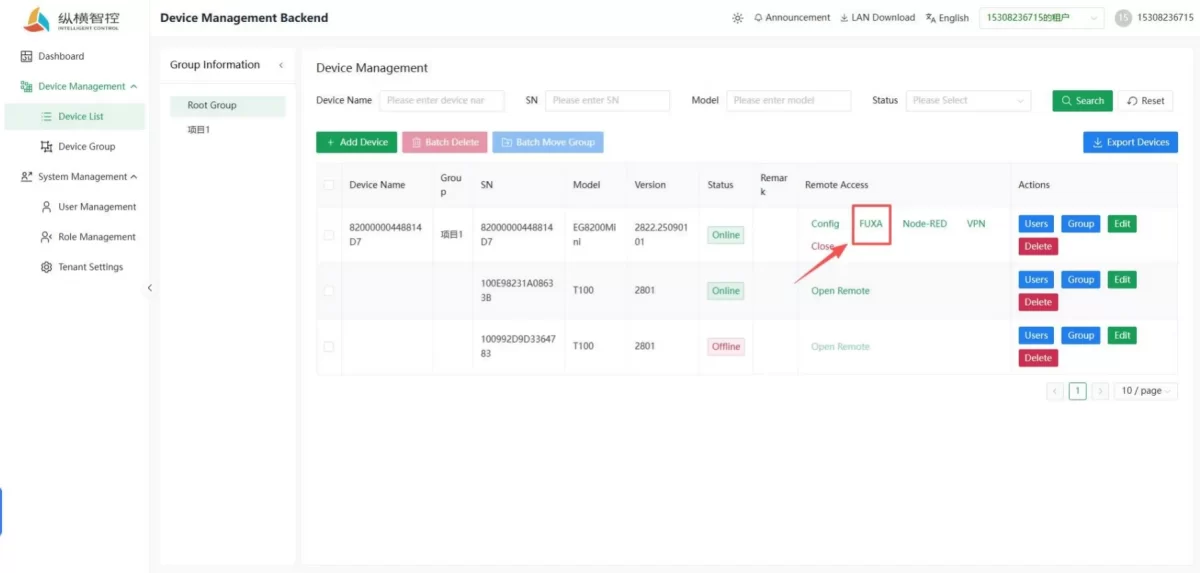
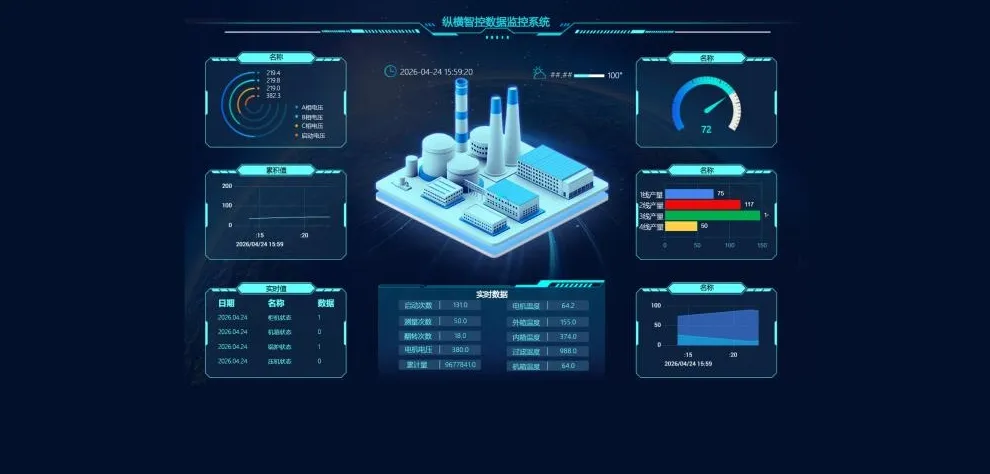
- Configuración remota: Al hacer clic en el botón de configuración remota, se te redirigirá automáticamente a la página web interfaz de configuración. Nota: Solo las pasarelas que admiten funciones de configuración pueden utilizar esta característica.)
c) Intraneto Penetración
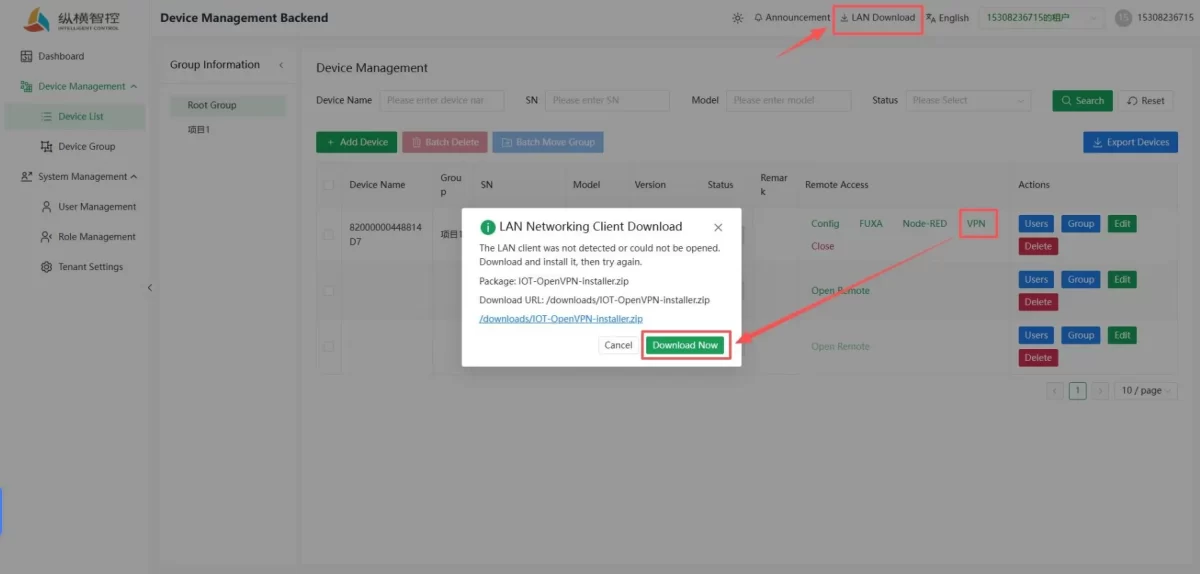
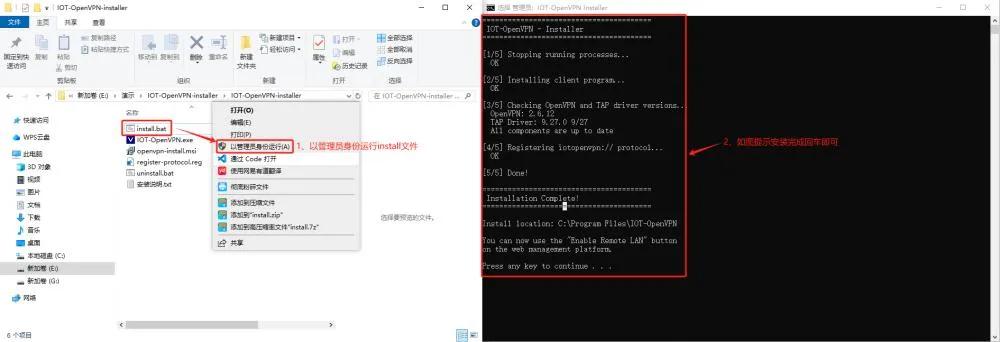
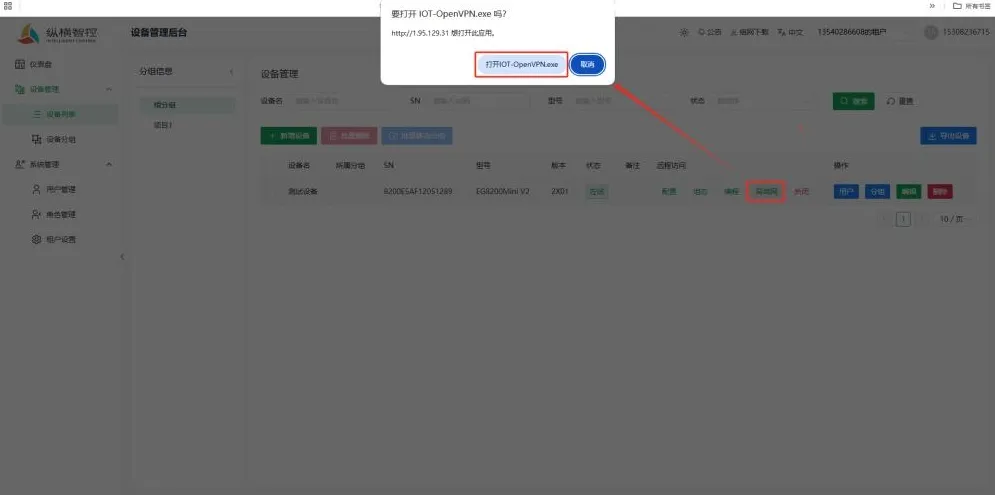
Al utilizar la función “LAN” por primera vez, el sistema te indicará que no se ha detectado ningún cliente. Puedes descargarlo e instalarlo siguiendo las instrucciones, o bien instalar el cliente IOT-OpenVPN previamente a través de la opción “Descarga de red” situada en la parte superior.
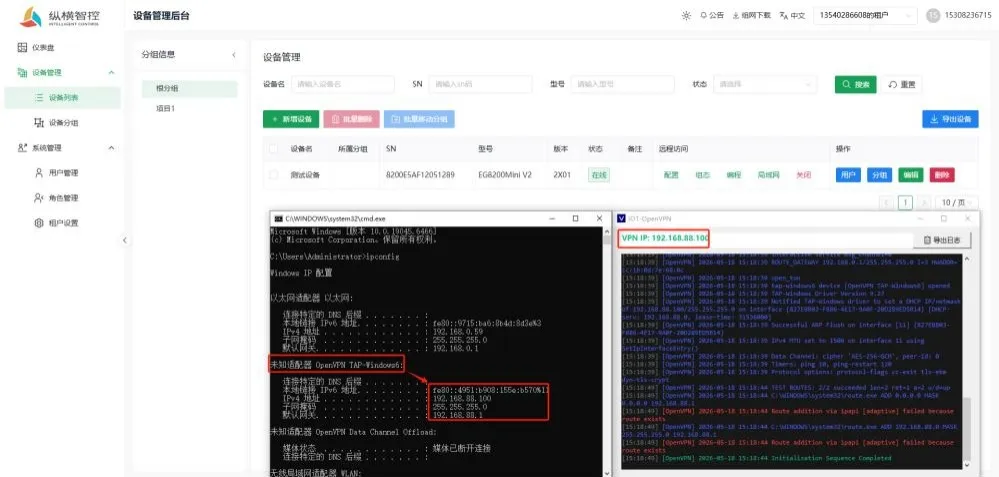
Se ha asignado correctamente la dirección IP; ahora el equipo local puede acceder directamente a la red de área local donde se encuentra la puerta de enlace.
Nota: El segmento de red utilizado por el ordenador no puede ser el mismo que el del segmento de red de la puerta de enlace; de lo contrario, podría provocar un fallo en la LAN remota. La interfaz del software IOT-OpenVPN no se puede cerrar; si se cierra, se desactivará el acceso a la intranet.
2. Eqequipamiento agrupación
La interfaz de agrupación de dispositivos se utiliza para la gestión jerárquica de los dispositivos. Permite crear grupos por proyecto, escenario o línea de negocio, lo que facilita la posterior gestión por lotes, la asignación de permisos y las tareas de funcionamiento y mantenimiento.
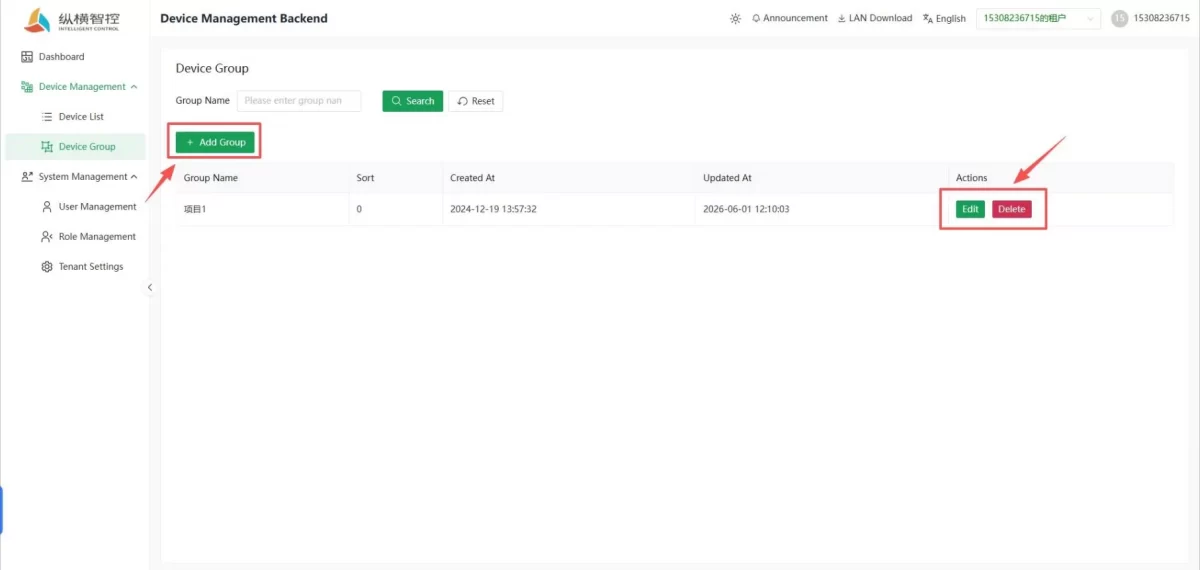
- Búsqueda y filtrado por grupos: Permite localizar rápidamente los grupos objetivo por nombre y, mediante la búsqueda botón de reinicio, localiza grupos de forma eficaz.
- Añadir un grupo: Haz clic en el botón «Añadir grupo» para crear un nuevo grupo de dispositivos con el fin de clasificarlos y gestionarlos dispositivos.
- Información sobre la lista de grupos: La lista muestra el nombre del grupo, el orden de clasificación, la fecha de creación y la fecha de actualización para facilitar gestión y trazabilidad.
- Operaciones de agrupación: Permite editar y eliminar grupos existentes (asegúrate de que no haya ningún dispositivo en el grupo (antes de borrarlo).
V. Sytallo Managestión
1. User Managestión
1) User Filintermitente
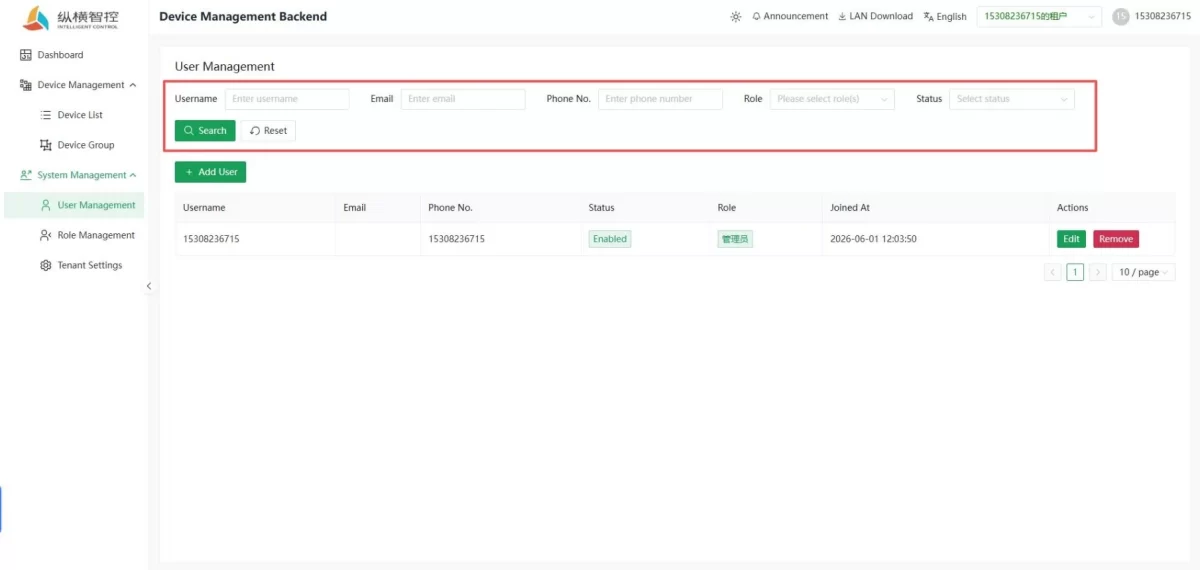
- Filtrado de usuarios: Permite filtrar usuarios por nombre de usuario, correo electrónico, número de móvil, función y estado.
2) Nuevo usuarios
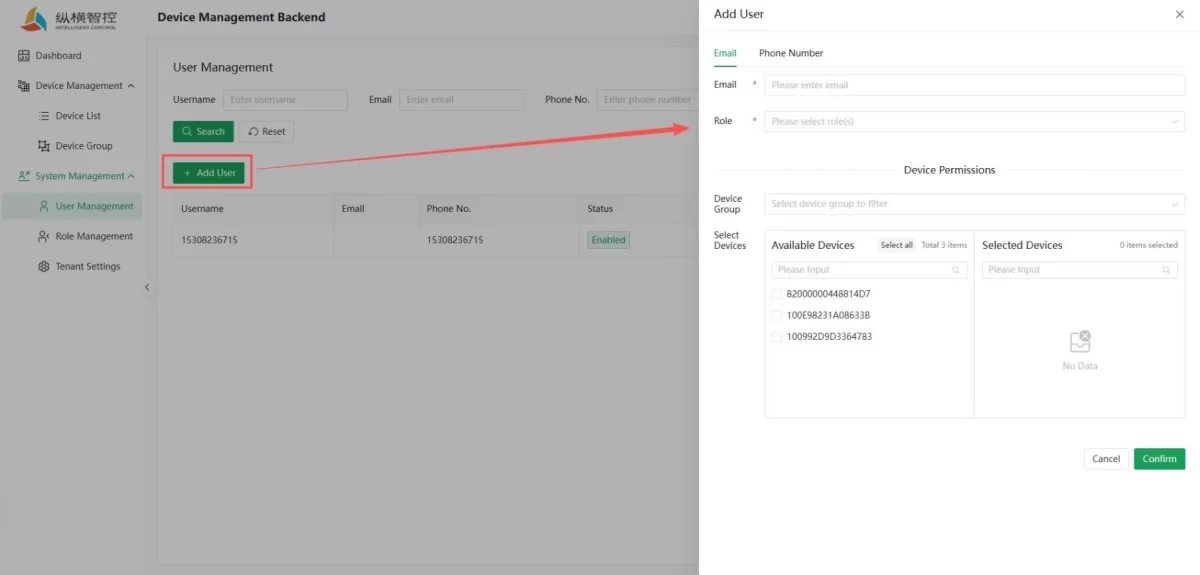
- Añadir un usuario: Haz clic en el botón “Añadir usuario” e introduce el número de móvil o la dirección de correo electrónico del usuario registrado en la ventana emergente y selecciona el rol. Los permisos del dispositivo son opcionales y se pueden ajustar más adelante. Después de Esto confirma que la incorporación del usuario se ha completado.
2. Role Managestión
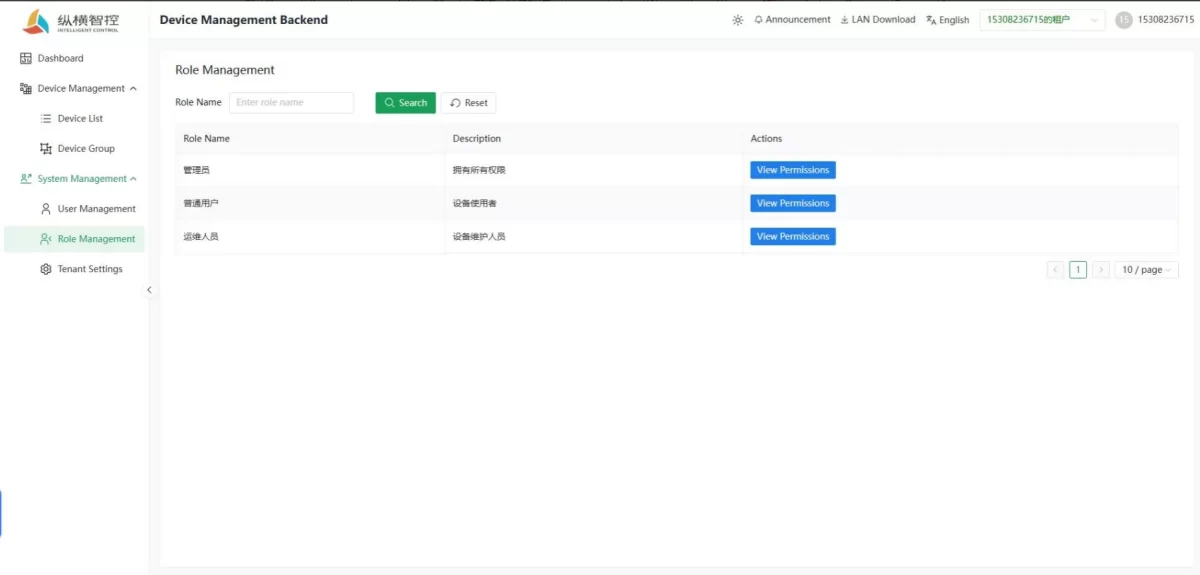
- Gestión de funciones: El módulo de gestión de roles ofrece funciones de visualización de información y de consulta de permisos para los roles predefinidos, que incluyen tres tipos: administradores, usuarios normales y personal de operaciones y mantenimiento. Las responsabilidades y el alcance de los permisos de cada rol están claramente definidos. Los administradores pueden asignar a los usuarios los permisos de rol adecuados en función de sus situaciones empresariales reales, logrando así un control razonable de los permisos.
3. Diezant configuración
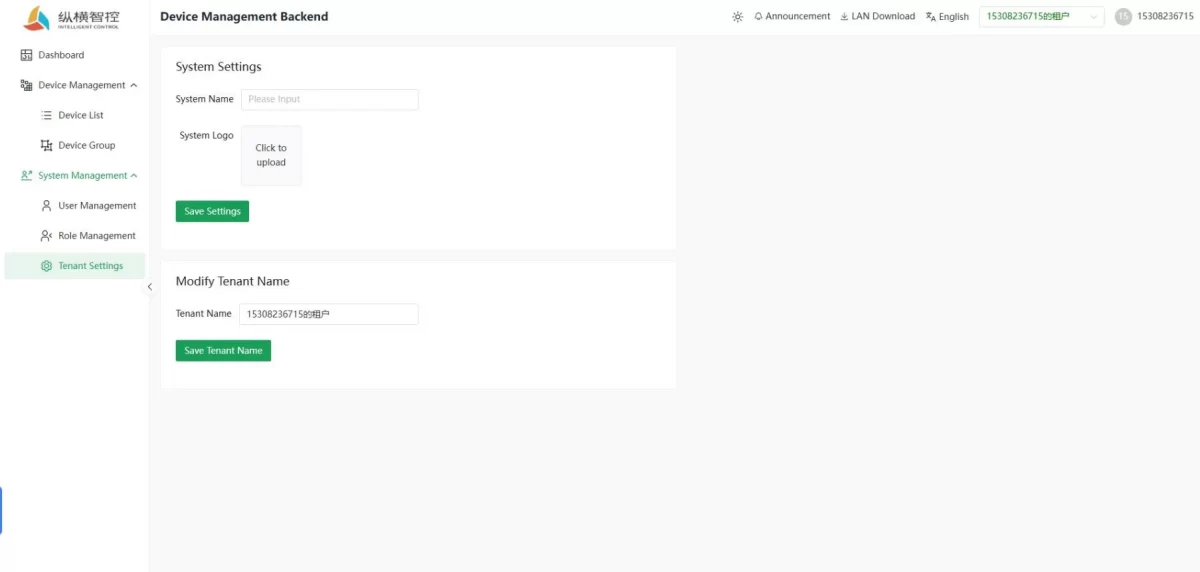
- Configuración del inquilino: Permite personalizar el nombre del sistema, subir un logotipo del sistema y modificar el nombre del inquilino. Guarda el ajustes para actualizar la configuración correspondiente.

Agnes Wang es especialista en soluciones de IoT en IOTRouter, donde se dedica principalmente a las pasarelas de IoT industrial, la computación en el borde y las soluciones de automatización industrial.
Está especializada en tecnologías de comunicación industrial, entre las que se incluyen Modbus, IEC 60870-5-104, MQTT, OPC UA, integración de PLC y aplicaciones de monitorización remota. Colabora en la redacción de artículos técnicos y guías de aplicación sobre soluciones de IoT industrial, conversión de protocolos y computación periférica.