Today, let’s talk about how to interface the EG edge gateway with AB PLC via PCCC protocol.
El artículo del que hablamos antes:
Cómo integrar la pasarela EG edge computing con General Electric PLC
Cómo integrarse con el PLC Xinjie mediante el protocolo Modbus RTU
Cómo interactuar con los PLC de la serie KV-8000 de Keyence mediante el protocolo MC-3E
Cómo interactuar con los PLC de la serie KV-7500 de Keyence mediante el protocolo KV TCP
Cómo interactuar con los PLC de Panasonic mediante el protocolo Mewtocol TCP
Cómo interactuar con el PLC Inovance mediante el protocolo Modbus RTU
1. Conexión de hardware
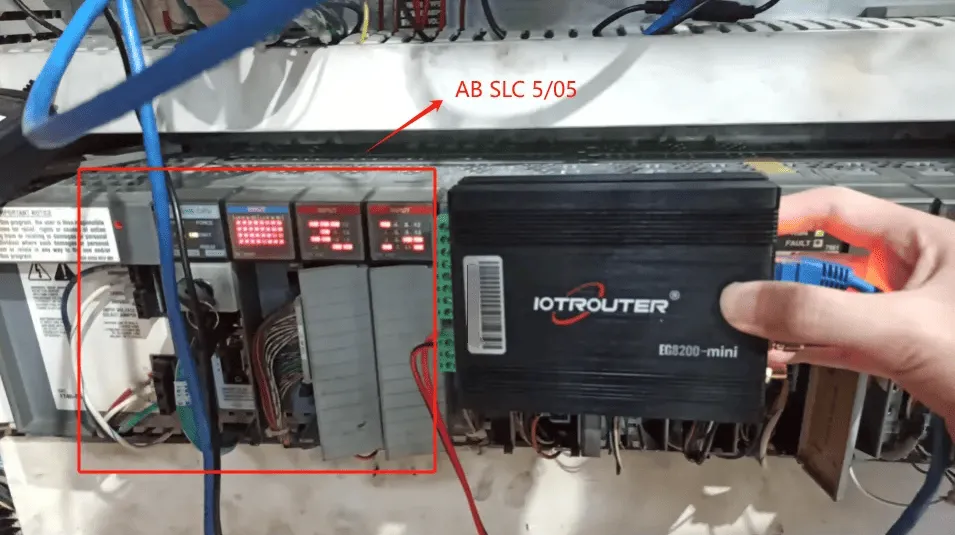
Compatible PLC: AB SLC 5/05
The PCCC protocol utilizes Ethernet communication. Therefore, simply ensure the gateway’s LAN port and the AB PLC’s IP address are within the same subnet.
2. Parámetros de comunicación PLC
2.1. Ethernet Parameter Settings
Provided by PLC Engineer
3. Configuración de la puerta de enlace
3.1. Configuración de la conexión del PLC
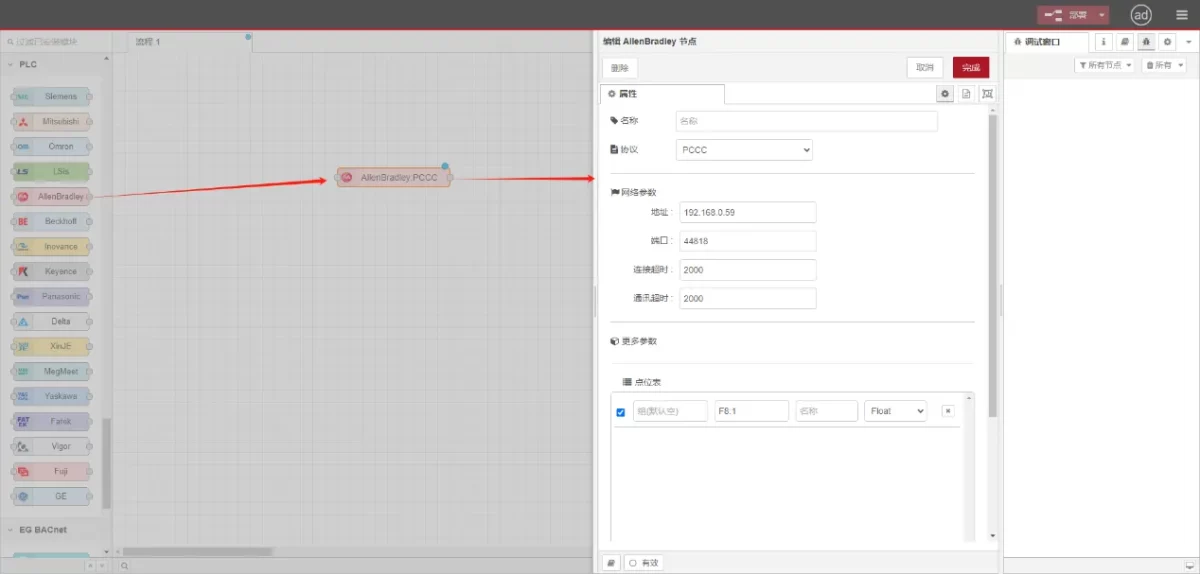
Drag an AllenBradley node from the left panel, double-click to open the settings page, and configure as follows based on the PLC’s network port parameters:
Protocolo: Select PCCC
Dirección: Introduzca la dirección del PLC (por ejemplo, 192.168.0.59)
Puerto: Enter the PLC connection port (e.g., 44818)
Tiempo de espera de la conexión: 2000
Tiempo de espera de comunicación: 2000
3.2. Configuración de los puntos de datos
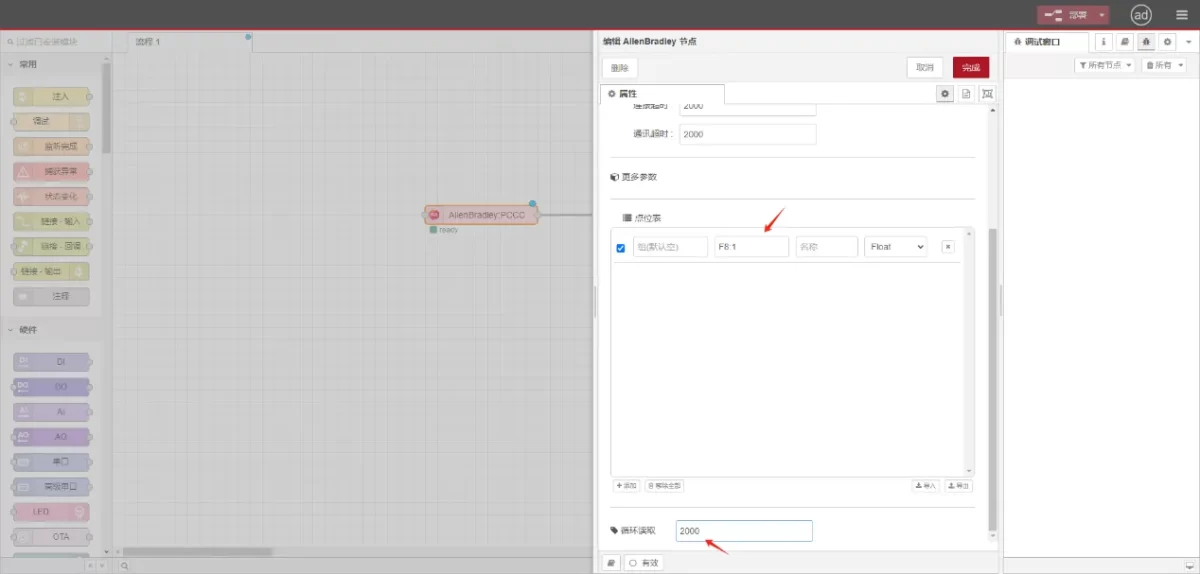
Enter the data points to be read into the parameter list of the Allen-Bradley node. Once configured, the PLC data will be automatically retrieved at the specified frequency.
Los puntos de datos suelen proporcionarlos los ingenieros de PLC. Una vez recibida la lista de puntos, rellene los puntos de datos de acuerdo con el formato requerido por la pasarela. Para obtener detalles específicos de la asignación, consulte:
Esta sección contiene contenido de Yueque. Haga clic en el enlace para ver:(Puedes utilizar Google Chrome para la traducción) https://iotrouter.yuque.com/zn3vdn/eg8000/tcxbmwqbg7k7f5ah
This example reads data from address F8:1. In the parameter list, enter the address/name/data type/data length sequentially. The data is read cyclically every 2 seconds, as shown in the figure:
3.3. Pruebas
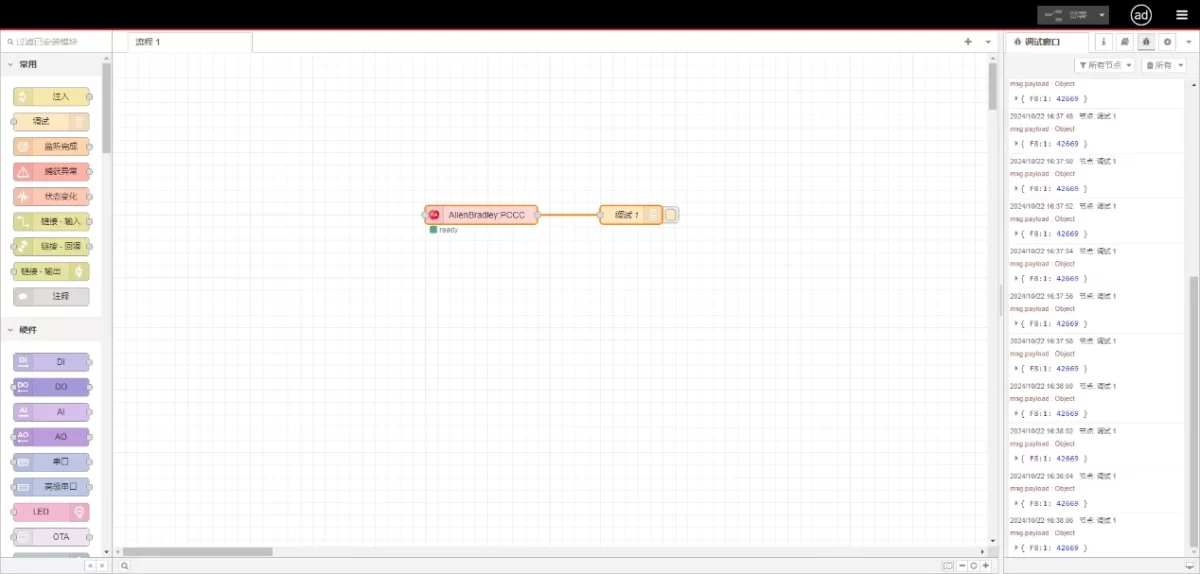
Connect to the debugging node, click Deploy, and observe that a data point is printed every 2 seconds. The read data point result is:
{F8:1:42669}. Communication successful!