This guide focuses on connecting Allen-Bradley PLC to the EG Edge Gateway via the PCCC protocol. It is suitable for beginners looking to set up industrial communication quickly.
Related article: How to interface with AB PLC via the EtherNet/IP protocol
1. Hardware Connection
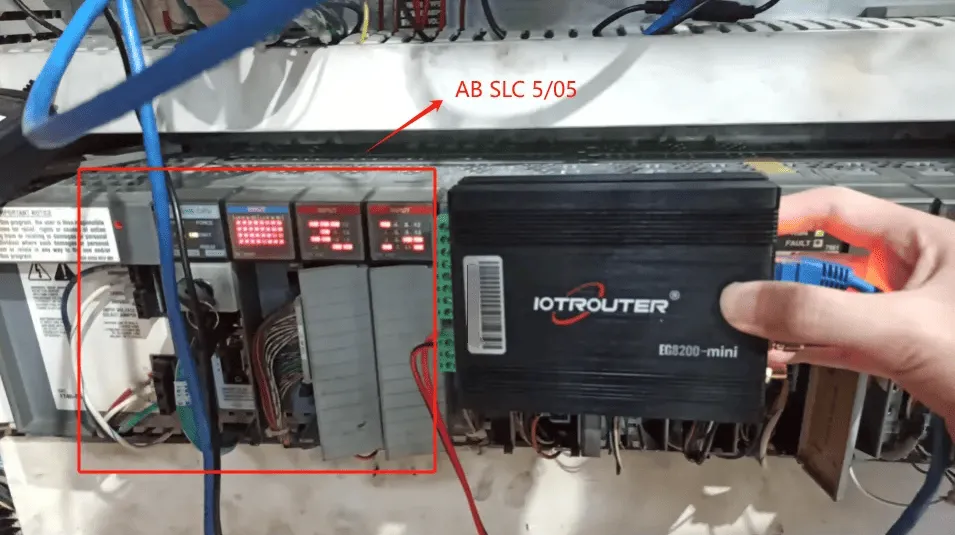
Compatible PLC: AB SLC 5/05
The PCCC protocol utilizes Ethernet communication. Therefore, simply ensure the gateway’s LAN port and the AB PLC’s IP address are within the same subnet.
2. PLC Communication Parameters
2.1. Ethernet Parameter Settings
Provided by PLC Engineer
3. Gateway Settings
3.1. PLC Connection Settings
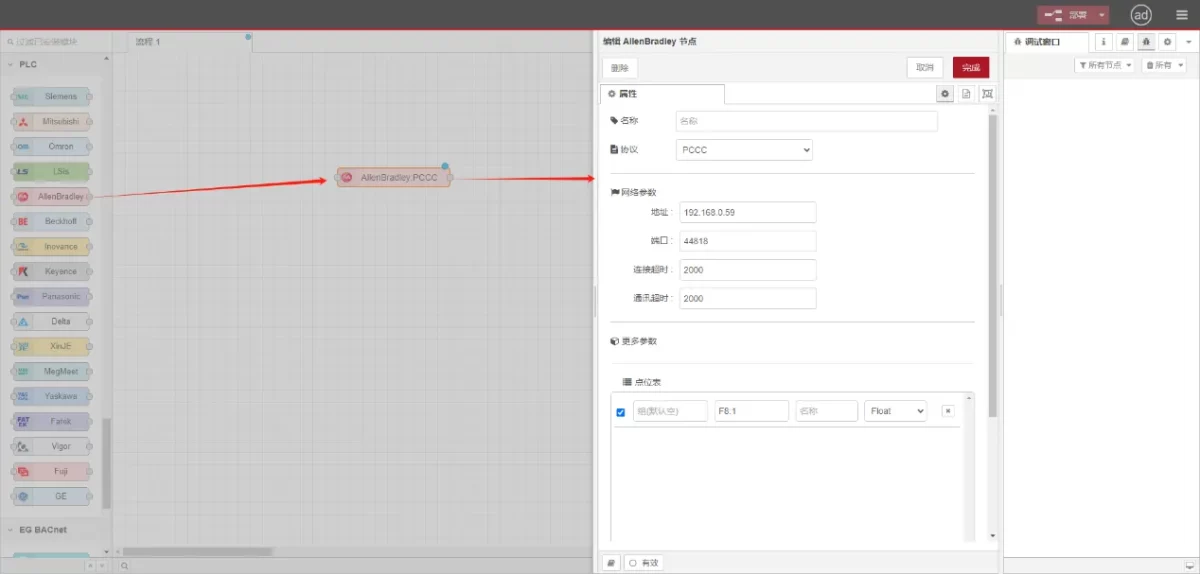
Drag an Allen-Bradley node from the left panel, double-click to open the settings page, and configure as follows based on the PLC’s network port parameters:
Protocol: Select PCCC
Address: Enter the PLC address (e.g., 192.168.0.59)
Port: Enter the PLC connection port (e.g., 44818)
Connection Timeout: 2000
Communication Timeout: 2000
3.2. Data Point Configuration
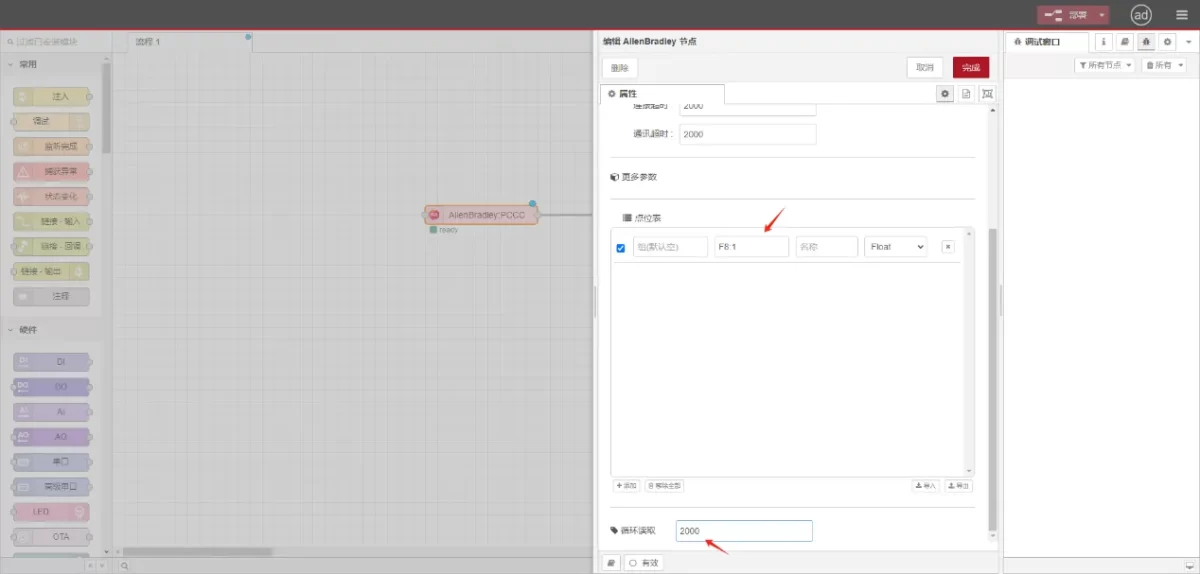
Enter the data points to be read into the parameter list of the Allen-Bradley node. Once configured, the PLC data will be automatically retrieved at the specified frequency.
Data points are typically provided by PLC engineers. Upon receiving the point list, fill in the data points according to the gateway’s required format. For specific mapping details, refer to:
This section contains content from Yueque. Click the link to view:(You can use Google Chrome for translation) https://iotrouter.yuque.com/zn3vdn/eg8000/tcxbmwqbg7k7f5ah
This example reads data from address F8:1. In the parameter list, enter the address/name/data type/data length sequentially. The data is read cyclically every 2 seconds, as shown in the figure:
3.3. Testing
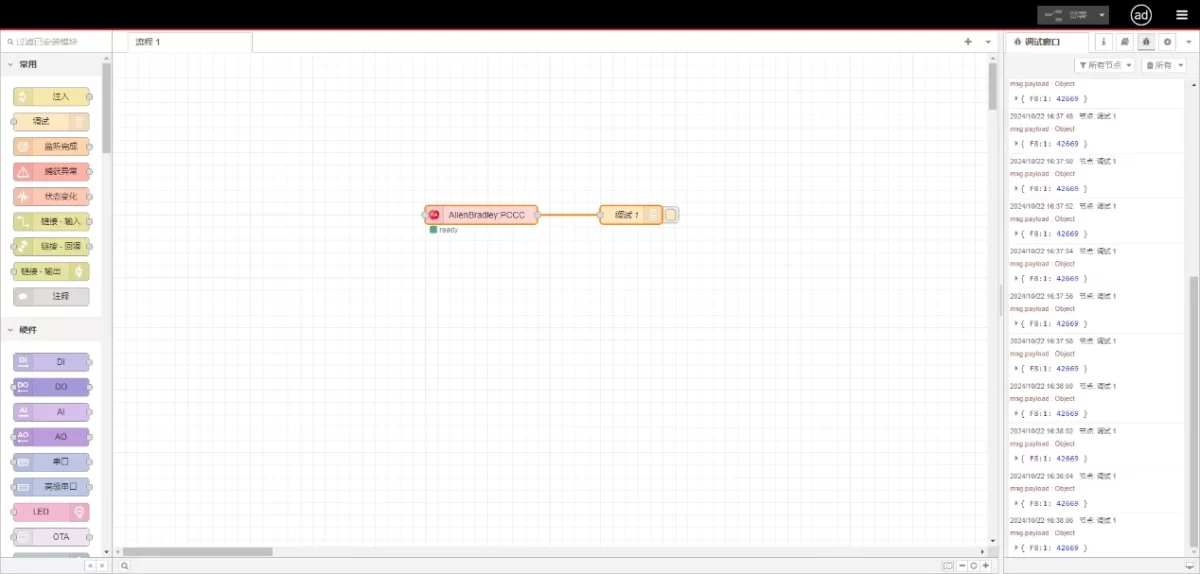
Connect to the debugging node, click Deploy, and observe that a data point is printed every 2 seconds. The read data point result is:
{F8:1:42669}. Communication successful!
Related Guides in Industrial PLC Integration

Agnes Wang is an IoT Solutions Specialist at IOTRouter, focusing on industrial IoT gateways, edge computing, and industrial automation solutions.
She specializes in industrial communication technologies, including Modbus, IEC 60870-5-104, MQTT, OPC UA, PLC integration, and remote monitoring applications. She contributes to technical articles and application guides covering industrial IoT solutions, protocol conversion, and edge computing.