Today, let’s talk about how to interface the EG edge gateway with AB PLC via PCCC protocol.
Der Artikel, den wir zuvor besprochen haben:
Integration des EG Edge-Computing-Gateways mit General Electric PLC
Integration mit Xinjie PLC über Modbus RTU Protokoll
Schnittstelle zu Keyence-SPSen der Serie KV-8000 über das MC-3E-Protokoll
Schnittstelle zu Keyence-SPSen der Serie KV-7500 über das KV-TCP-Protokoll
How to interface with Panasonic PLCs via Mewtocol TCP Protocol
How to interface with Inovance PLC via Modbus RTU protocol
1. Hardware-Anschluss
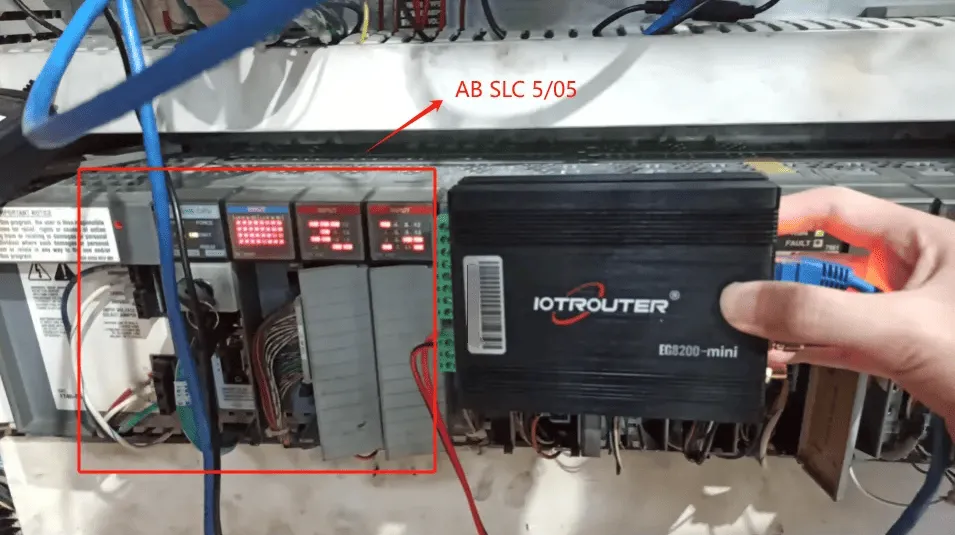
Compatible PLC: AB SLC 5/05
The PCCC protocol utilizes Ethernet communication. Therefore, simply ensure the gateway’s LAN port and the AB PLC’s IP address are within the same subnet.
2. PLC-Kommunikationsparameter
2.1. Ethernet-Parameter-Einstellungen
Provided by PLC Engineer
3. Gateway-Einstellungen
3.1. PLC-Verbindungseinstellungen
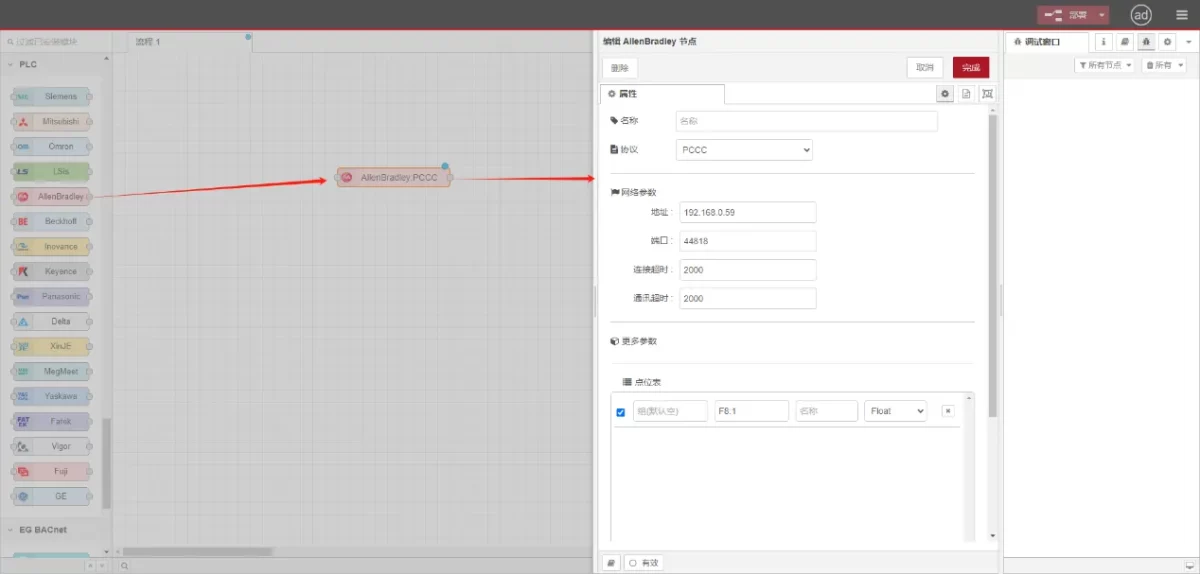
Drag an AllenBradley node from the left panel, double-click to open the settings page, and configure as follows based on the PLC’s network port parameters:
Protokoll: Select PCCC
Adresse: Geben Sie die SPS-Adresse ein (z. B. 192.168.0.59)
Hafen: Enter the PLC connection port (e.g., 44818)
Zeitüberschreitung der Verbindung: 2000
Zeitüberschreitung bei der Kommunikation: 2000
3.2. Datenpunkt-Konfiguration
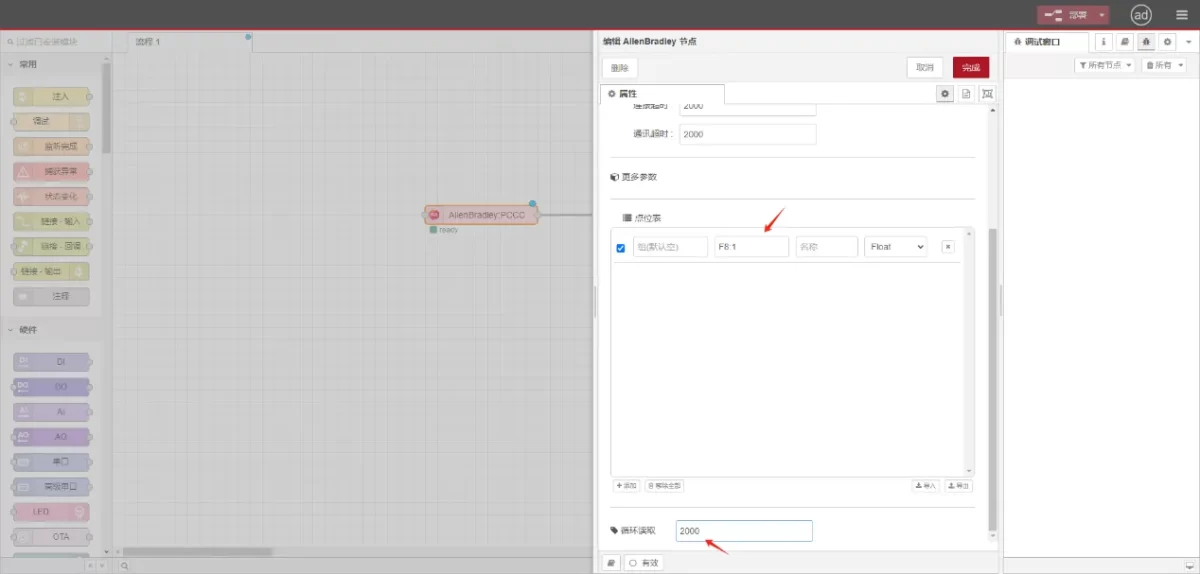
Enter the data points to be read into the parameter list of the Allen-Bradley node. Once configured, the PLC data will be automatically retrieved at the specified frequency.
Die Datenpunkte werden in der Regel von SPS-Ingenieuren bereitgestellt. Füllen Sie nach Erhalt der Punktliste die Datenpunkte entsprechend dem erforderlichen Format des Gateways aus. Spezifische Details zum Mapping finden Sie unter:
Dieser Abschnitt enthält Inhalte von Yueque. Klicken Sie auf den Link, um ihn zu sehen:(Sie können Google Chrome für die Übersetzung verwenden) https://iotrouter.yuque.com/zn3vdn/eg8000/tcxbmwqbg7k7f5ah
This example reads data from address F8:1. In the parameter list, enter the address/name/data type/data length sequentially. The data is read cyclically every 2 seconds, as shown in the figure:
3.3. Prüfung
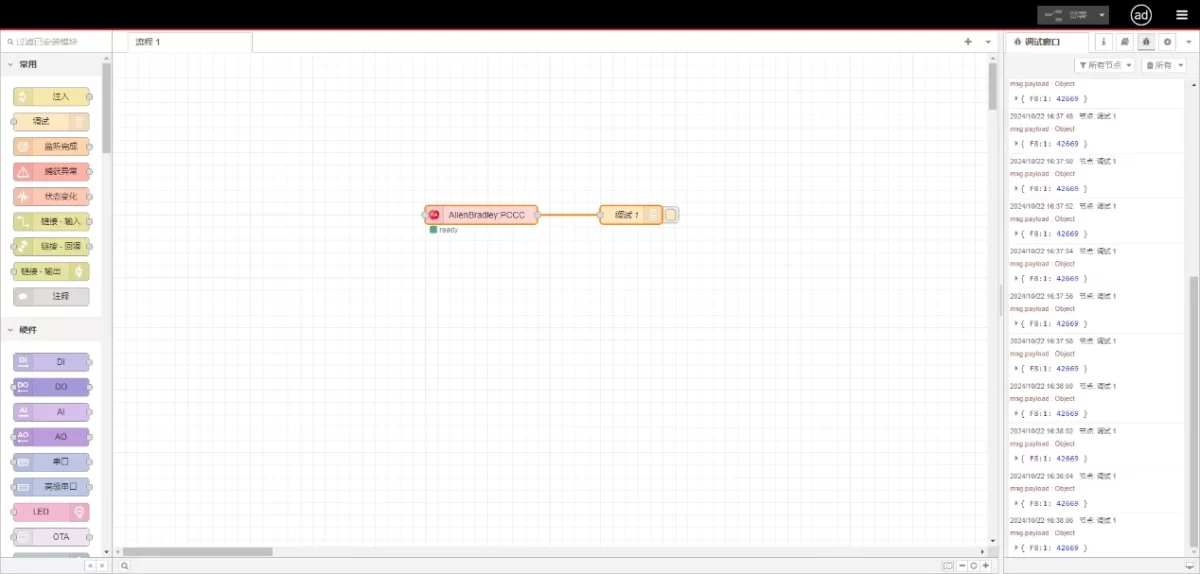
Connect to the debugging node, click Deploy, and observe that a data point is printed every 2 seconds. The read data point result is:
{F8:1:42669}. Communication successful!