The Delta DVP PLC shows up on a lot of factory floors—and for good reason. It’s affordable, reliable, and there’s a massive installed base out there, which means if you’re doing data acquisition work, the odds are good you’ll need to connect one to a gateway at some point.
The gotcha that trips up most people on their first attempt: the DVP series speaks Modbus, but it defaults to ASCII mode, not RTU. Pick the wrong one and the connection simply won’t come up. So before you touch any configuration, make sure you know which mode your PLC is set to.
That’s really the whole trick here. The rest is wiring and parameter entry—and this guide walks through both.
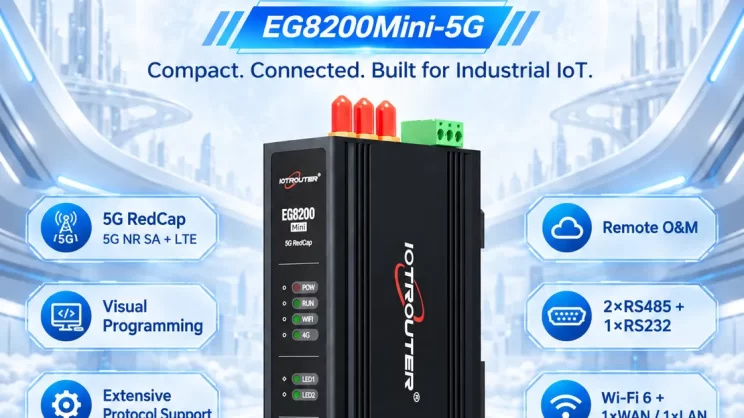
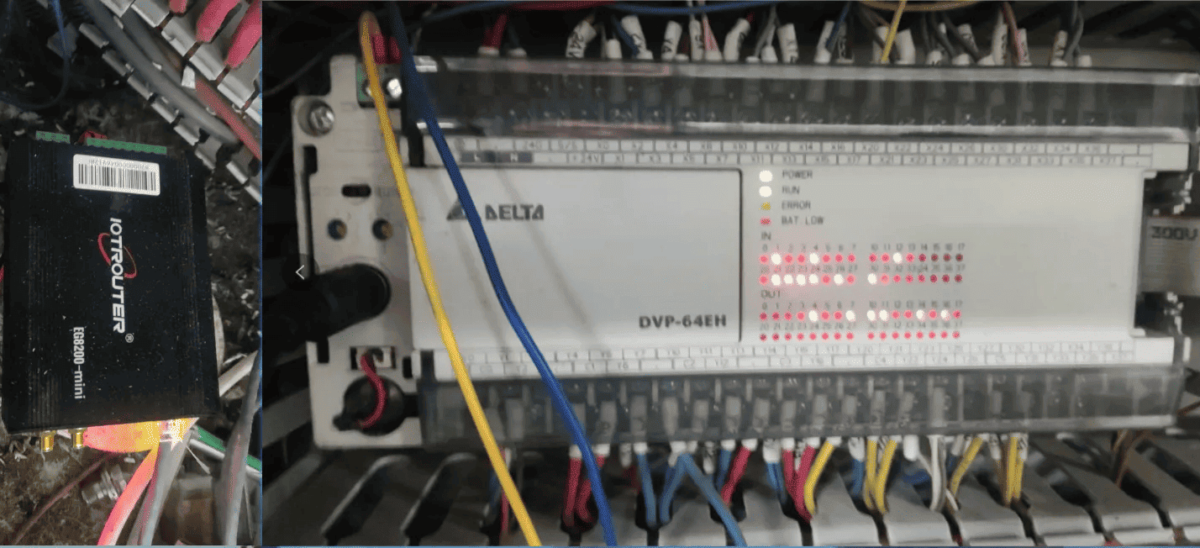
In this setup, the Delta DVP Series PLC DVP-64EH is connected to the EG8200Mini via RS-232 communication.
Compatible PLCs include DVP series models and other PLCs that support the Modbus ASCII protocol.
1. Connessione hardware
Using the RS-232 interface, connect the PLC to the gateway as follows:
Connect the PLC’s RS-232 Tx pin to the gateway’s Rx pin, the Rx pin to the gateway’s Tx pin, and the GND pin to GND.
- PLC TXD → Gateway RXD
- PLC RXD → Gateway TXD
- GND → GND
2. Parametri di comunicazione del PLC
The PLC engineer or project documentation typically provides these parameters.
The Delta PLC serial port parameters are as follows: Baud rate: 9600, Data bits: 7, Stop bits: 2, Parity: EVEN.
3. Impostazioni del gateway
3.1 Impostazioni di connessione del PLC
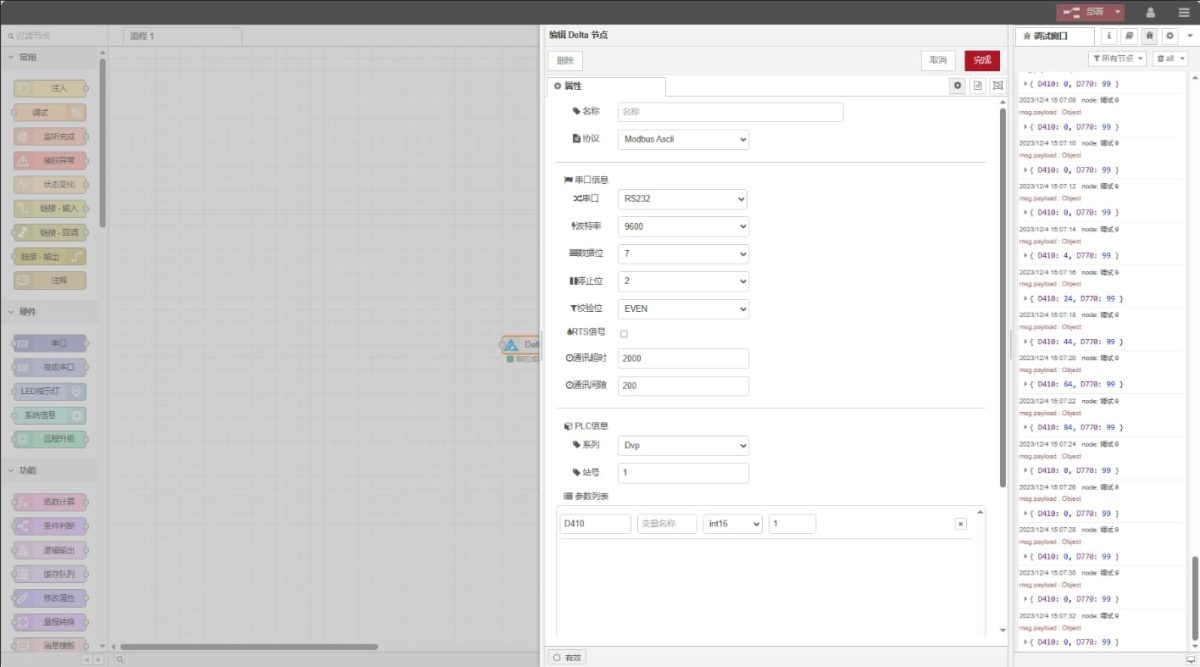
Drag a Delta node from the left pane, double-click to open the settings page, and enter the following configuration based on the PLC’s serial port parameters:
Protocol: Select Modbus ASCII
Serial Port: Connect to TX, RX, and GND; select RS-232
Baud Rate: 9600
Data Bits: 7
Stop Bits: 2
Parity: EVEN
Timeout: 2000
Series: DVP
Station Number: 1
3.2 Configurazione dei punti dati
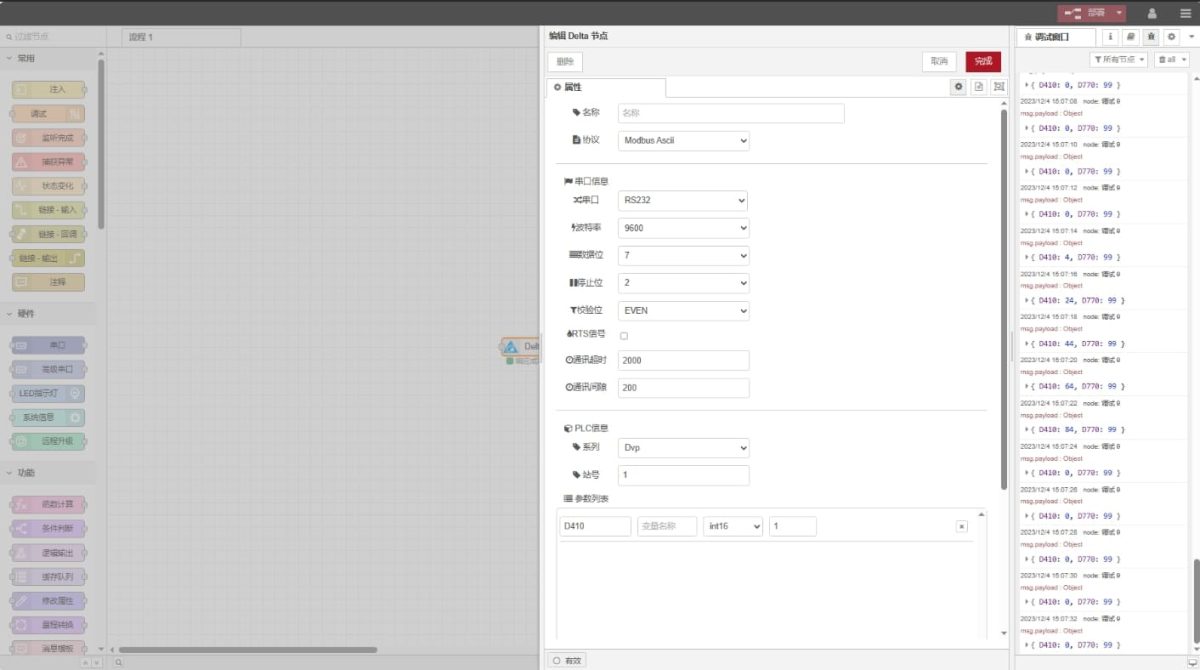
Enter the data points to be read in the parameter list of the Delta node. Once the data points are entered, the PLC data will be automatically read at the specified frequency.
PLC engineers typically provide the data point table. Just enter the addresses, names, data types, and lengths as given—no conversion needed. If you need the full address mapping by series, check the Appendix at the end of this article.
This example reads data from addresses D410 and D770. In the parameter list, enter the address, name, data type, and data length in that order. The program loops to read the data every 2 seconds, as shown in the figure:
4. Test
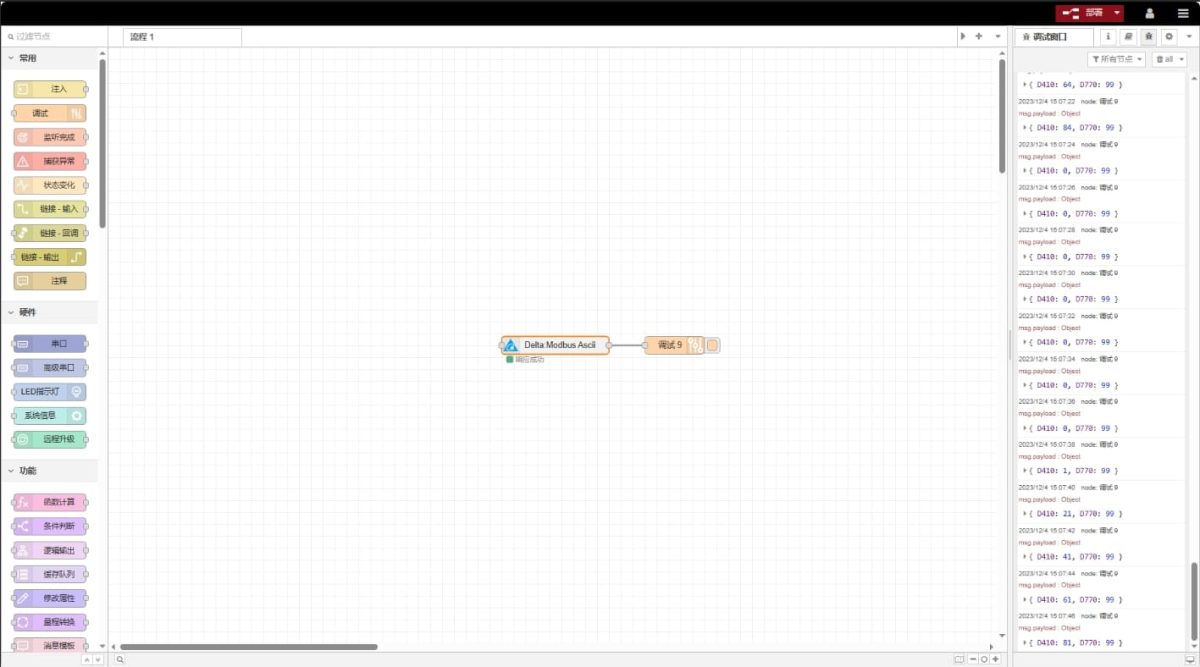
Click the “Deploy” button, and the data will be printed every 2 seconds. Observe the data points: D410:0, D770:99. Communication successful.
Troubleshooting Capture Exception & No Data
If “capture exception” appears in the debug window or there is no data output, troubleshoot step by step in the following order:
Step 1: Check serial wiring.
Start with the wiring. RS-232 crossover is straightforward—PLC TX to gateway RX, PLC RX to gateway TX, and ground shared on both ends. But it’s also the most frequently missed item when things aren’t working. If you’ve been staring at configuration screens for a while, step back and check the cables first.
Step 2: Verify serial port parameters.
Check the four key settings: baud rate, data bits, stop bits, and parity. Any mismatch will cause communication failure. The fastest way is to use a serial debugging tool to connect directly to the PLC and verify the parameters, rather than repeatedly changing configurations on the gateway side.
Step 3: Check station ID.
The PLC station ID must match the gateway configuration. The default is 1. Pay special attention: in the gateway’s Delta node, the station ID is entered in hexadecimal format. For example, if the PLC station ID is decimal 10, it should be entered as “A” in the gateway, not “10”. This is an easily overlooked detail in real-world integration.
Step 4: Check the debug output before deciding whether to capture packets.
Before you reach for a packet sniffer, look at what the debug window is actually telling you. A “capture exception” means the gateway isn’t even talking to the PLC—back up and check wiring, parameters, and station ID first. Data coming through with wrong values? That’s when you grab the serial tool and look at the frames.
Step 5: Check communication timeout and interval.
The communication timeout is 2000 ms by default, which is sufficient for local serial communication. The polling interval between requests is 200 ms by default; this value can remain unchanged and does not require adjustment.
Sintesi
When integrating the EG gateway with Delta DVP PLCs via Modbus ASCII communication, the key is to focus on three points:
Select the ASCII protocol, not RTU—7 data bits, 2 stop bits, and even parity. These three parameters are the standard configuration for Delta DVP PLCs and differ completely from RTU conventions.
Use a cross-connected RS232 serial interface—connect TX to RX, RX to TX, and share the GND ground.
Pay attention to the address format’s numbering system—X/Y relays use octal, while D registers use decimal. Enter addresses directly according to the point table provided by the PLC engineer; do not calculate them yourself. Addresses for T timers and C counters should also be entered directly in decimal. Reading a bit returns the contact on/off status, while reading a word returns the current count value.
When everything clicks, you’ll see data rolling in every 2 seconds without any drama. From there, the next step is hooking it up to your cloud platform or host system over MQTT or HTTP—and that’s when the full data acquisition chain actually comes to life.
Appendix: Delta Node — What You Need to Know
Two things worth flagging before you start entering addresses.
Station number is entered in hex. If the PLC is set to station 10, type A in the gateway—not 10. It silently breaks your connection if you get it wrong.
On addresses: X and Y relays are octal, so X10 is the 9th input point, not the 11th. D registers are plain decimal. Timers and C counters behave differently depending on what you’re reading—read a bit, and you get the relay contact state (on/off); read a word, and you get the timer’s elapsed time or the counter’s current count.
The addresses come from your PLC engineer, so they’re in the right format already—you’re rarely interacting with the series distinctions directly. The ES2/EX2/SA2 series does support a wider D register range (up to D4999) and more I/O points (X/Y up to 377), but that’s only relevant if your project actually uses those higher addresses.
Guide correlate sull'integrazione dei PLC industriali
← Torna alla pagina "PLC Integration Hub"

Agnes Wang è una specialista in soluzioni IoT presso IOTRouter, dove si occupa principalmente di gateway IoT industriali, edge computing e soluzioni di automazione industriale.
È specializzata in tecnologie di comunicazione industriale, tra cui Modbus, IEC 60870-5-104, MQTT, OPC UA, integrazione di PLC e applicazioni di monitoraggio remoto. Collabora alla stesura di articoli tecnici e guide applicative riguardanti soluzioni IoT industriali, conversione di protocolli ed edge computing.