Overview
This chapter introduces how to connect the EM series edge controller and access the web-based configuration interface.
The EM series supports two local connection methods:
- Direct Ethernet connection through the LAN port
- Wireless connection through the built-in WiFi Access Point (AP) mode
After establishing the connection, users can access the device management interface through a web browser for basic configuration, status monitoring, and system management.
1. Connect the EM series edge controller
1.1 Direct Network Cable Connection
Use an Ethernet cable to connect the computer network port to the LAN port of the EM series edge controller.
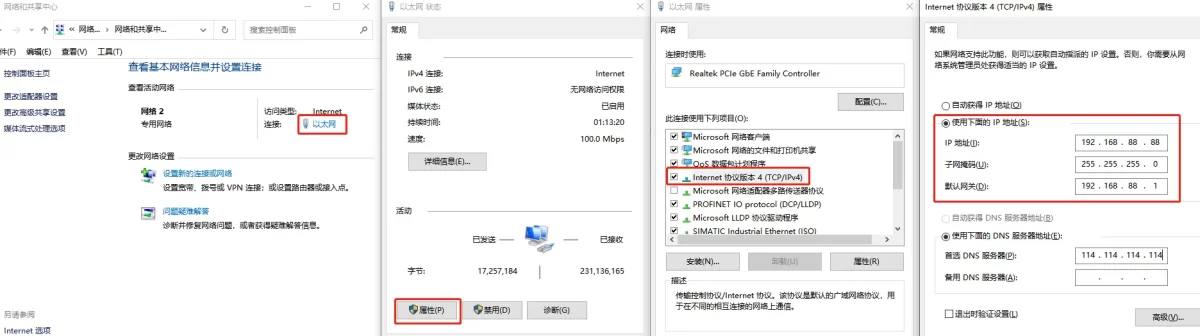
The default IP address of the LAN port is:
192.168.88.1Configure the computer’s IP address to the same network segment. Example:
IP Address: 192.168.88.100
Subnet Mask: 255.255.255.0
After the network configuration is completed, open a web browser and enter:
http://192.168.88.1The login page will be displayed.
1.2 WiFi Connection (AP Mode)
The EM series edge controller supports wireless access through AP mode. Use the computer’s WiFi function to connect to the gateway hotspot. The default WiFi information is:
WiFi Name:
EM300-XXXX(XXXX represents the last four digits of the device SN number)
WiFi Password:
EM12345678After successful connection, the computer will automatically obtain an IP address from the gateway. The default gateway IP address is 192.168.88.1. Open a web browser and enter to access the configuration interface.
2. Basic Configuration
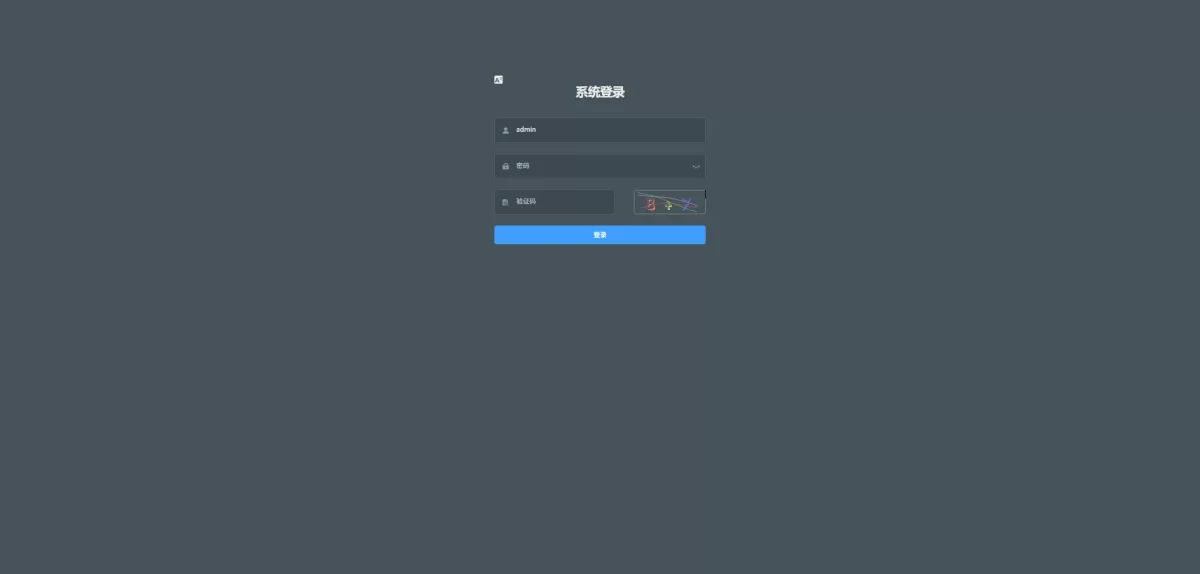
2.1 Login Interface
After accessing the login page, enter the account: admin, password: EM12345678 (After the first login, it is strongly recommended to change the default password to improve device security).
2.2 Dashboard Overview
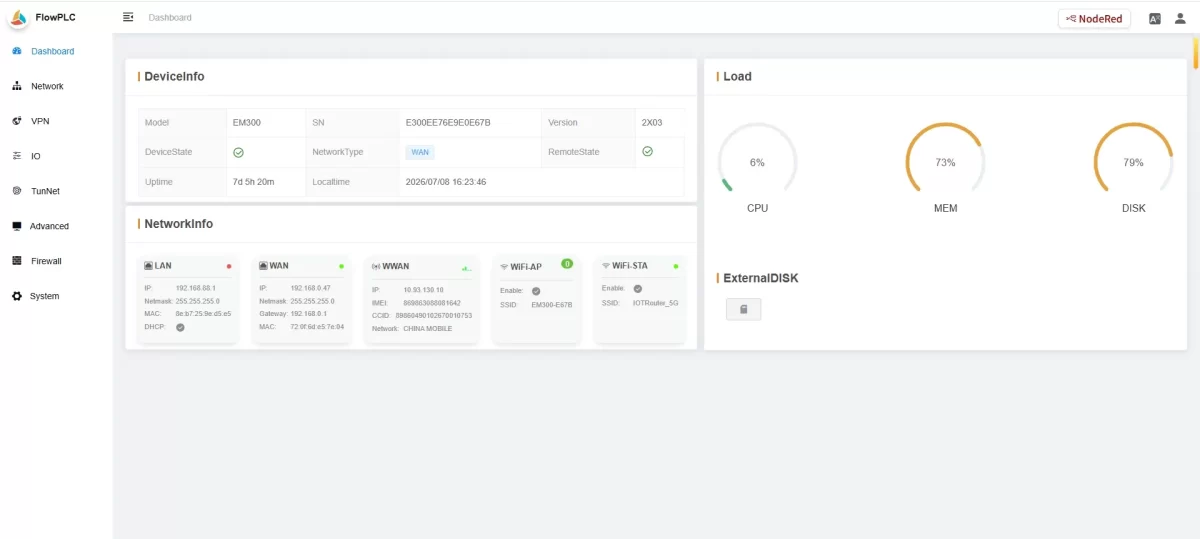
After successful login, the dashboard displays basic device information, network status, system load status, and external storage information.
Note:
Different EM series models may display different parameter items. The actual interface depends on the specific device model.
2.3 Device Information
The Device Information section displays the basic information of the edge controller.
Model
Displays the specific device model. Example: EM300.
SN
Displays the device serial number. The SN is a globally unique identifier used for device identification and remote management.
Firmware Version
Displays the current firmware version installed on the device. The displayed version depends on the actual firmware installed.
Device Status
Displays the current operating status of the device. Examples:
- Running
- Offline
- Initializing
Network Type
Displays the current network connection method. Available status:
- WAN
- 4G
- WiFi
- Unknown
Unknown indicates that the device is currently not connected to a network.
Remote Status
Displays the remote connection status.
Running Time
Displays the total operating time since the device was powered on.
Local Time
Displays the current system time of the device.
2.4 Network Information
The Network Information section displays the current network configuration and connection status.
It includes information such as:
- WAN network status
- 4G cellular network status
- WiFi status
- IP address
- MAC address
- Network connection information
The displayed parameters depend on the installed communication modules and network configuration.
Notice
- Change the default password after the first login.
- Make sure the computer and the EM series controller are configured within the same IP network segment before accessing the web interface.
- If the device cannot be accessed, check:
- Ethernet cable connection
- Computer IP configuration
- Network adapter status
- Device power supply
Conclusion
After completing the connection and login steps, the EM series edge controller is ready for basic configuration and further application development.
Users can continue configuring communication interfaces, industrial protocols, I/O modules, Node-RED applications, and other edge computing functions according to application requirements.

Agnes Wang is an IoT Solutions Specialist at IOTRouter, focusing on industrial IoT gateways, edge computing, and industrial automation solutions.
She specializes in industrial communication technologies, including Modbus, IEC 60870-5-104, MQTT, OPC UA, PLC integration, and remote monitoring applications. She contributes to technical articles and application guides covering industrial IoT solutions, protocol conversion, and edge computing.