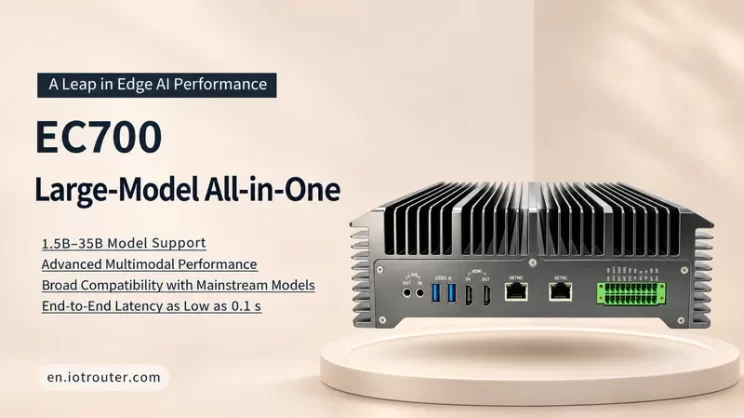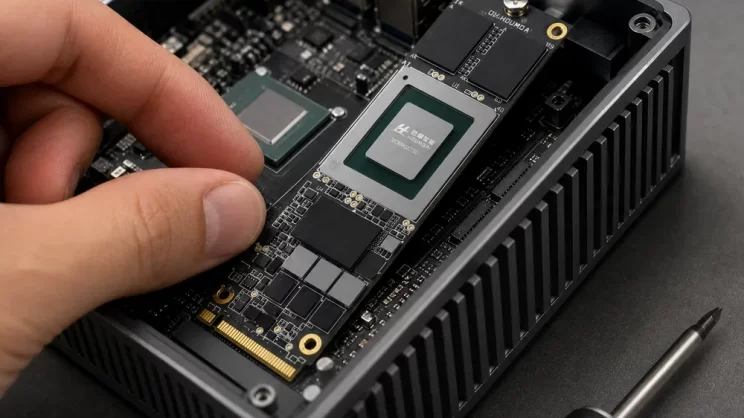
This LQ50 LLM deployment guide shows how to run a local large language model (LLM) on the IOTRouter edge AI industrial PC EC700 with the HOUMO LQ50 M.2 AI accelerator and Ubuntu 22.04 ARM64. It covers driver installation, firmware updates, model download and startup, and testing text and image inference through the local HTTP API.
Supported hardware — EC700 + HOUMO LQ50
Operating system — Ubuntu 22.04 ARM64
Document version — v1.0 | 2026-07-21
1. LQ50 LLM Deployment Guide: Hardware Overview
| Componente | Modelo | Especificaciones |
|---|---|---|
| Main processor | Rockchip RK3588 | 4×A76 + 4×A55 |
| AI accelerator | HOUMO LQ50 | M.2 interface |
| Inference framework | HLIEllama | v2.0.1 |
| Driver version | houmo-drv-xh2 v1.5.0 | houmo-drv-xh2_v1.5.0_linux_aarch64.run |
2. Driver Installation
2.1 Open the HOUMO Directory
cd /userdata/houmo2.2 Install System Dependencies
apt update
apt install -y build-essential libc6-dev
apt install -y python3-pip python3-dev
apt install --reinstall libc6-dev libc-dev-bin
# Check whether cdefs.h exists
ls -l /usr/include/aarch64-linux-gnu/sys/cdefs.h
2.3 Configure the pip Mirror
export PIP_INDEX_URL=https://mirrors.aliyun.com/pypi/simple
export PIP_TRUSTED_HOST=mirrors.aliyun.com
2.4 Install the Driver
chmod +x houmo-drv-xh2_v1.5.0_linux_aarch64.run
./houmo-drv-xh2_v1.5.0_linux_aarch64.run install all
2.5 Verify the Driver
hm_smi -aExample:
--------------------------------------------------------------------------------
  sdk build infos
--------------------------------------------------------------------------------
  Build_Time     : 2026-09-19 21:26:05
  HMSW_Version   : V1.5.0
  HM_SMI_Version : V1.0.0
--------------------------------------------------------------------------------
  Mon Sep 28 17:05:42 CST 2026
--------------------------------------------------------------------------------
  device0 detail infos
--------------------------------------------------------------------------------
  Driver_Version         : V1.5.0
  Vendor                 : Houmo
  BDF                    : 0000:01:00.0
  Dev                    : 0
  Cur_BandWidth          : 8.0 GT/s x 2lane
  Power_Management       :
    DVFS_Mode            : performance
    Cur_Ipu_Freq         : 1400.0 Mhz
    Lock_Ipu_Max_Clock   : 1400.0 Mhz
    Lock_Ipu_Min_Clock   : 700.0 Mhz
    IPU_Load             : 0.0 %
  IPU_Infos              :
    Core_Num             : 2
    Core_Freq            : 1400.0 Mhz
    Voltage              : 750.0 mV
    Core0_Util           : 0.0 %
    Core1_Util           : 0.0 %
    Average_Util         : 0.0 %
  Group_Id               : 0
  Chip_Id                : 0
  SN                     : 0104020100002026001000002019
  PN                     : 100O2010
  Model                  : LQ50-24GB
  Firmware_Version       : V1.3.0
  DDR_Memory_Infos       :
    DDR_Memory_Free      : 24448.0MB
    DDR_Memory_Total     : 24448.0MB
  Temperature            :
    DDR0                 : 28.6 C
    DDR2                 : 29.8 C
    DDR4                 : 28.6 C
    DDR5                 : 25.9 C
    Core0                : 28.6 C
    Core1                : 30.1 C
  Board_Power            : 5.17 W
--------------------------------------------------------------------------------
3. Firmware Update
cd M50_M2_fw-xh2
hm_upgrade_cli burn-image -d 0 -i firmware.img

# Run this command as well for a dual-card setup
hm_upgrade_cli burn-image -d 1 -i firmware.img
# Reboot after the update completes

reboot
4. Inference Framework Installation
4.1 Install the systemd Service
cd /userdata/houmo/houmo-HLIELLama-xh2/service
chmod +x install_llama-server.sh

su - pi
cd /userdata/houmo/houmo-HLIELLama-xh2/service
sudo ./install_llama-server.sh
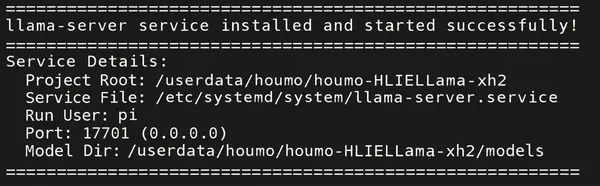
Nota: Run the installer from a pi login shell using the command sequence below.
4.2 Manage the Service
systemctl status llama-server     # Check service status
systemctl restart llama-server    # Restart the service
journalctl -u llama-server -f     # Follow the service logs
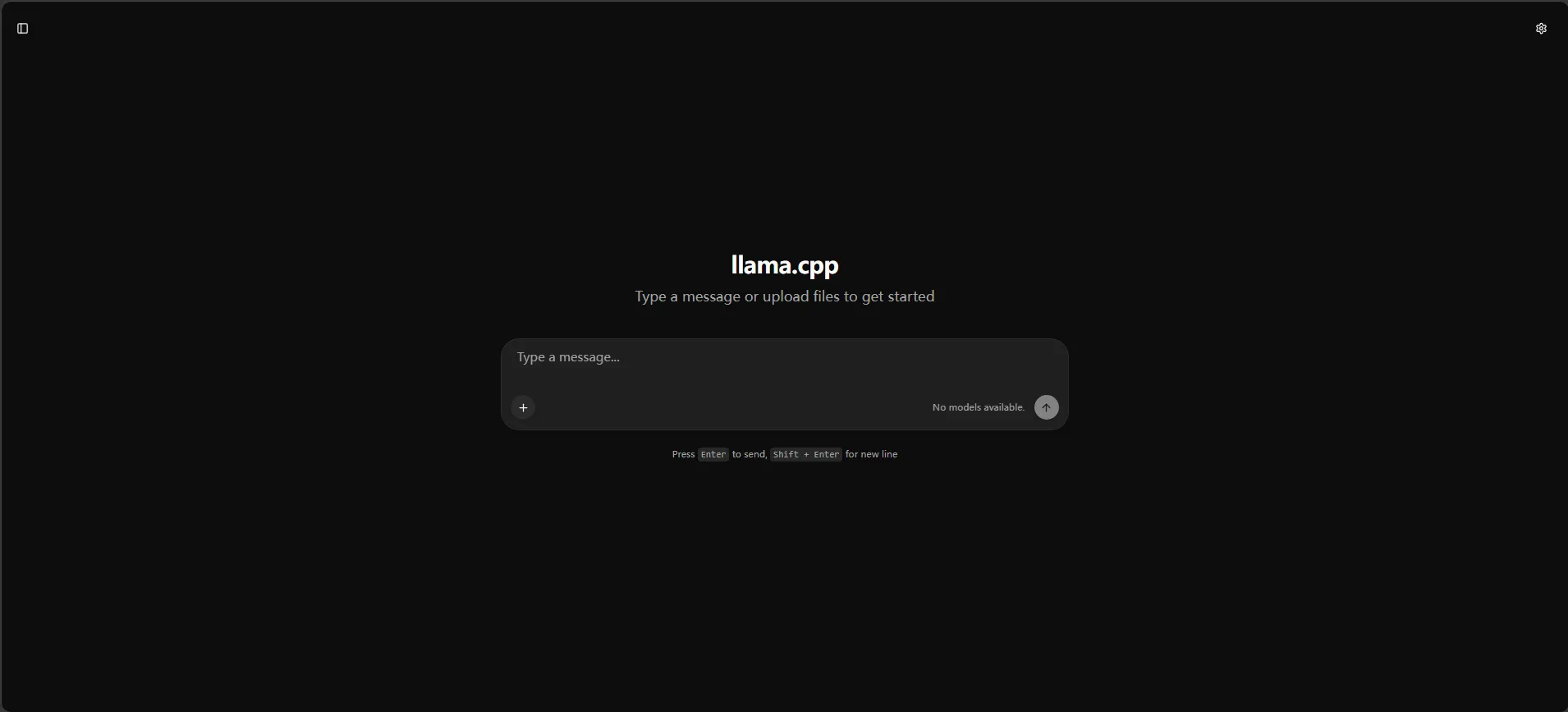
The service listens on port 17701 in router mode and automatically discovers models in /userdata/houmo/houmo-HLIELLama-xh2/models/.
5. Model Download
5.1 List Available Models
cd /userdata/houmo/houmo-HLIELLama-xh2/bin

# Query models compatible with driver v1.5.0
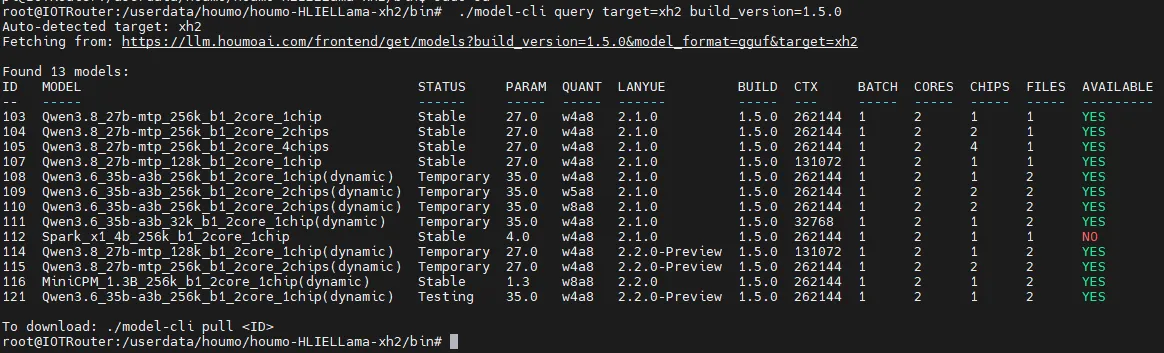
./model-cli query target=xh2 build_version=1.5.0

# Query other model build versions
./model-cli query target=xh2 build_version=1.4.0
./model-cli query target=xh2 build_version=1.3.0
./model-cli query target=xh2 build_version=1.2.0
./model-cli query target=xh2 build_version=1.1.0
Conductor v1.5.0 supports downloading models with build_version 1.1.0 ~ 1.5.0.
5.2 Download a Model
./model-cli pull <MODEL_ID>The following example downloads the qwen3-vl 8B model.
./model-cli pull 1779265995657 # qwen3-vl 8B

5.3 View Downloaded Models
ls /userdata/houmo/houmo-HLIELLama-xh2/models/

6. Manual Model Startup
6.1 Start a Model on a Single Card (Device 0)
sudo -s
cd /userdata/houmo/houmo-HLIELLama-xh2

# Vision-language model (requires --mmproj)
export HOUMO_DEVICE_ID=0
./bin/llama-server \
    -m ./models/qwen3-vl_30b-a3b_8192_1_1/HiModel_xh2_qwen3-vl_30b_a3b_256_8k_b1_1chip_2cores_v1.2.0_20260421.gguf \
    --mmproj ./models/qwen3-vl_30b-a3b_8192_1_1/mmproj_xh2_qwen3-vl_30b_2cores_vit_448x448_v1.2.0_20260421.gguf \
    --port 8080

# Text-only model (does not require --mmproj)
export HOUMO_DEVICE_ID=0
./bin/llama-server \
    -m ./models/HiModel-Deepseek-r1-qwen3-8b-p256-32K-b1-2core-1d-xh2-v1.3.0-20260622125123.gguf \
    --port 8080
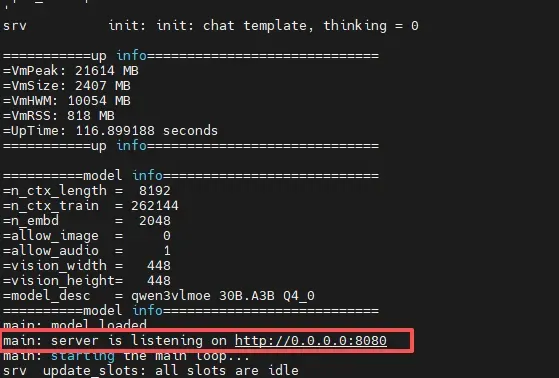
The server has started successfully when you see main: server is listening on http://0.0.0.0:8080.
6.2 Start the Model with a Script (Recommended)
cat > /userdata/houmo/houmo-HLIELLama-xh2/startup_0.sh << 'EOF'
#!/bin/bash
cd /userdata/houmo/houmo-HLIELLama-xh2
export HOUMO_DEVICE_ID=0
./bin/llama-server \
    -m ./models/qwen3-vl_30b-a3b_8192_1_1/HiModel_xh2_qwen3-vl_30b_a3b_256_8k_b1_1chip_2cores_v1.2.0_20260421.gguf \
    --mmproj ./models/qwen3-vl_30b-a3b_8192_1_1/mmproj_xh2_qwen3-vl_30b_2cores_vit_448x448_v1.2.0_20260421.gguf \
    --port 8080 \
    --no-cache-prompt
EOF

chmod +x /userdata/houmo/houmo-HLIELLama-xh2/startup_0.sh
nohup /userdata/houmo/houmo-HLIELLama-xh2/startup_0.sh > /dev/null 2>&1 &
6.3 Verify Startup
# Wait 1-2 minutes before checking
netstat -antp | grep 8080
curl -s http://localhost:8080/v1/models | python3 -m json.tool
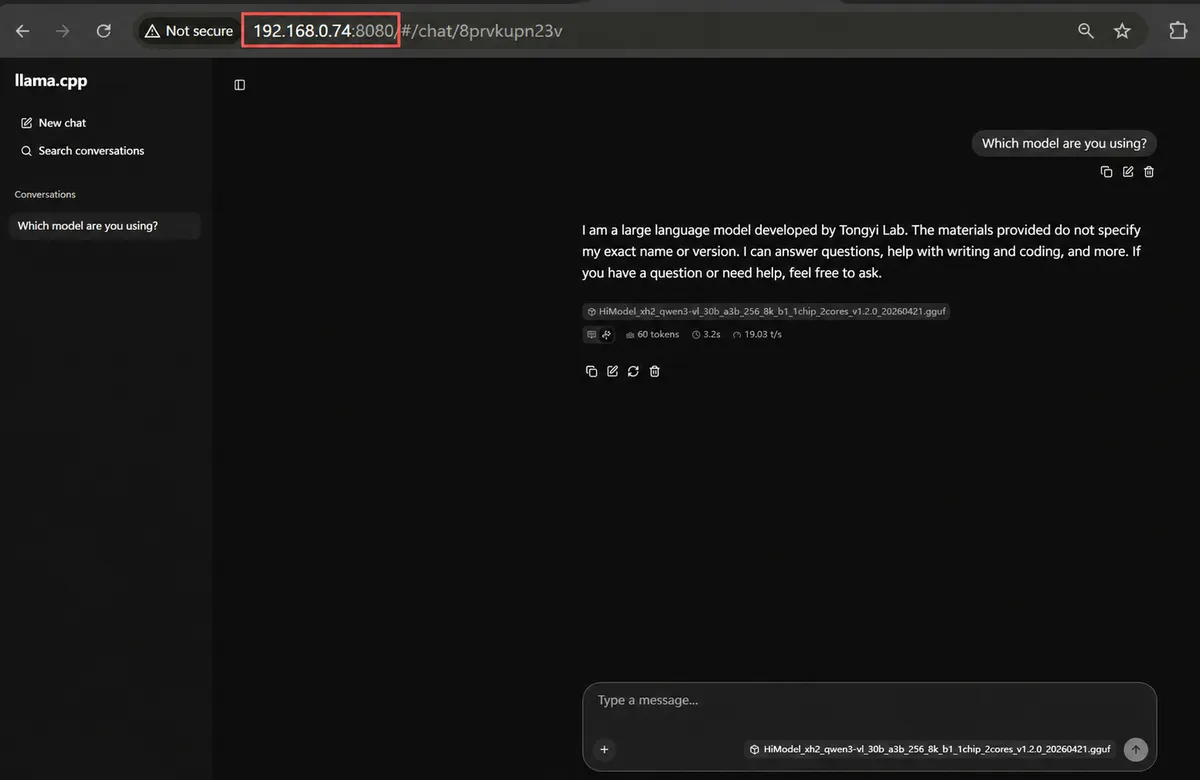
# Alternatively, open the server in a browser
# http://192.168.0.74:17701  (router mode)
# http://192.168.0.74:8080   (manual mode)
7. API Requests
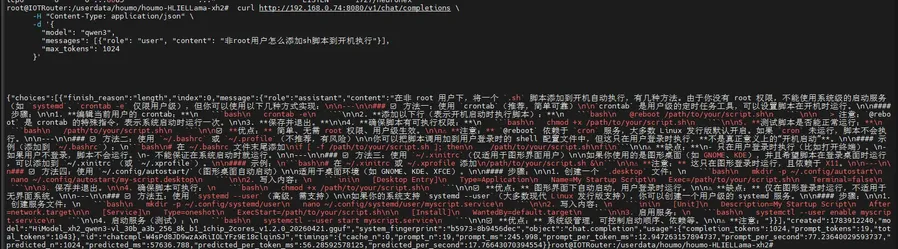
7.1 Text Request with curl
curl http://192.168.0.74:8080/v1/chat/completions \
      -H "Content-Type: application/json" \
      -d '{
        "model": "qwen3",
        "messages": [{"role": "user", "content": "How can I run a shell script at startup as a non-root user"}],
        "max_tokens":1024
}'
7.2 Image Request with curl
This example assumes the image is stored at /userdata/houmo/houmo-HLIELLama-xh2/test.jpg. Run the command below and wait for the response.
curl -s http://192.168.0.74:8080/v1/chat/completions \
      -H "Content-Type: application/json" \
      -d '{
        "model": "qwen3-vl",
        "messages": [{
          "role": "user",
          "content": [
            {"type": "text", "text": "What is shown in this image?"},
            {"type": "image_url", "image_url": {"url": "data:image/jpeg;base64,'"$(base64 -w 0 /userdata/houmo/houmo-HLIELLama-xh2/test.jpg)"'"}}
          ]
        }],
        "max_tokens": 512
      }'
7.3 Send Requests with Postman
| Campo | Valor |
|---|---|
| Method | POST |
| URL | http://192.168.0.74:8080/v1/chat/completions |
| Body | raw → JSON |
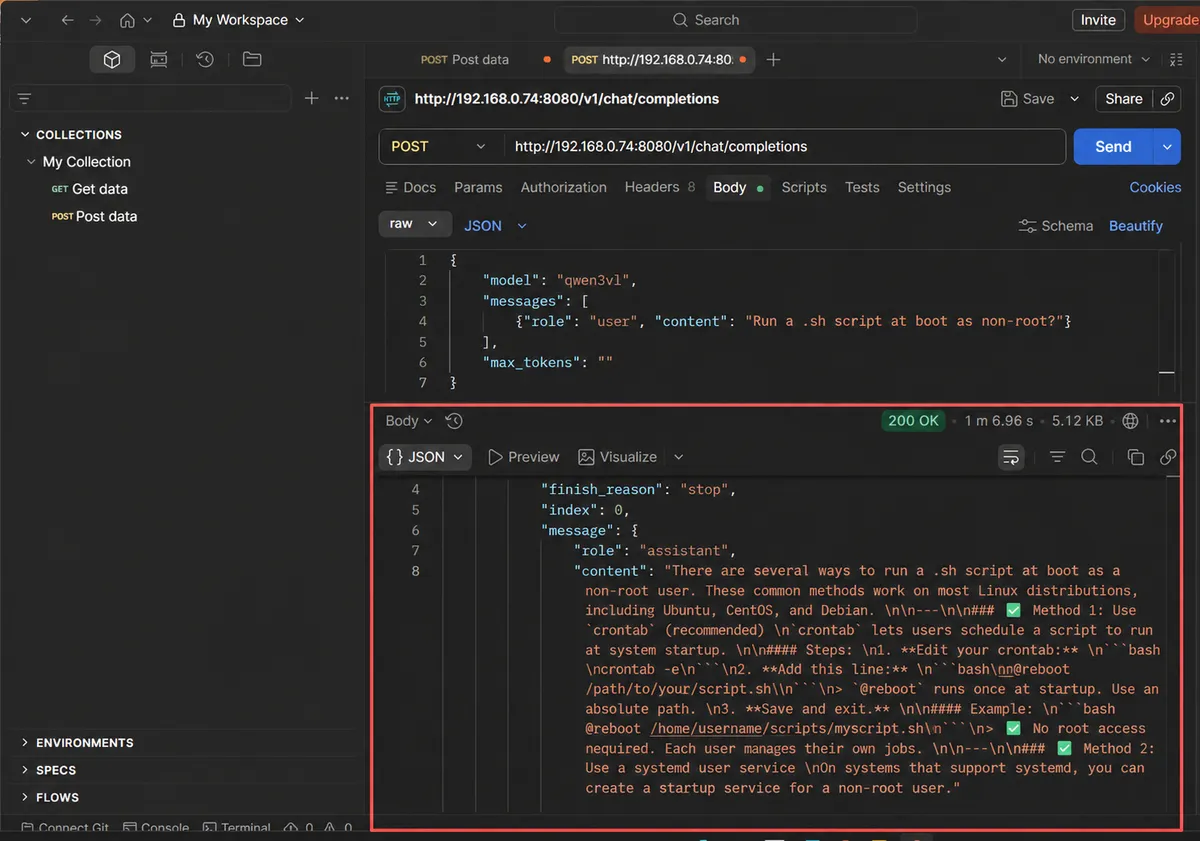
Open Postman and create a new HTTP request.
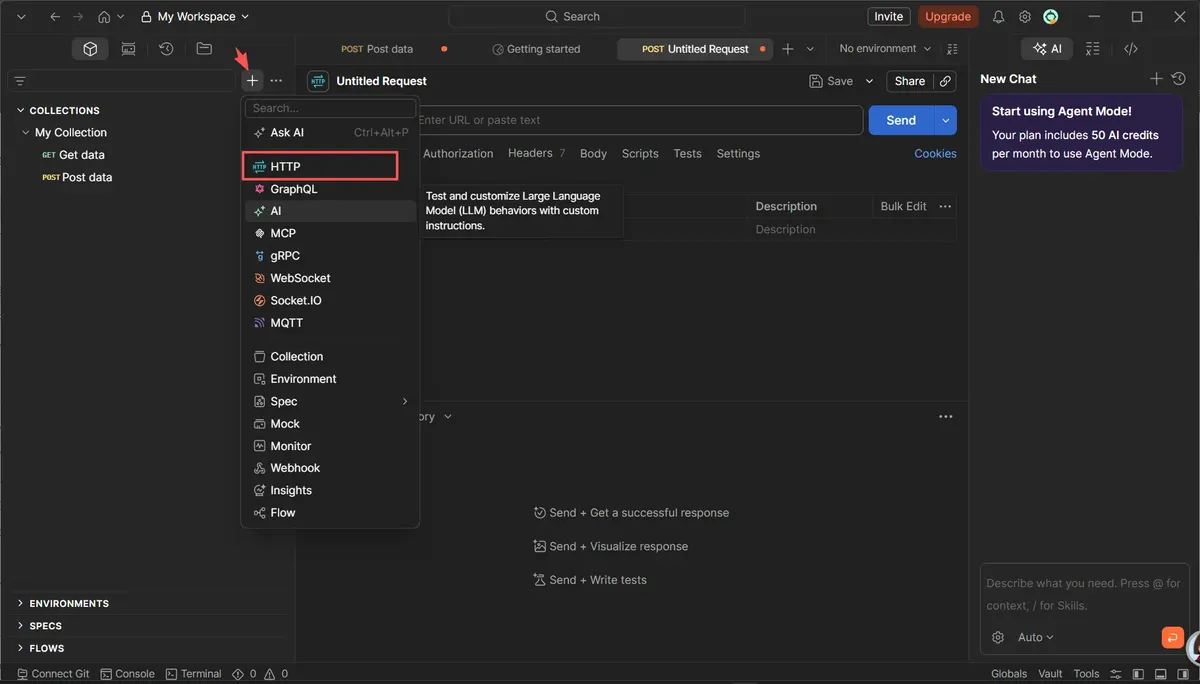
Select POST and enter the URL with the EC700’s IP address and configured port. In Body, select raw, choose JSON, and enter the request body.
7.3.1 Text Request
{
  "model": "qwen3vl",
  "messages": [
    {"role": "user", "content": "How can I run a shell script at startup as a non-root user?"}
  ],
  "max_tokens": ""
}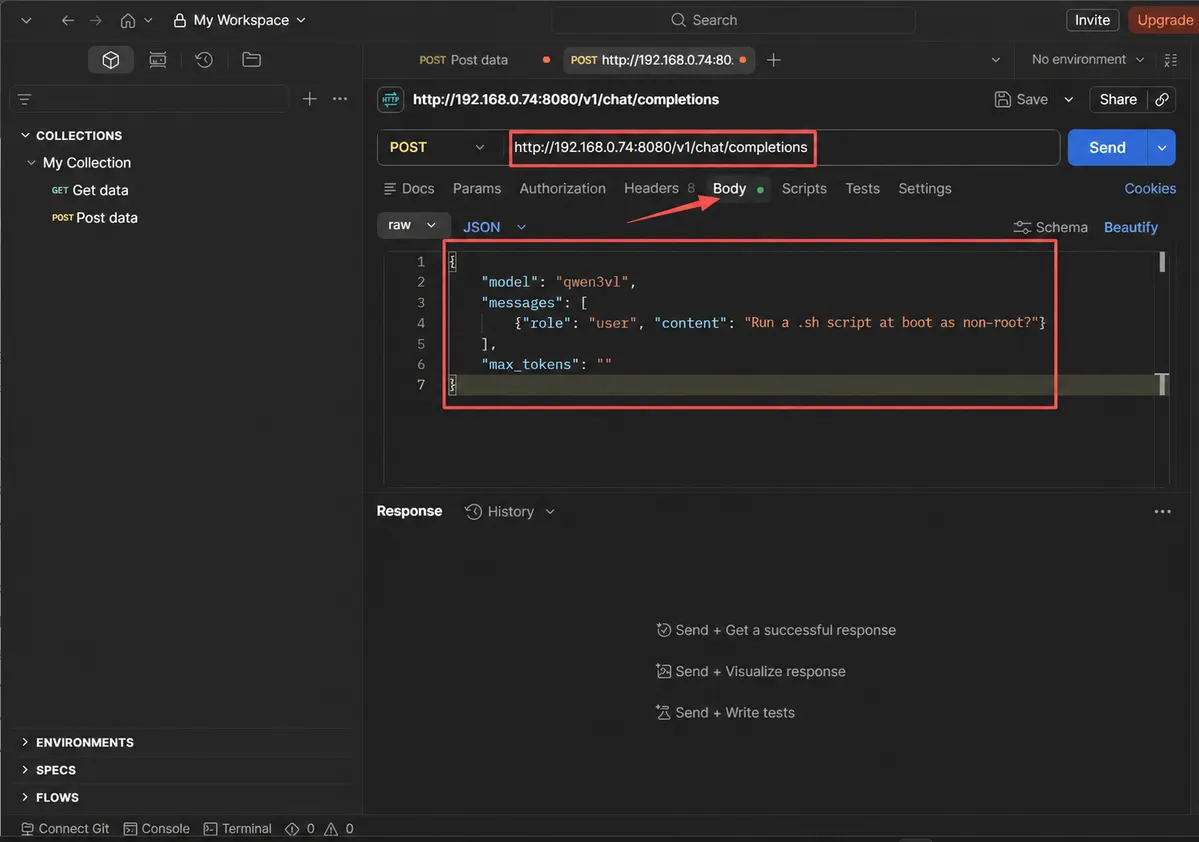
Replace the text in content with your prompt. Set max_tokens to the maximum number of tokens you want in the response. Click Enviar and wait for the response.
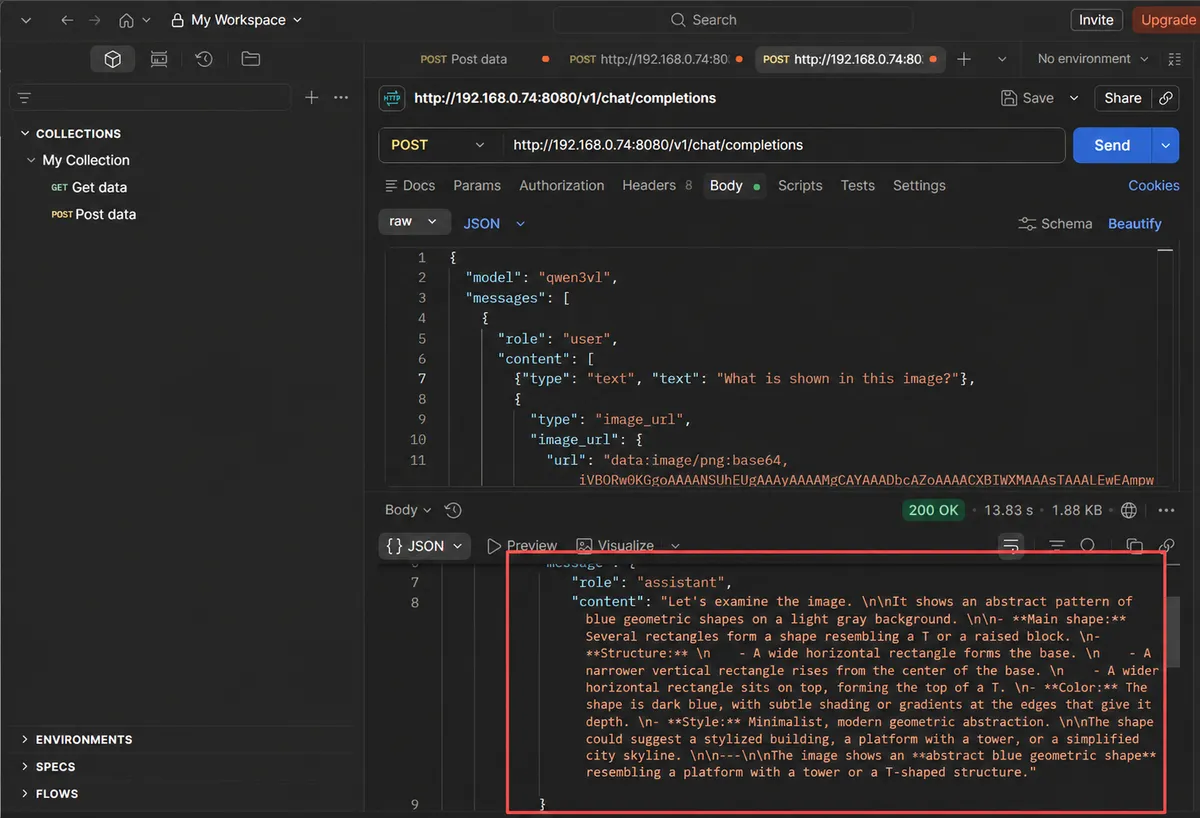
7.3.2 Image Request
{
  "model": "qwen3vl",
  "messages": [
    {
      "role": "user",
      "content": [
        {"type": "text", "text": "What is shown in this image?"},
        {
          "type": "image_url",
          "image_url": {
            "url": "base64code..."
          }
        }
      ]
    }
  ]
}
Upload the image to the converter. Once the conversion is complete, click the result to copy it, then paste it into the url field. Image-to-Base64 converter
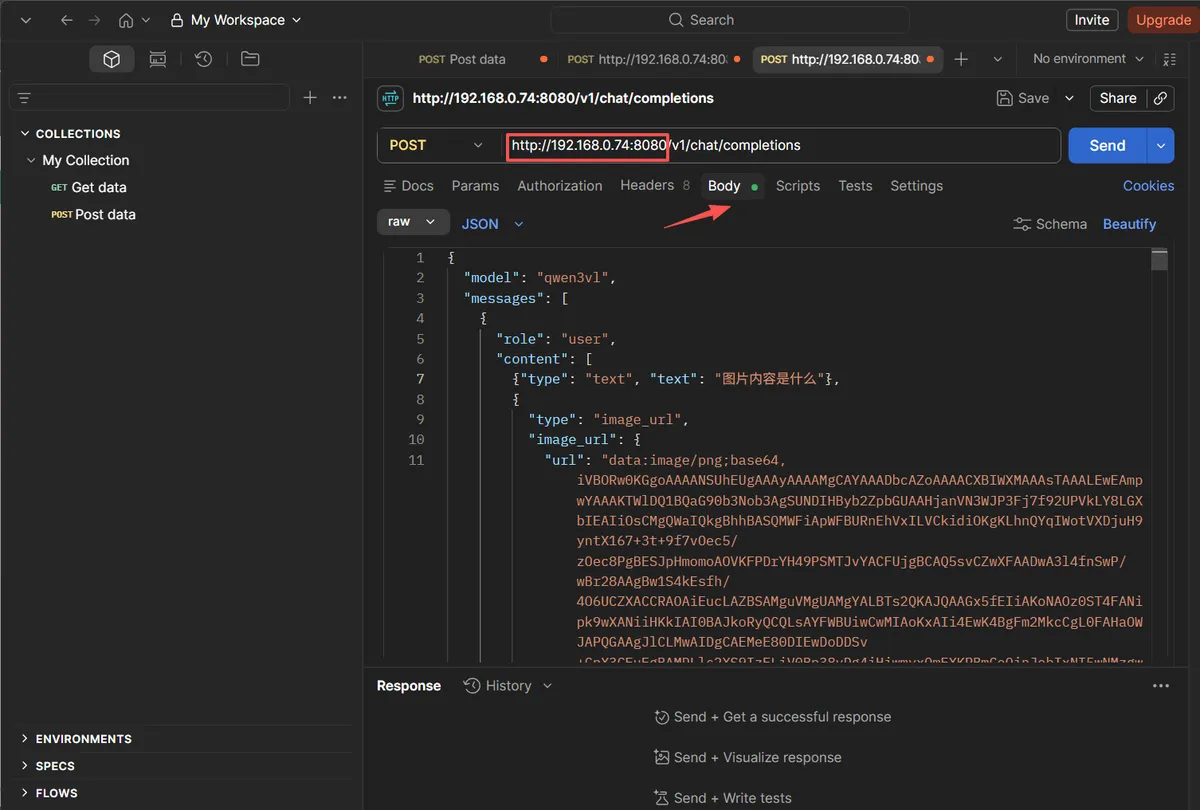
Replace the prompt in text and enter the Base64-encoded image in url. Click Enviar and wait for the response.
8. aichat Integration
8.1 Install aichat
curl -L "https://ghfast.top/https://github.com/sigoden/aichat/releases/download/v0.30.0/aichat-v0.30.0-aarch64-unknown-linux-musl.tar.gz" -o aichat.tar.gz
tar -zxf aichat.tar.gz
mv ./aichat /usr/local/bin/
chmod +x /usr/local/bin/aichat
rm -f aichat.tar.gz
aichat --version
8.2 Configure aichat
mkdir -p ~/.config/aichat
cat > ~/.config/aichat/config.yaml << 'EOF'
model: houmo:qwen3-vl_30b-a3b_8192_1_1 # Default model
clients:
    - type: openai-compatible # OpenAI-compatible API protocol
      name: houmo # Client alias referenced as houmo:xxx on the command line
      api_base: http://localhost:17701/v1 # llama-server API base URL
      api_key: none # The local service does not require authentication
      models: # Models available to aichat
        - name: qwen3-vl_8b_32768_1_1
        - name: qwen3-vl_30b-a3b_8192_1_1
        - name: HiModel-Deepseek-r1-qwen3-8b-p256-32K-b1-2core-1d-xh2-v1.3.0-20260622125123
EOF
8.3 Use aichat
aichat                    # Start an interactive session
aichat "YOUR_PROMPT"       # Send a single prompt
.model houmo:MODEL_NAME   # Switch models
.new                      # Start a new session
.exit                     # Exit the session
9. Performance Tuning
# Set all CPUs to performance mode
echo performance | sudo tee /sys/devices/system/cpu/cpufreq/policy*/scaling_governor
cd /userdata/houmo/houmo-HLIELLama-xh2
# Run the test on the performance cores
taskset -c 4,5,6,7 ./bin/llama-server \
   -m ./models/qwen3.5_0.8b_262144_1_1/HiModel_xh2_qwen3.5-0.8b_w8a16_256_256k_b1_1chip_2cores_v1.4.0_20260708.gguf \
   --mmproj ./models/qwen3.5_0.8b_262144_1_1/mmproj_xh2_qwen3.5-0.8b_w8a16_2cores_vit_448x448_v1.4.0_20260708.gguf \
   --port PORT
The CPU governor returns to its default setting after a reboot. Add the setting to a startup script to apply it at each boot. Use the actual model paths on your device and replace PORT with the port you want to use.
10. Troubleshooting
| Issue | Cause | Solución |
|---|---|---|
Model download returns 404 |
En model-cli token has expired. |
Run ./model-cli query again, then retry the download. |
| Switching models causes an out-of-memory error | Both models are using accelerator memory at the same time. | Run pkill llama-server, then hm_smi -r 0, and start the model again. |
install_llama-server.sh fails |
The installer was run directly as root. |
Must use sudo -u pi. |
| Router mode does not load the model | The model files are outside models/. |
Verify that the files are in the correct model directory. |
Appendix: Environment Quick Reference
| Artículo | Valor |
|---|---|
llama-server ports |
17701 (router mode) / 8080 (manual mode) |
| Model directory | /userdata/houmo/houmo-HLIELLama-xh2/models/ |
| Driver directory | /userdata/houmo/ |
aichat configuration |
~/.config/aichat/config.yaml |
systemd service |
llama-server.service |
Once the local HTTP API returns a model response, you’ve verified the setup in this LQ50 LLM deployment guide. You can use the same endpoint to send text prompts from your own application or send image requests with a vision-language model loaded.

Agnes Wang es especialista en soluciones de IoT en IOTRouter, donde se dedica principalmente a las pasarelas de IoT industrial, la computación en el borde y las soluciones de automatización industrial.
Está especializada en tecnologías de comunicación industrial, entre las que se incluyen Modbus, IEC 60870-5-104, MQTT, OPC UA, integración de PLC y aplicaciones de monitorización remota. Colabora en la redacción de artículos técnicos y guías de aplicación sobre soluciones de IoT industrial, conversión de protocolos y computación periférica.