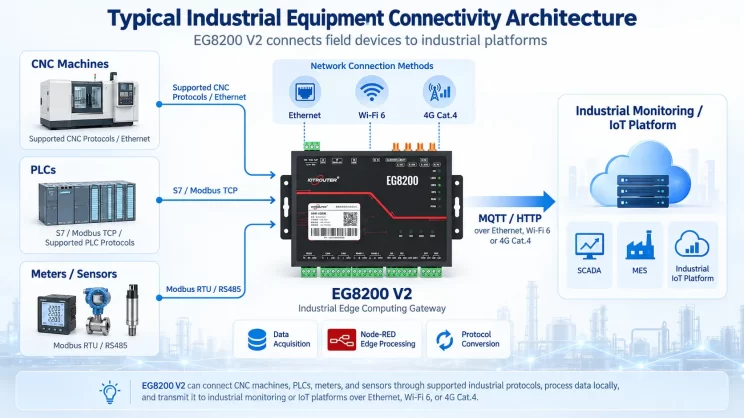
В данном руководстве объясняется, как подключиться ПЛК Mitsubishi FX3U к EG8200Mini — пограничный шлюз через порт программирования. Он входит в состав Protocol Hub, специализирующегося на промышленной связи и обмене данными.
1. Подключение оборудования
Совместимый ПЛК
ПЛК серии Mitsubishi FX3U и другие ПЛК Mitsubishi, поддерживающие связь через порт программирования.
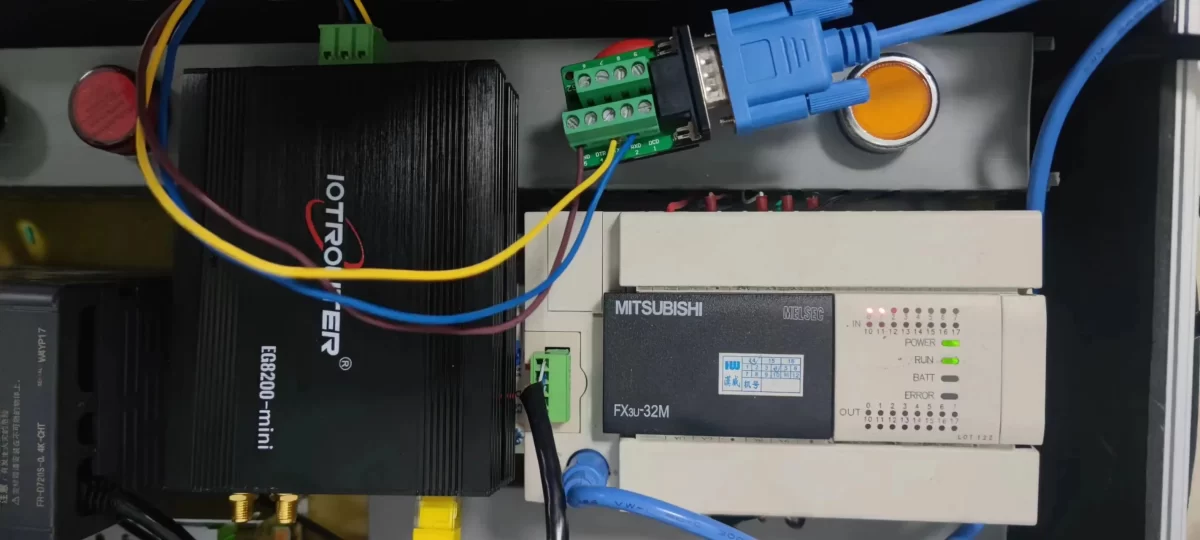
Подключение оборудования
Подключите порт программирования ПЛК к интерфейсу RS232 устройства EG8200Mini с помощью совместимого кабеля-переходника.
2. Параметры связи с ПЛК
2.1 Настройки параметров последовательного порта
Параметры последовательной связи должны быть предоставлены инженером по ПЛК.
3. Настройки шлюза
3.1 Настройки подключения ПЛК
Перетащите Mitsubishi узел на левой панели и дважды щелкните по нему, чтобы открыть страницу настроек. Настройте соединение в соответствии с параметрами последовательной связи ПЛК следующим образом:
1  Протокол: FxSerial
2  Последовательный порт: RS232 (TX, RX, GND)
3  Скорость передачи: 9600
4  Биты данных: 7
5  Стоп-биты: 1
6  Паритет: ЧЁТНЫЙ
7  Таймаут связи: 2000 мс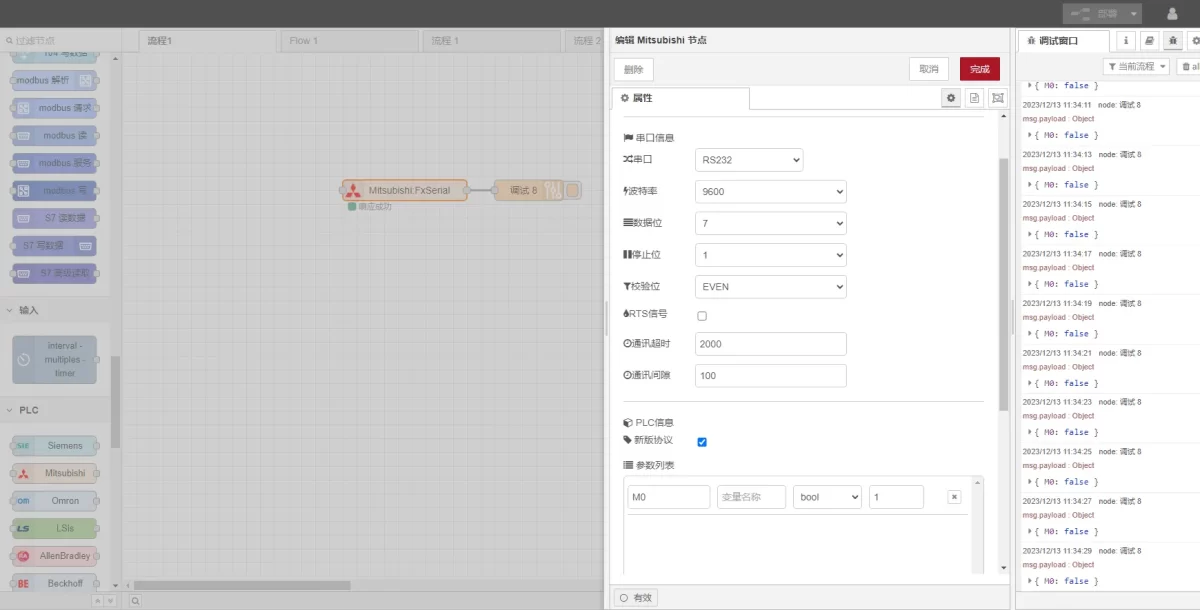
3.2 Настройки точек данных
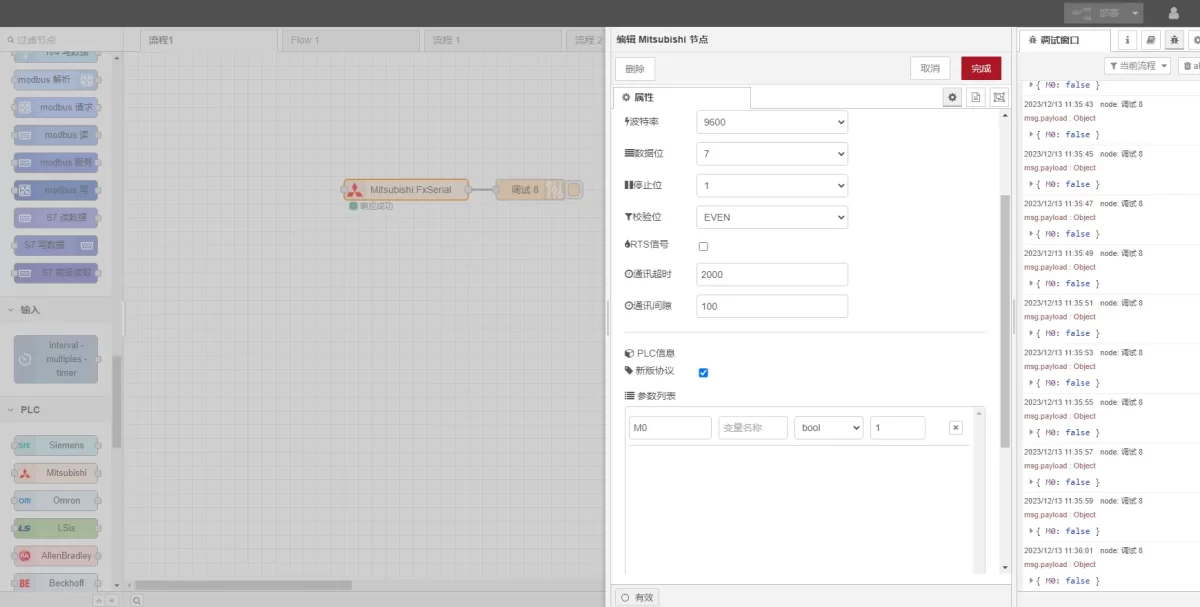
Введите точки данных, которые необходимо считывать, в список параметров узла Mitsubishi. После настройки точек данных шлюз будет автоматически считывать данные ПЛК с заданной периодичностью.
Обычно инженер по ПЛК предоставляет точки данных. После получения таблицы точек введите точки данных в соответствии с форматом, требуемым шлюзом. Подробную информацию об отображении адресов см. здесь: (Для перевода можно использовать браузер Google Chrome.)
https://iotrouter.yuque.com/zn3vdn/eg8000/gtyg0mdl9dipbu7u
В этом примере данные из M0 адрес считывается. В списке параметров введите Адрес, Имя, Тип данных, и Длина данных последовательно. Данные считываются с периодичностью 2 секунды, как показано на рисунке.
3.3 Тестирование
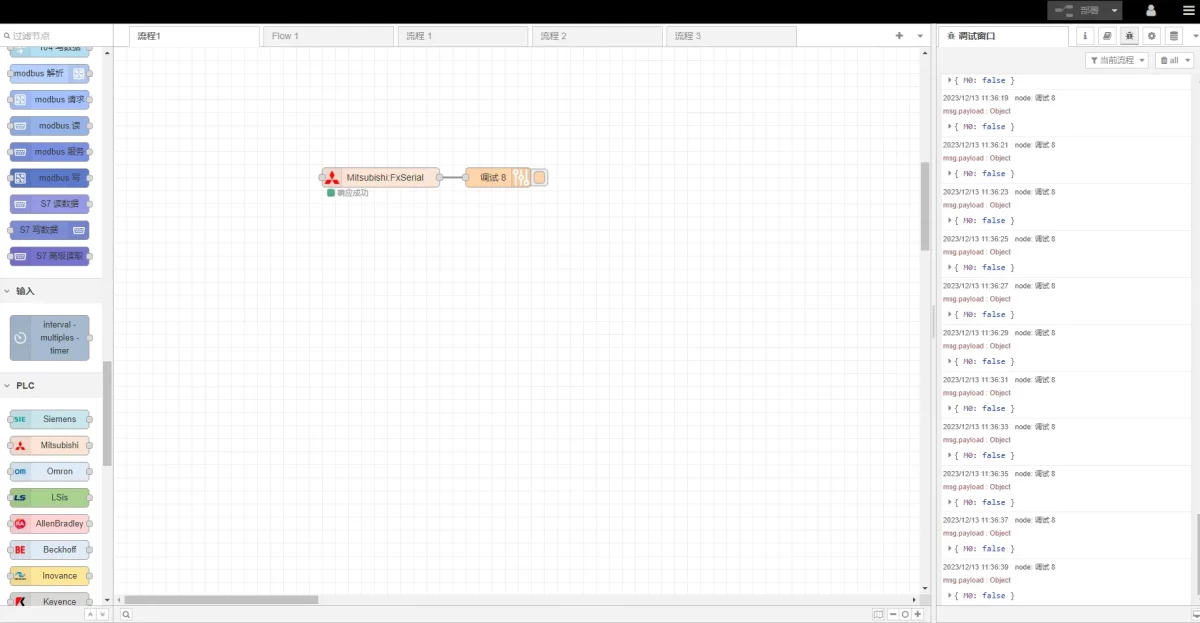
Нажмите Развернуть. Каждые 2 секунды будет выводиться одна запись данных. В данном примере результат отображается следующим образом:
M0: falseЭто означает, что связь установлена успешно.
Связанные руководства по интеграции промышленных ПЛК
← Вернуться на страницу «Центр интеграции ПЛК»

Агнес Ван — специалист по решениям в области Интернета вещей (IoT) в компании IOTRouter, специализирующаяся на промышленных шлюзах IoT, периферийных вычислениях и решениях для промышленной автоматизации.
Она специализируется на технологиях промышленной связи, в том числе на протоколах Modbus, IEC 60870-5-104, MQTT, OPC UA, интеграции ПЛК и приложениях для удаленного мониторинга. Она участвует в написании технических статей и руководств по применению, посвященных решениям в области промышленного Интернета вещей, преобразованию протоколов и пограничным вычислениям.