
Übersicht
This chapter introduces several methods to connect the EG series edge gateway, including direct network connection, WiFi connectionund remote connection, and explains how to access the device’s programming interface.
After the connection is established, the Edge-Gateway can be accessed through a web browser using the default address and credentials.
1. Direct Network Cable Connection
Use a network cable to connect the computer to the gateway directly.
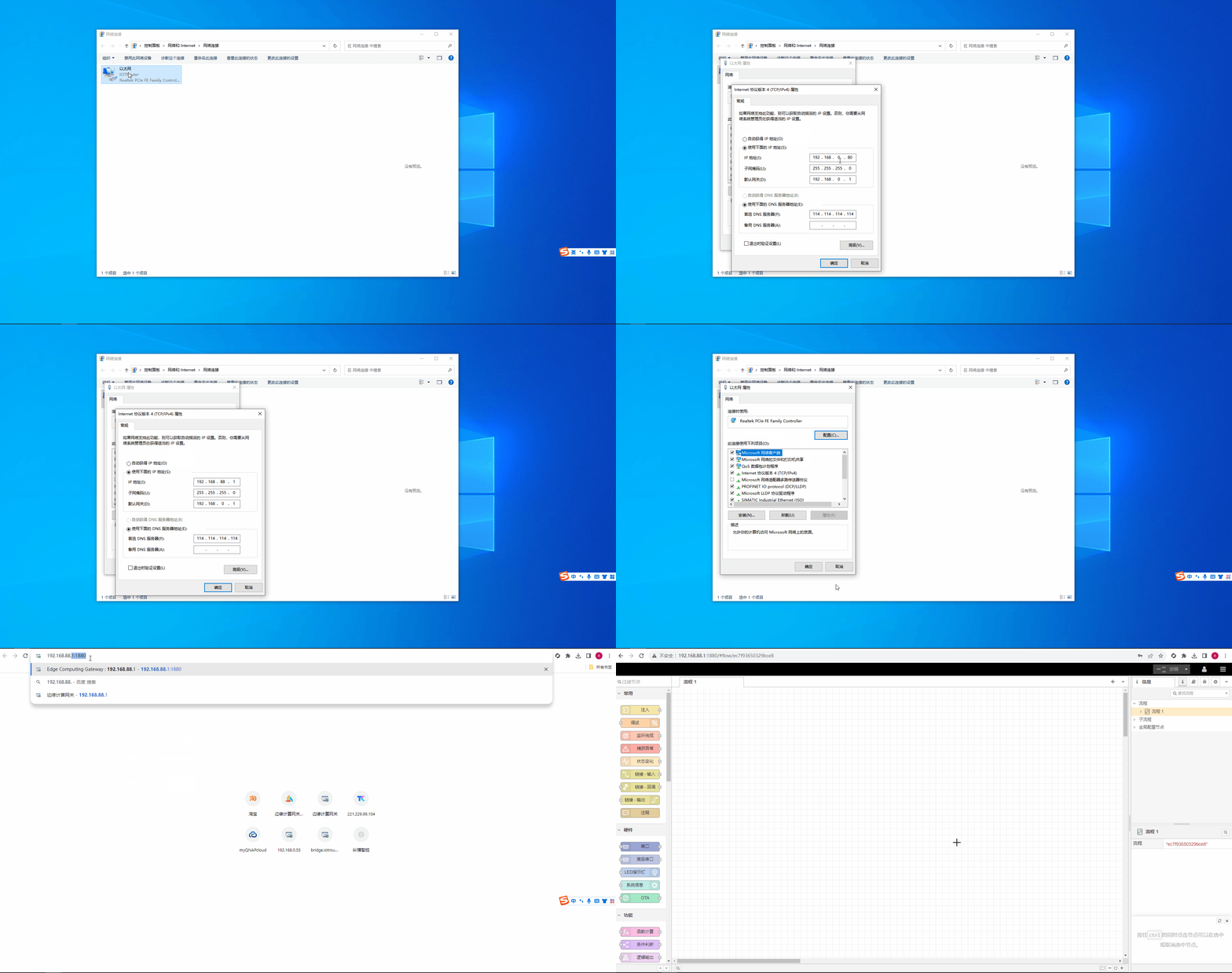
First, manually set the computer’s IP address to 192.168.88.100.
Then, open a web browser and enter: 192.168.88.1:1880, use the password: EG12345678. The interface will open as shown in the figure below.
2. WiFi Connection(AP Mode)
Use the computer’s WiFi to connect to the AP hotspot of the gateway.
The default AP hotspot is: EG8200– the last four digits of the SN number, the password is EG12345678.
After the connection, it will be automatically assigned to the IP of 192.168.88.X. Open a web browser and enter:192.168.88.1:1880, use this password: EG12345678.
3. Remote Connection
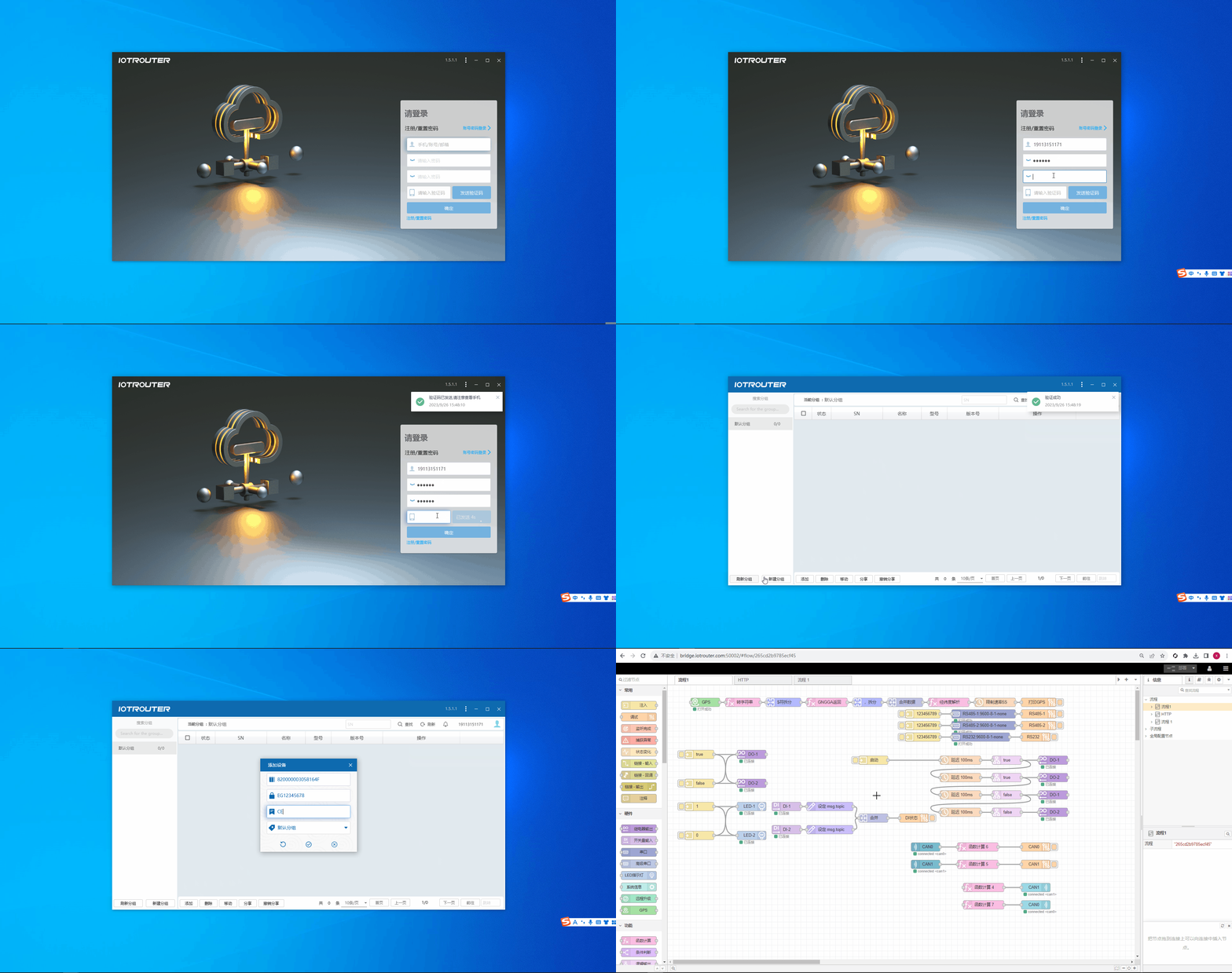
First of all, please click to download the remote management software, no installation required: EGManager
At the first login, registration is required. After logging in, add the gateway by its SN. Then, click the Remote Programming button to automatically open the browser and access the programming interface. Anmerkung: The gateway must be connected to the Internet, as shown in the figure below:
Notice
1. Be sure to change your password!
Schlussfolgerung
After completing the steps above to connect the EG series edge gateway, the device is ready for basic configuration and further development.
It is recommended to verify network connectivity and change the default password after the first access to ensure device security.