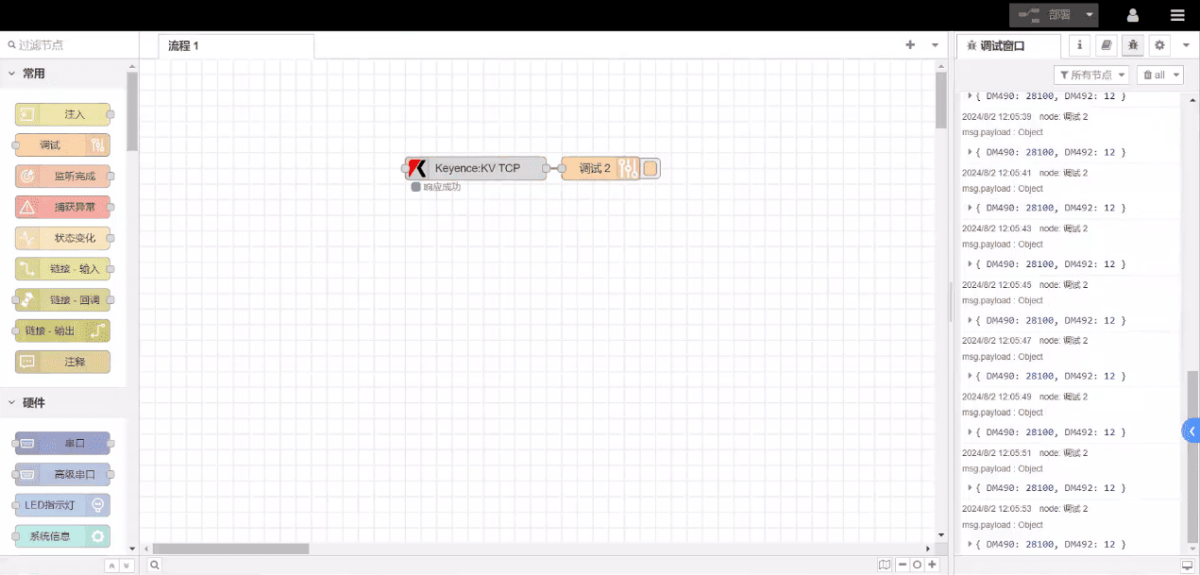
Today, let’s talk about how to interface the EG edge gateway with Keyence KV-7500 series PLCs via the KV TCPprotocol.
Der Artikel, den wir zuvor besprochen haben:
Integration des EG Edge-Computing-Gateways mit General Electric PLC
Integration mit Xinjie PLC über Modbus RTU Protokoll
Schnittstelle zu Keyence-SPSen der Serie KV-8000 über das MC-3E-Protokoll
Compatible PLC: KV-7500 Series
1. Hardware-Anschluss
The KV TCP protocol utilizes Ethernet communication. Therefore, simply ensure the gateway’s LAN port and the Keyence PLC’s IP address are within the same subnet.
| EG8200Mini(LAN) | KV-7500 | |
| IP-Adresse | 192.168.0.88 | 192.168.0.10 |
2. PLC-Kommunikationsparameter
IP:192.168.0.10
Hafen: 8501
3. Gateway-Konfiguration
3.1. PLC-Verbindungseinstellungen
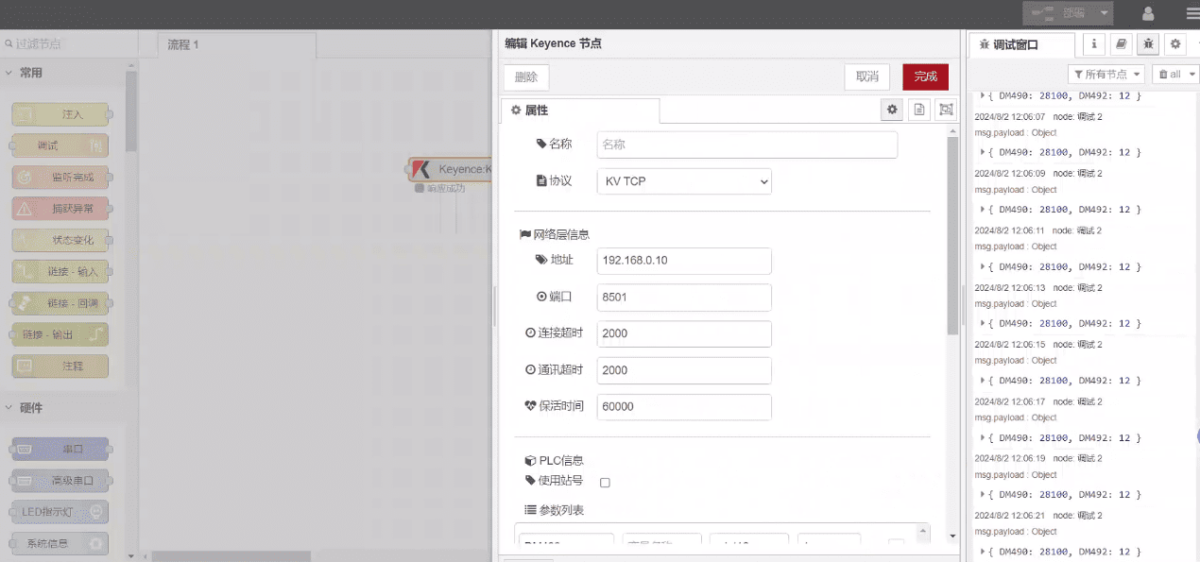
Ziehen Sie einen Keyence-Knoten aus dem linken Bereich, doppelklicken Sie darauf, um die Einstellungsseite zu öffnen, und konfigurieren Sie ihn wie folgt auf der Grundlage der Kommunikationsparameter der SPS:
Protokoll: KV TCP
Netzwerkanschluss: An den LAN-Anschluss des Gateways angeschlossen
Adresse: 192.168.0.10
Hafen: 8501
Zeitüberschreitung der Verbindung: 2000
Zeitüberschreitung bei der Kommunikation: 2000
Keepalive Time: 60000
Station ID: 0
Do not use station ID
3.2. Datenpunkt-Konfiguration
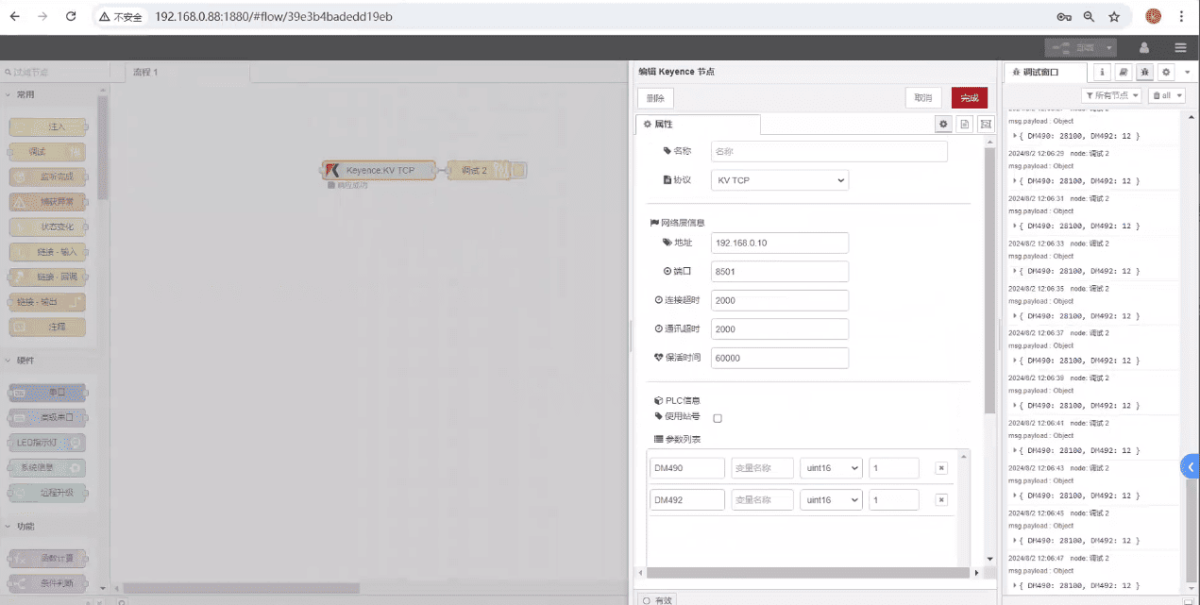
Geben Sie die zu lesenden Datenpunkte in die Parameterliste des Keyence-Knotens ein. Sobald der Knoten konfiguriert ist, liest er die Daten automatisch mit der angegebenen Frequenz aus der SPS.
Data points are typically provided by PLC engineers. After obtaining the point list, fill in the data points according to the gateway’s required format. For specific mapping details, refer to:
This section contains content from Yuque. Click the link to view:(Sie können Google Chrome für die Übersetzung verwenden) https://iotrouter.yuque.com/zn3vdn/eg8000/wgvrbfp0ivzdod3h
This example reads data from addresses DM490 and DM492. In the parameter list, enter the address/name/data type/data length in sequence. Data is read cyclically every 2 seconds, as shown in the figure:
3.3. Prüfung
Click Deploy and observe that a data point is printed every 2 seconds. Verify that the data point name and corresponding value are returned—communication is successful!