Today, let’s talk about how to remote PLC program upload/download over serial connection.
Het artikel dat we eerder bespraken:
EG serie gebruikershandleiding: Integratie met Siemens S7 PLC
Working Principle of This Feature:
The PLC is connected to the gateway’s serial port. The gateway’s serial port communicates with the server via the MQTT protocol. On the PC side, run MQTT virtual serial port software, which binds to a local serial port. This virtual serial port also communicates with the server through MQTT.
The MQTT client on the gateway and the MQTT client of the virtual serial port software subscribe and publish to each other’s topics. This enables transparent transmission between the PLC connected to the gateway serial port and the serial port bound by the virtual serial port software.
See the figure below for reference:

At this point, sending data to the virtual serial port will be transmitted to the PLC through the gateway’s serial port, and the data sent from the PLC will also be received through the virtual serial port.
1. Hardwareverbinding
Compatible PLC: Supports PLCs with RS485 and RS232 serial communication.
Extension: Can remotely debug any serial device connected via the gateway’s serial port.
Taking the Mitsubishi FX3u-32M PLC as an example.
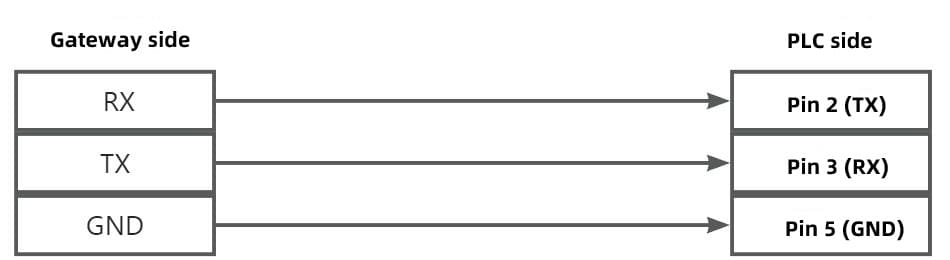
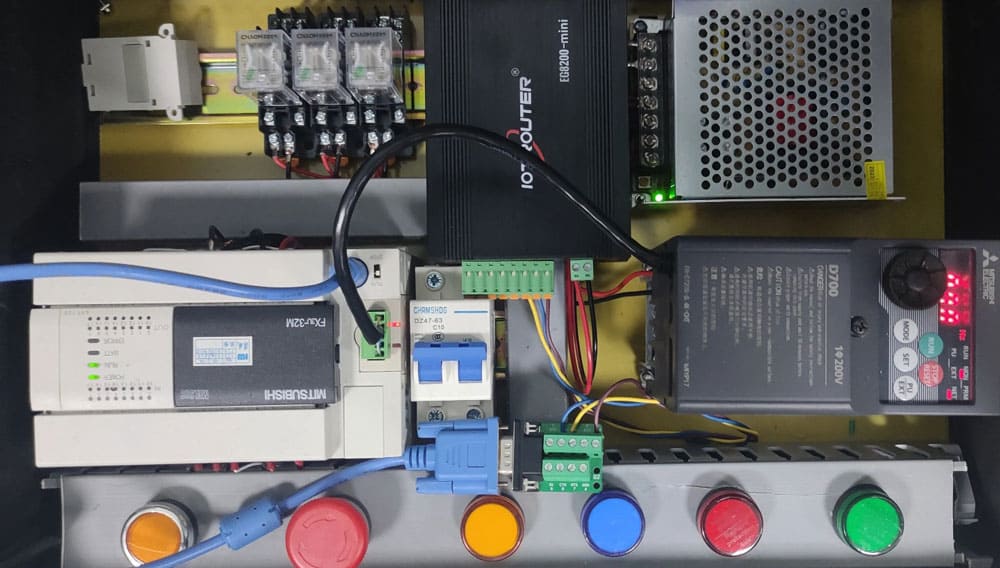
Before EG8200Mini communicates with the Mitsubishi FX3u-32M, make sure the wiring is correct. This PLC uses RS232 communication. The specific wiring is:
Pin 2 → RX
Pin 3 → TX (for some models, 2 → TX, 3 → RX)
Pin 5 → GND
Different PLCs may have different wiring. Please connect according to your actual situation.
2. Gateway Configuration
2.1 Configure MQTT Server Connection
MQTT server connection parameters are as follows:
Server Address: bridge.iotrouter.com
Haven: 1873
Client ID: Custom, maximum length 256 bytes, must be unique.
Username: Use the EG8200 gateway SN number
Password: Use the EG8200 gateway login password, default is EG12345678; if changed, use the modified password
Publish Topic: Custom, maximum length 256 bytes, wildcards not supported
Subscribe Topic: Custom, maximum length 256 bytes, wildcards not supported
2.2 Configure Serial Connection to PLC
PLC serial port parameters:
Haven: RS232
Baudrate: 9600
Gegevensbits: 7
Stopbits: 1
Pariteit: EVEN
3. Virtual Serial Communication Software Download and Configuration
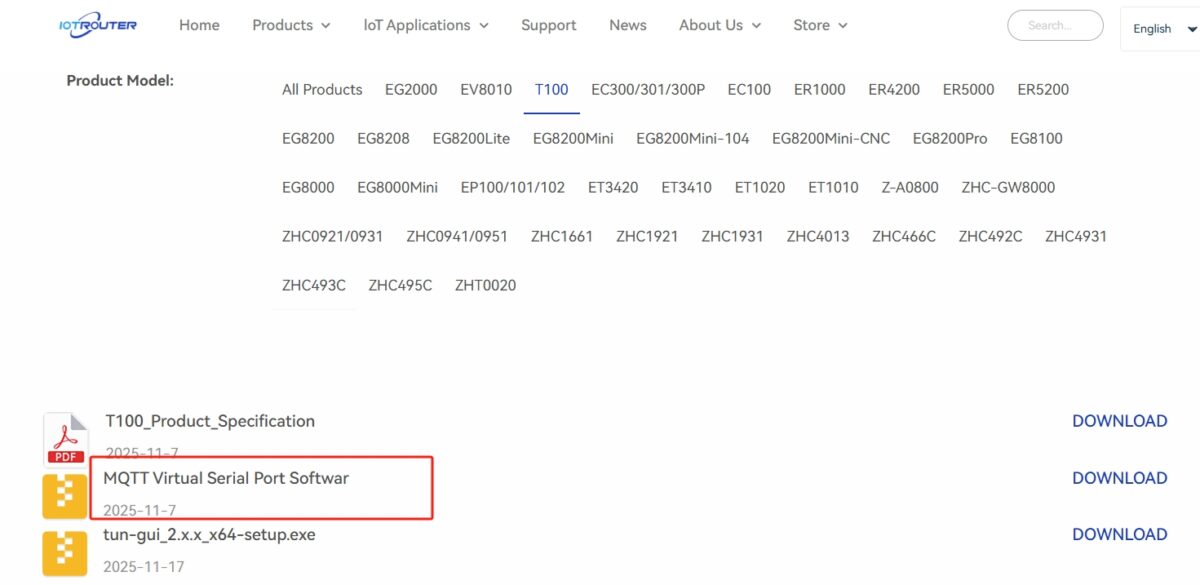
3.1 Download Software
Virtual serial port and virtual serial communication software can be downloaded from the resources/download section.
3.2 Virtual Serial Software Setup
Check the virtual serial ports on your computer.

Configuration:
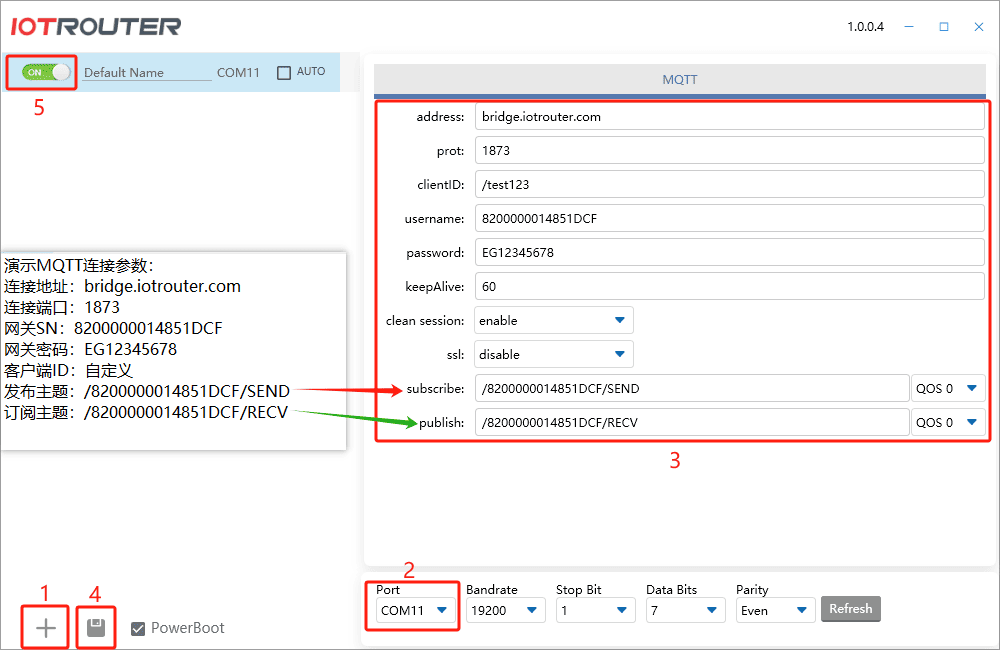
Virtual serial ports are used in pairs. Here, COM11 <–> COM12 is used. If the virtual serial communication software uses COM11, the PLC software should use COM12 to communicate. Connection parameters:
Adres: bridge.iotrouter.com
Haven: 1873
Client ID: Custom, maximum length 256 bytes, must be unique
Username: Use the EG8200 gateway SN number
Password: Use the EG8200 gateway login password, default EG12345678, or modified if changed
Subscribe: Fill in the publish topic configured in the gateway MQTT settings
Publish: Fill in the subscribe topic configured in the gateway MQTT settings
3.3 Test Virtual Serial Network Communication
After the above configuration is successful, first use serial debugging software to test data transmission with the EG8200 gateway via the virtual serial port.
The serial software and the gateway can send and receive data to each other. At this point, PLC program upload or download can be tested.
4. PLC Program Upload
4.1 Establish Connection in GX Works2

4.2 Execute PLC Program Upload Operation
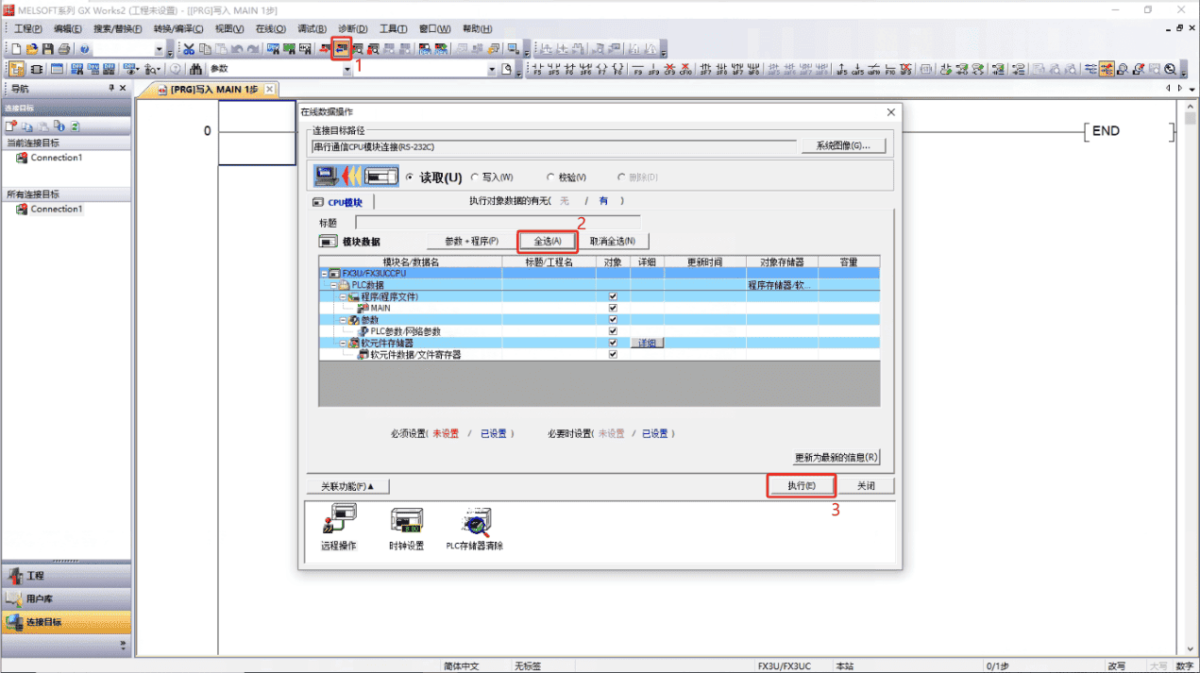
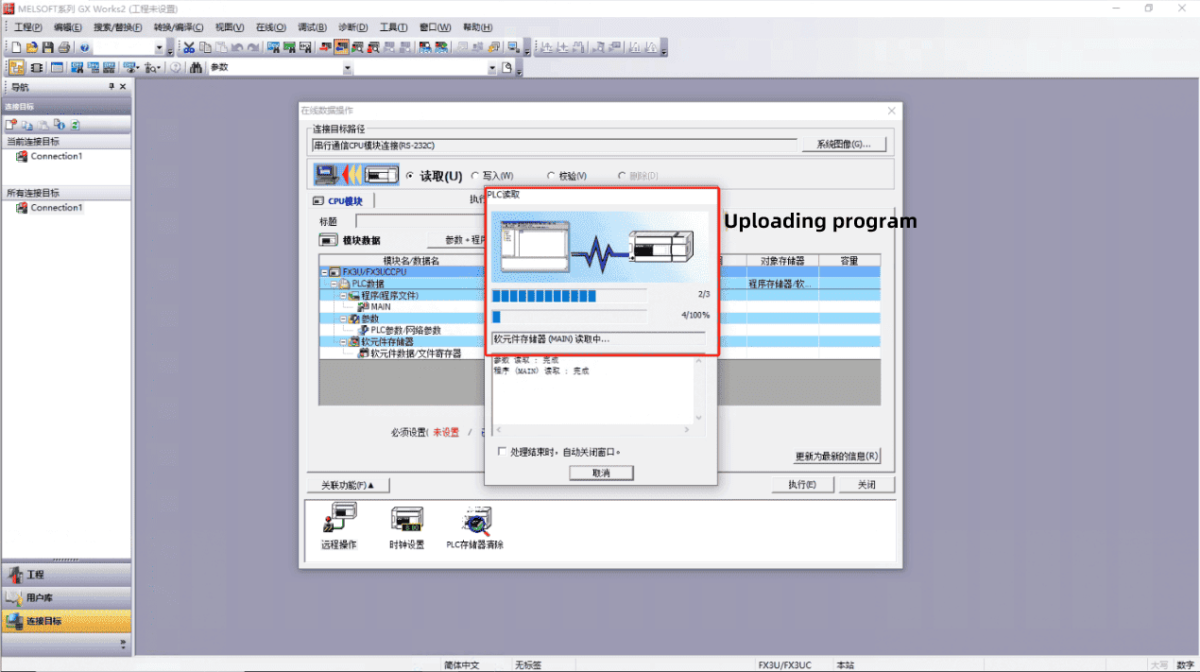
4.3 Upload Program