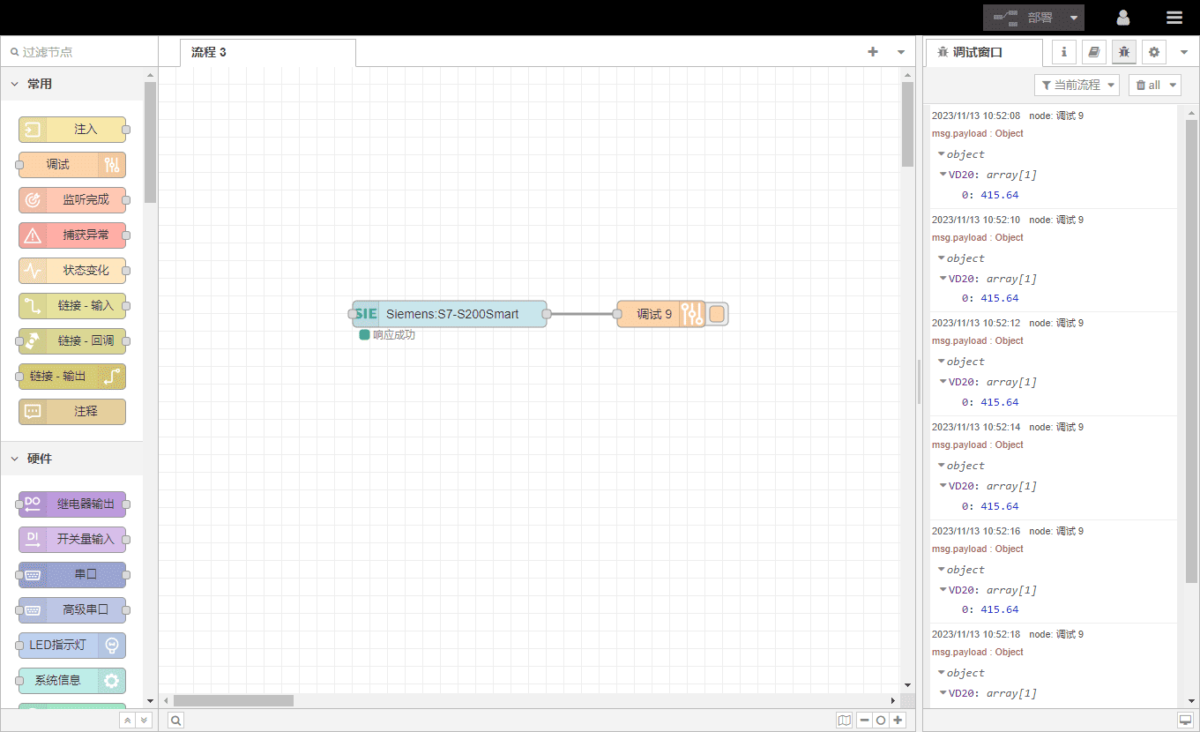
Today, let’s talk about how to integration with Siemens S7 PLC.
Статья, о которой мы говорили ранее:
How to integration with Siemens PLC using the PPI Protocol
1. Подключение оборудования
Compatible PLC: S7-200 Smart / S7-300 / S7-400 / S7-1200 / S7-1500
All Siemens PLCs currently on the market support communication via the S7 protocol. The following section mainly explains how the EG8200Mini uses the S7 protocol to read data from a Siemens S7-200 Smart PLC.
The S7 protocol uses Ethernet communication, so it is only necessary to ensure that the LAN IP of the gateway and the IP of the Siemens PLC are on the same subnet (Note: in special cases, they do not need to be on the same subnet, but routing must be configured—please consult technical support for details). In this example, the IP addresses are assigned as follows:
| S7-200 Smart | ||
| IP-адрес | 192.168.0.80 | 192.168.0.34 |
2. Параметры связи с ПЛК
2.1. Check Rack/Slot Number
If the PLC model is S7-200 Smart, there is no need to set the rack number and slot number.
If the PLC model is S7-300/S7-400/S7-1200/S7-1500, go to the device configuration page, select General → Project Information to check the rack number and slot number.
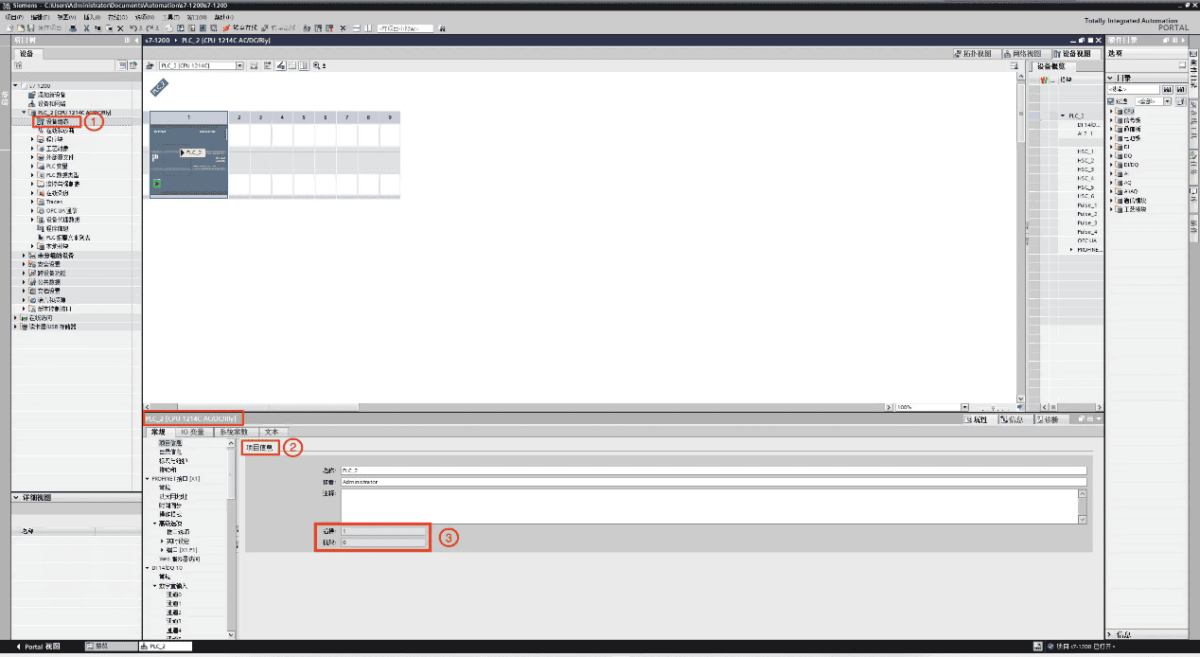
2.2. Enable Access Rights
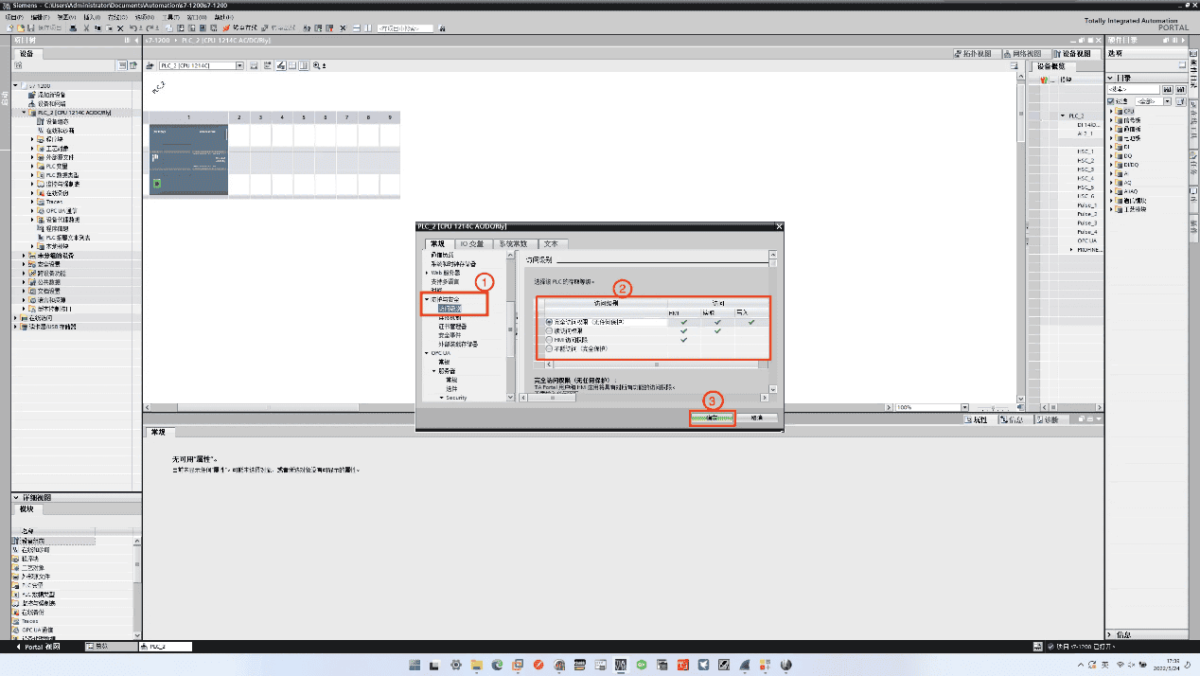
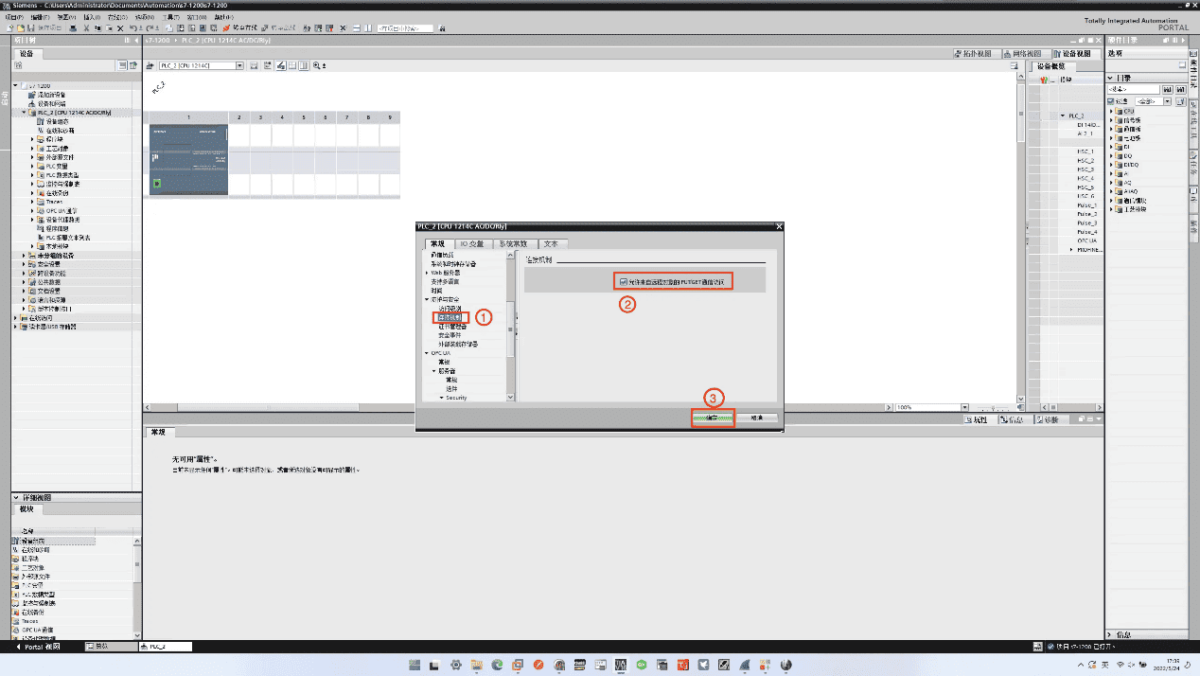
If the PLC model is S7-1200/S7-1500, access rights must be enabled to read data. The specific steps are as follows:
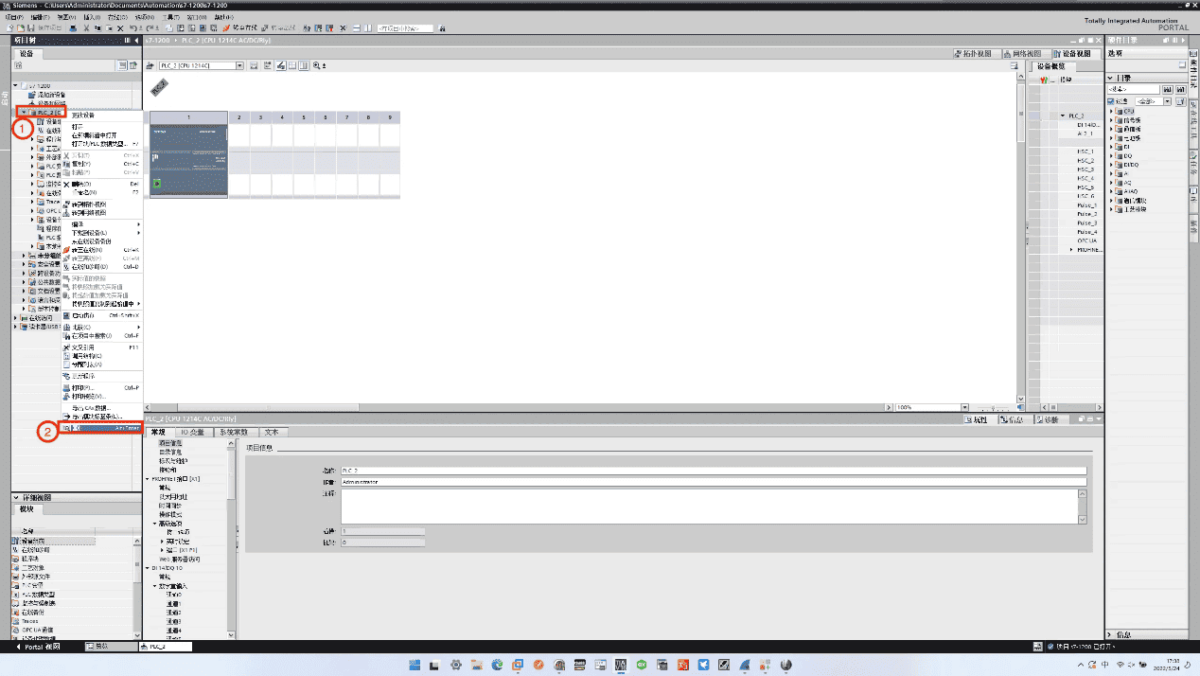
Right-click the DB block you want to use, select Properties in the pop-up dialog, and in the next dialog, uncheck Optimized block access.
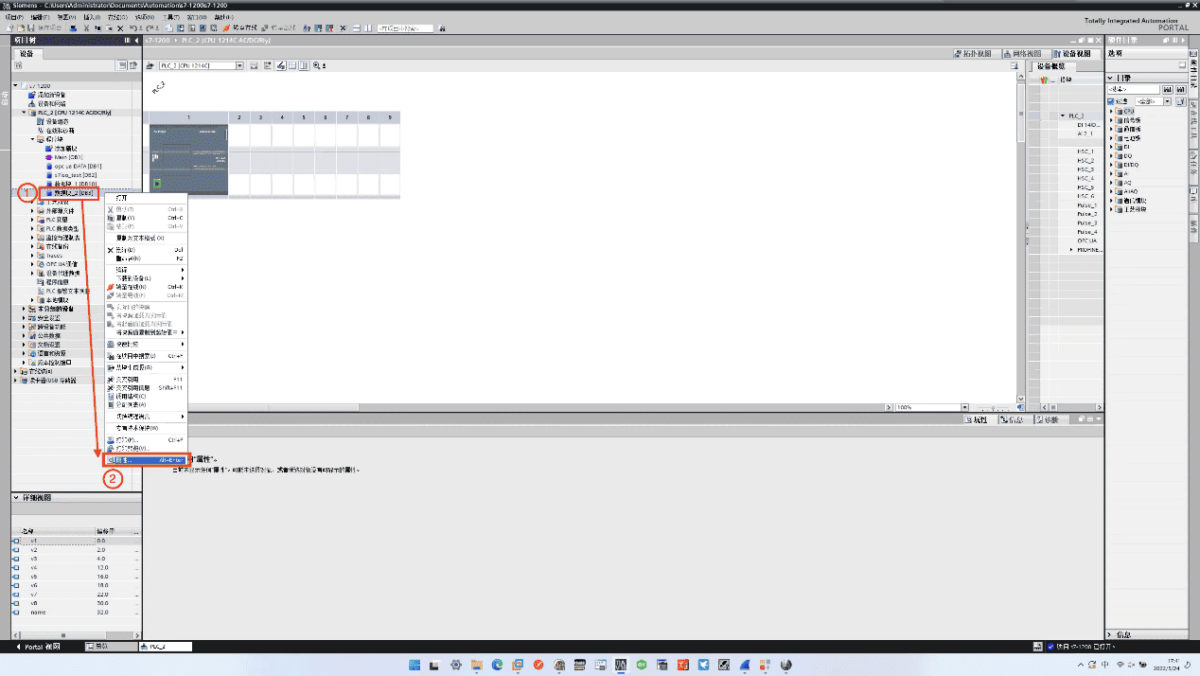
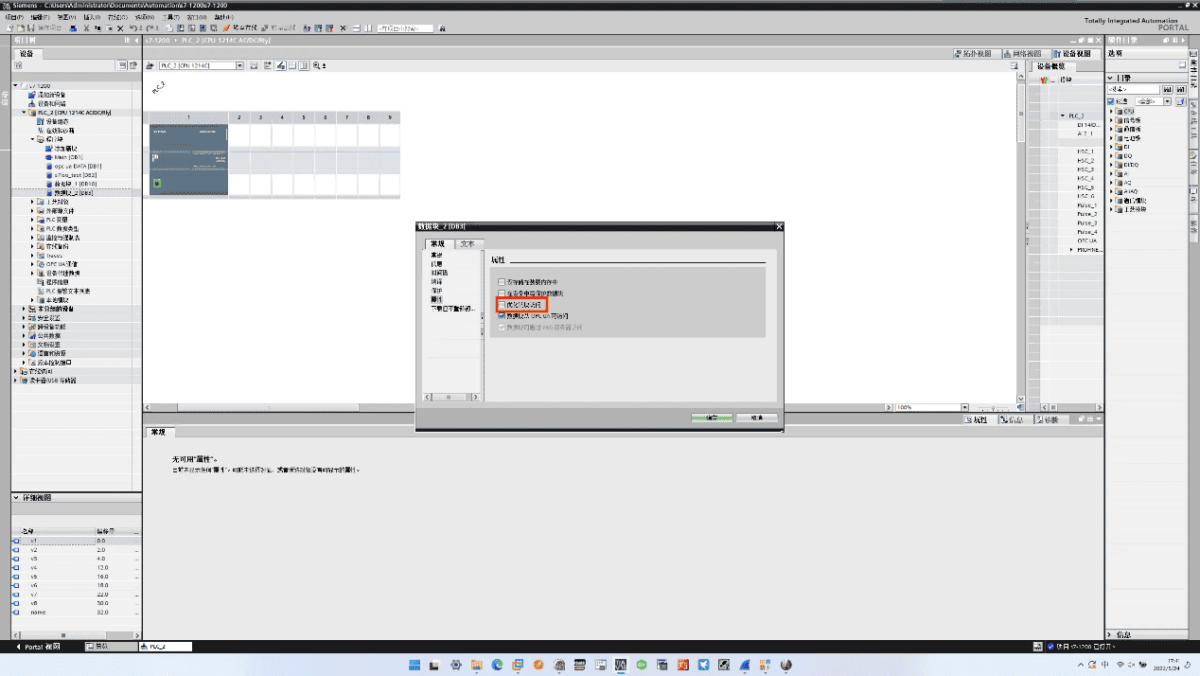
Right-click the device name, select Properties in the pop-up dialog, and set the Access Level и Connection Mechanism as shown.
3. Настройки шлюза
3.1. Настройки подключения ПЛК
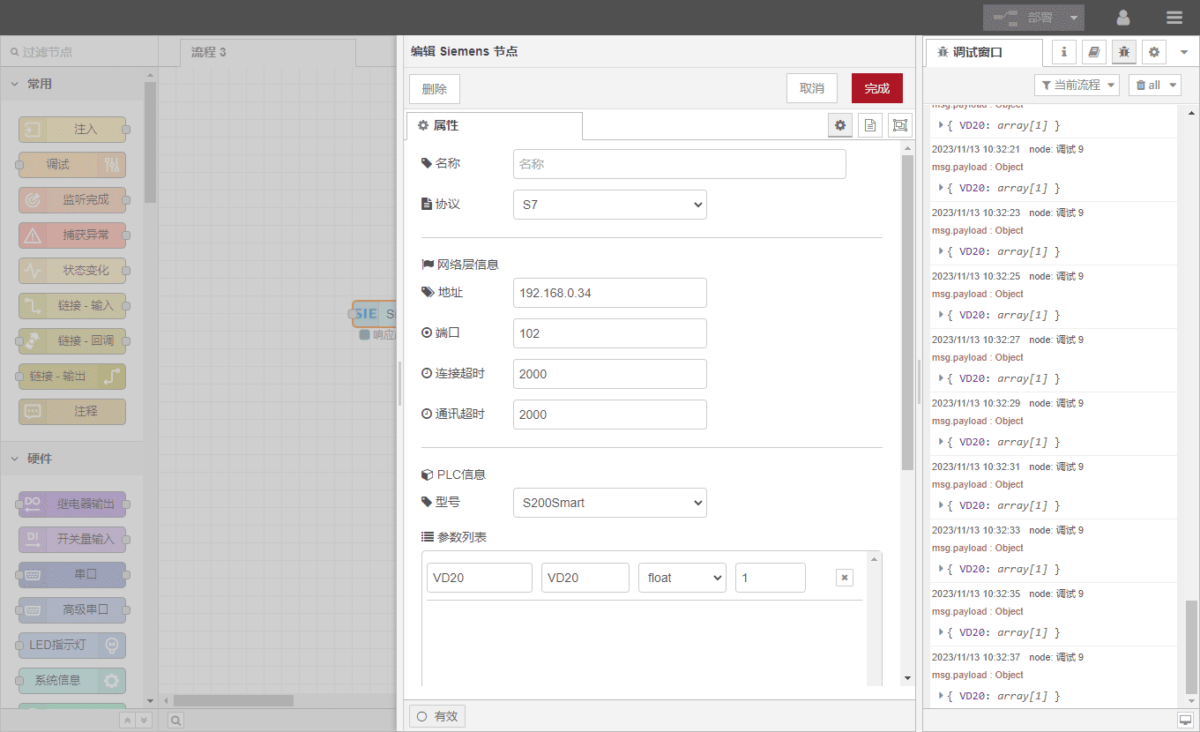
Drag a Siemens node from the left panel, double-click to open the settings page, and fill in the configuration according to the PLC communication parameters:
Адрес: IP of the PLC
Порт: 102 (default for S7 communication)
Таймаут соединения: 2000
Таймаут связи: 2000
Model: S200Smart
3.2. Конфигурация точки данных
Fill in the data points to be read in the parameter list of the Siemens node. Once the data points are configured, the gateway will automatically read the PLC data according to the set frequency.
Data points are usually provided by PLC engineers. After obtaining the point table, fill in the data points according to the gateway’s required format. The specific correspondence can be referenced here:
This is a Yuque content card, click the link to view: (Вы можете использовать Google Chrome для перевода).
https://iotrouter.yuque.com/zn3vdn/eg8000/hh3gq8an371h7xiw
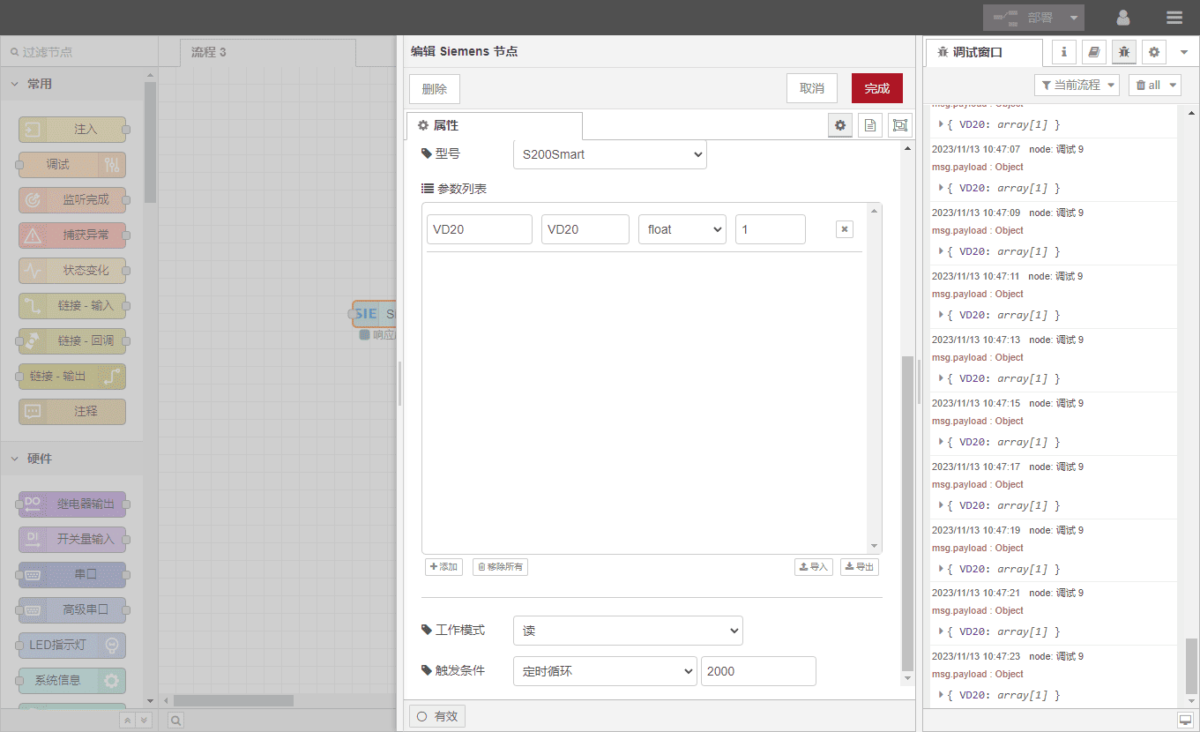
In this example, the data at address VD20 is read.
Through the STEP7 software, it can be seen that the float stored at VD20 is 415.64.
In the parameter list, fill in the Address / Name / Data Type / Data Length, set a 2-second cyclic reading, as shown.
3.3. Test
Нажмите Развернуть, and observe that a data point is printed every 2 seconds. The read data point result is: VD20: 415.64. Communication is successful!